
Azure Cosmos DB for NoSQL Setup Guide
Follow our setup guide to connect Azure Cosmos DB for NoSQL to Fivetran.
Prerequisites
To connect your Azure Cosmos DB for NoSQL to Fivetran, you need:
- An Azure Cosmos DB resource configured with the native NoSQL API
- Your Azure Cosmos DB instance's URI (for example,
https://your-cosmos-instance.documents.azure.com:443/) - Your Azure Cosmos DB instance's READ-ONLY key (primary or secondary)
Setup instructions
Choose connection method
Connect directly
Fivetran connects directly to your Azure Cosmos DB resource.
Connect using Azure Private Link
You must have a Business Critical plan to use Azure Private Link.
Azure Private Link allows Virtual Networks (VNets) and Azure-hosted or on-premises services to communicate with one another without exposing traffic to the public internet. Learn more in Microsoft's Azure Private Link documentation.
Follow our Azure Private Link setup guide to configure Private Link for your Cosmos resource.
Enable resource access
In the Microsoft Azure Portal, navigate into the Azure Cosmos DB resource you want to replicate.
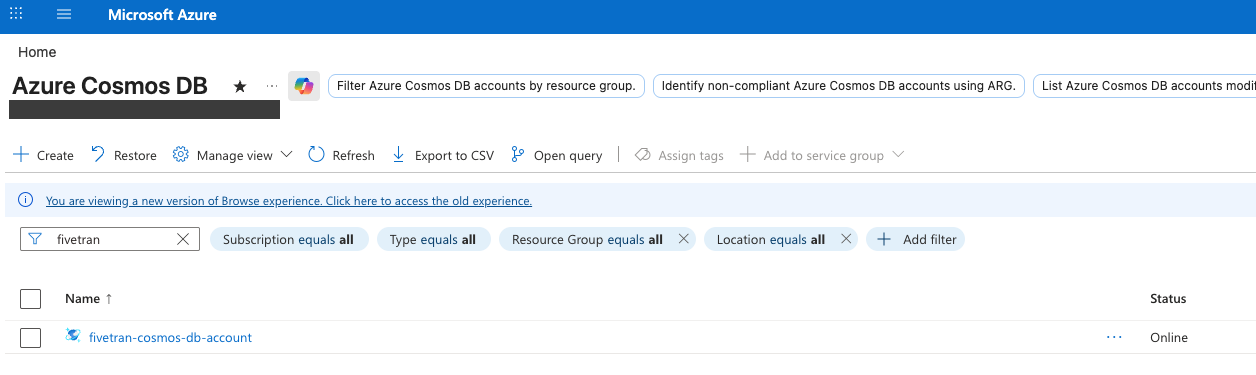
Go to the
Networkingtab.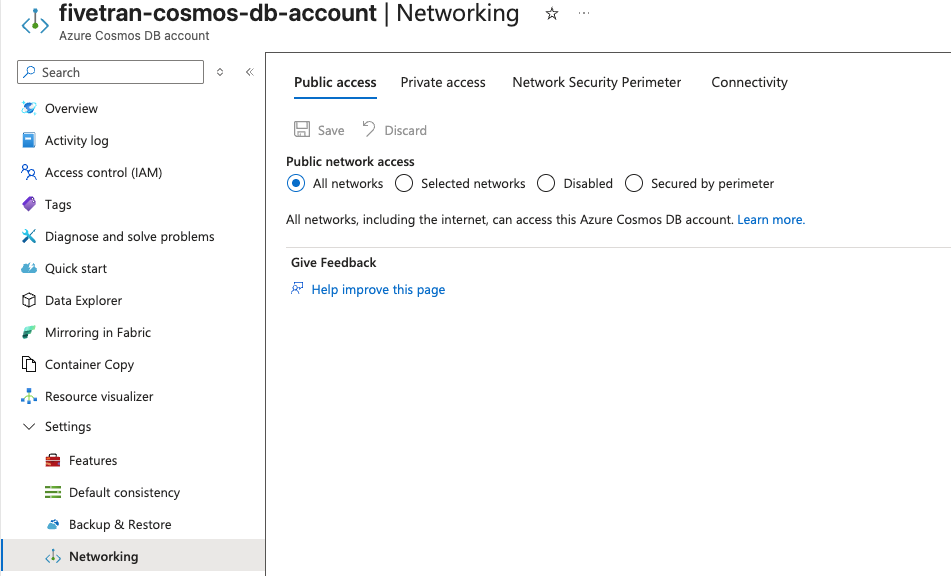
In the Public network access section, either pick All networks (not recommended) or Selected Networks to safelist Fivetran's IP addresses in your firewall. For more details, follow Microsoft's instructions on how to configure the IP policy.
For security reasons, we do not recommend the All networks option.
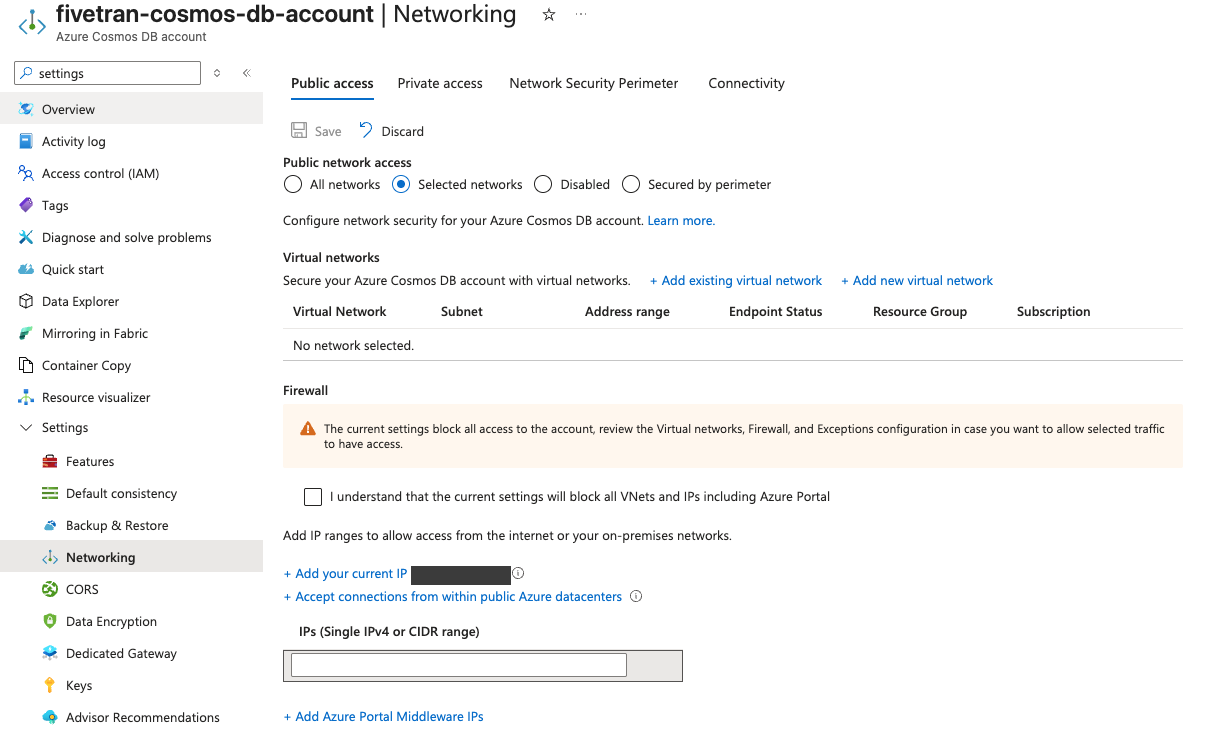
Find credentials (account key only)
These instructions apply to the account key data access method only. If you want to use the resource token method, proceed to the next step.
Navigate into the Azure Cosmos DB resource you want to replicate and go to the Keys tab.
Copy the URI and read-only key (either primary or secondary). You will need them to configure Fivetran.
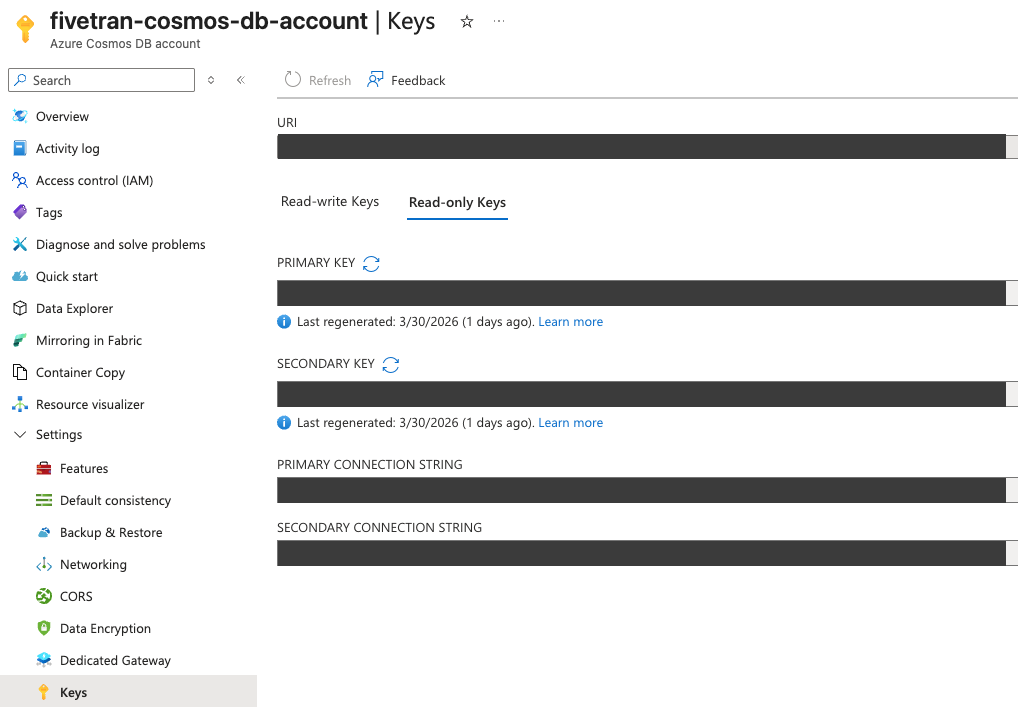
Finish Fivetran configuration
In your connection setup form, enter a destination schema prefix. This prefix applies to each replicated schema and cannot be changed once your connection is created.
In the Destination names field, choose the naming convention you want Fivetran to use for the schemas, tables, and columns in your destination:
- Source naming: Preserves the original schema, table, and column names from the source system in your destination, and ignores the Destination schema prefix specified in the setup form. However, when multiple connections share the same source schema name (for example,
public), Fivetran stores their tables in the same destination schema. Tables with duplicate names may lead to overwrites and data inconsistencies. Be sure to use unique table names across connections that write to the same schema. - Fivetran naming: Standardizes the schema, table, and column names in your destination according to the Fivetran naming conventions.
If you want to modify your selection, make sure you do it before you start the initial sync.
Depending on your selection, we will either prefix the connection name to each replicated schema or use the source schema names instead.
- Source naming: Preserves the original schema, table, and column names from the source system in your destination, and ignores the Destination schema prefix specified in the setup form. However, when multiple connections share the same source schema name (for example,
(Hybrid Deployment only) If your destination is configured for Hybrid Deployment, the Hybrid Deployment Agent associated with your destination is pre-selected for the connection. To assign a different agent, click Replace agent, select the agent you want to use, and click Use Agent.
(Optional for Hybrid Deployment) If you want to use a TLS connection between the connection and your source database in your own environment, set the Require TLS toggle to ON.
We do not support TLS 1.0.
(Not applicable to Hybrid Deployment) Choose your connection method.
In the URI field, enter your Azure Cosmos DB instance's URI.
Select your data access method.
Depending on your data access method, enter the following:
- Account key: Enter the read-only key (primary or secondary) you found in Step 3.
- Resource token: Enter the database name, container name, and resource token.
Select your pack mode.
(Not applicable to Hybrid Deployment) Copy the Fivetran's IP addresses (or CIDR) that you must safelist in your firewall.
Click Save & Test. Fivetran tests and validates our connection to your Azure Cosmos DB resource instance. Upon successful completion of the setup tests, you can sync your data using Fivetran.
Setup tests
Fivetran performs the following tests to ensure that we can connect to your Azure Cosmos DB primary instance and that it is properly configured:
- Validating that the Azure Cosmos DB resource credentials you provided in the setup form are complete and properly formatted.
- Validating that Fivetran is able to make a simple query on one of the containers in the resource.
The tests may take a few minutes to finish running.