


History Mode Setup Guide Beta
For connectors where Fivetran just replicates the schema, you can choose which tables to sync in history mode and which tables to sync in soft delete mode. Whenever a record's value changes in a source table with history mode enabled, we insert a new row in the destination table. This new row counts towards MAR. Your MAR usage depends on the number of tables with history mode enabled and how frequently the data changes in your source system. Thus, you might want to activate history mode only for those tables whose historical data is analytically valuable to you.
To switch between history mode and soft delete mode, go to the Schema tab of your connection details page and switch the toggle for the relevant tables.
Activate history mode for a table
Go to the Schema tab on your connection details page. If history mode is available for that connector, you will see the mode menu indicating either Soft delete or History sync mode.
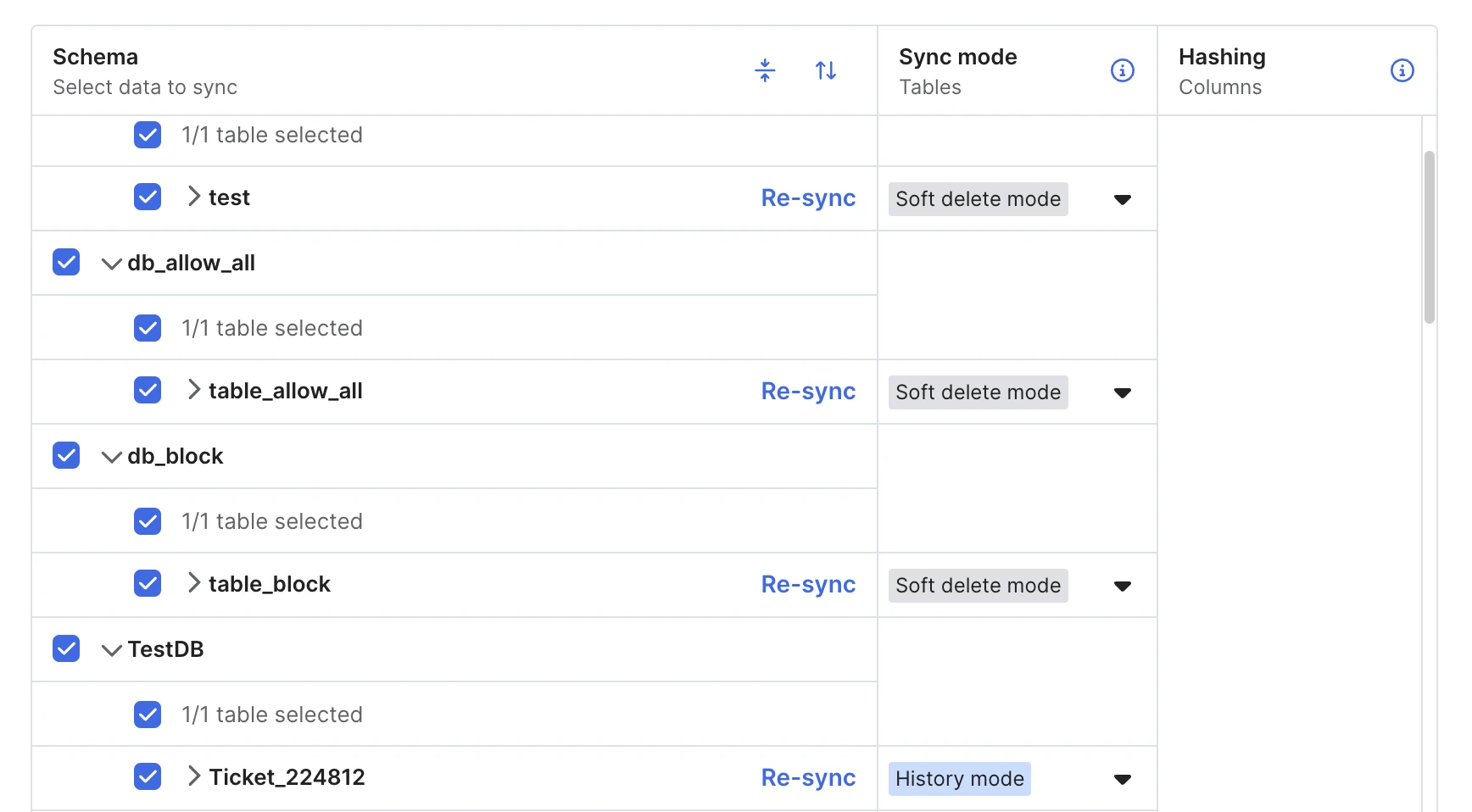
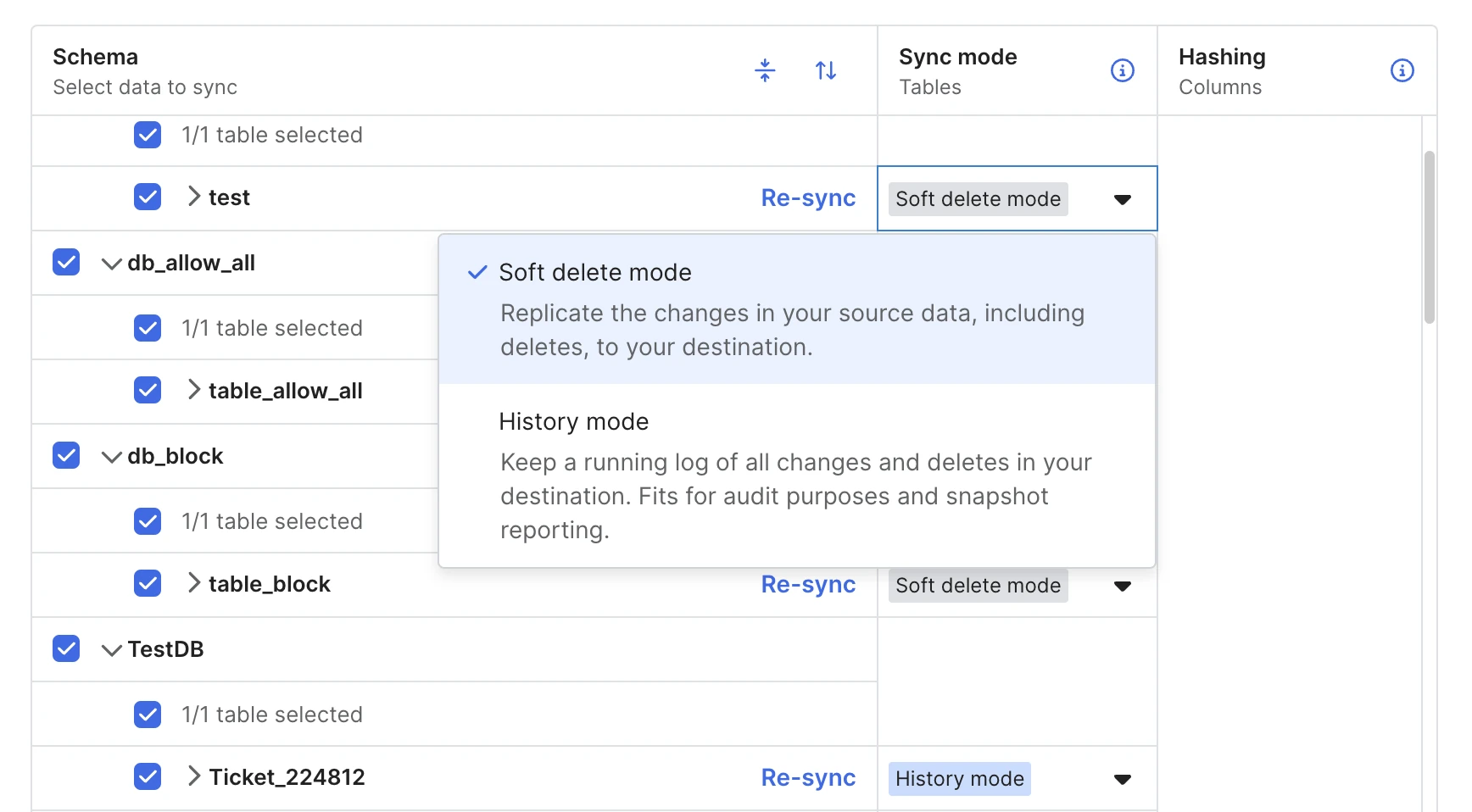
For the table where you want to sync in history mode, click its sync mode menu, and select History mode.
Click Review changes to make sure you're only making the changes you want. Review your changes in the panel on the right.
If the connection is newly created and hasn’t synced any data yet, we won’t show this confirmation dialog box.
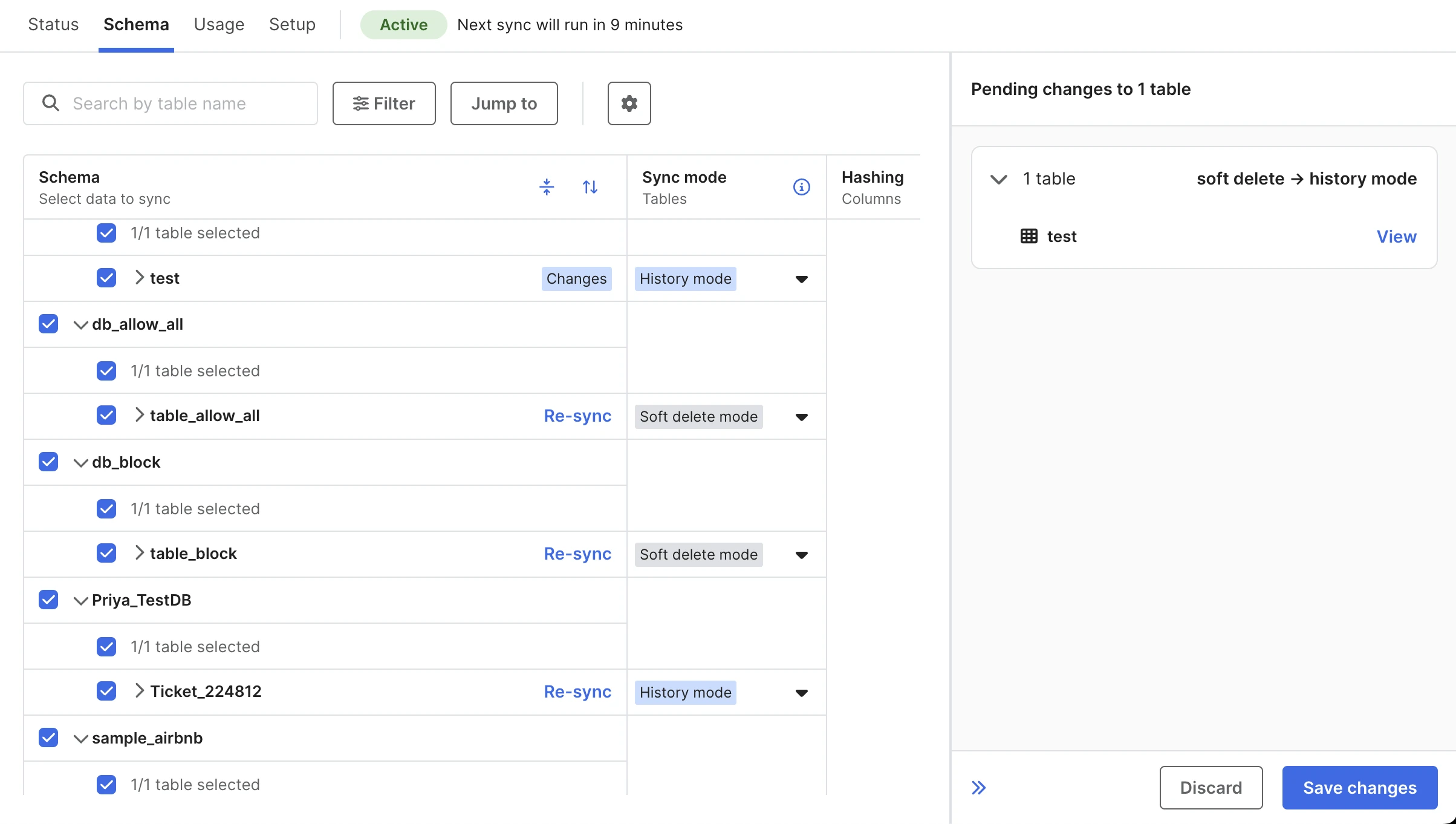
Click Save changes.
Switch a table back to soft delete mode
Go to the Schema tab on your connection details page.
Find the table you want to sync in soft delete mode, click its sync mode menu, and select Soft Delete.
Click Save Changes in the top right corner. A pop-up window will open asking you to confirm your decision.
Select Drop unused history columns
_fivetran_active_fivetran_start_fivetran_endif you want to drop these columns.Dropping these columns will cause queries that use this table to break.
Click Submit Changes.
Limitations
For the Managed Data Lake Service and OneLake destinations, when switching from history mode to soft delete or live mode, we only retain active records, where _fivetran_active = TRUE, and delete all inactive records: