
Changing Table Group
This section describes the steps to change the table group of a table or to create a new table group and assign the table to it, using option Change Table Group available on the Tables page.
By default, a table is assigned to group  GENERAL when being first added to a channel.
When changing the table group of a table in a channel with activated replication:
- Ensure all pending changes for the affected table(s) have been processed before changing the group. Let the integrate job run until all pending changes are integrated. Ensure at least two empty cycles complete before proceeding.
- After changing the table group, you must re-activate replication to regenerate jobs with the updated table group assignments.
To change or create a table group:
On the left sidebar, click TABLES to open the Tables page.
On the Tables page, click the More Options icon
 related to the required table and click Change Table Group.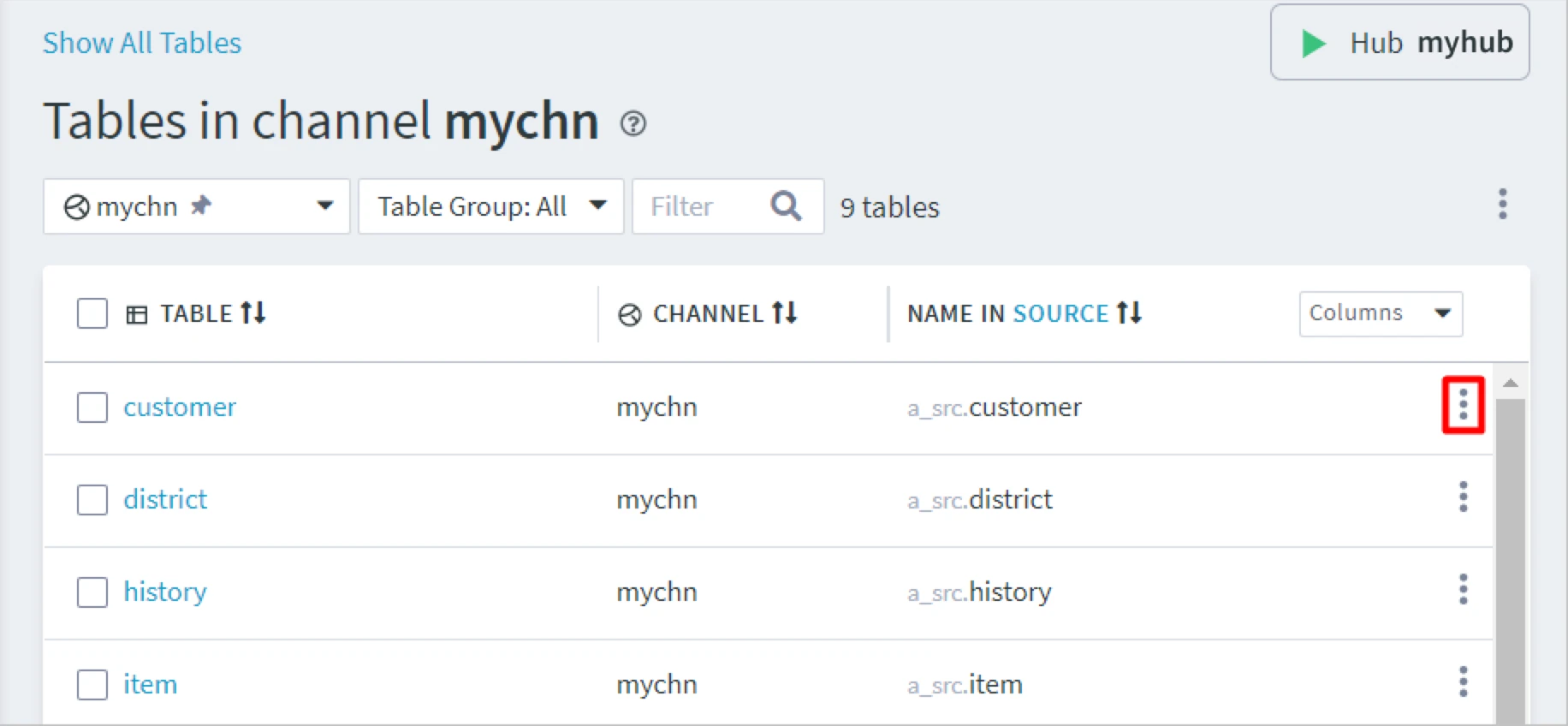
For bulk change, select multiple tables and click the More Options icon
at the top right and select Change Table Group.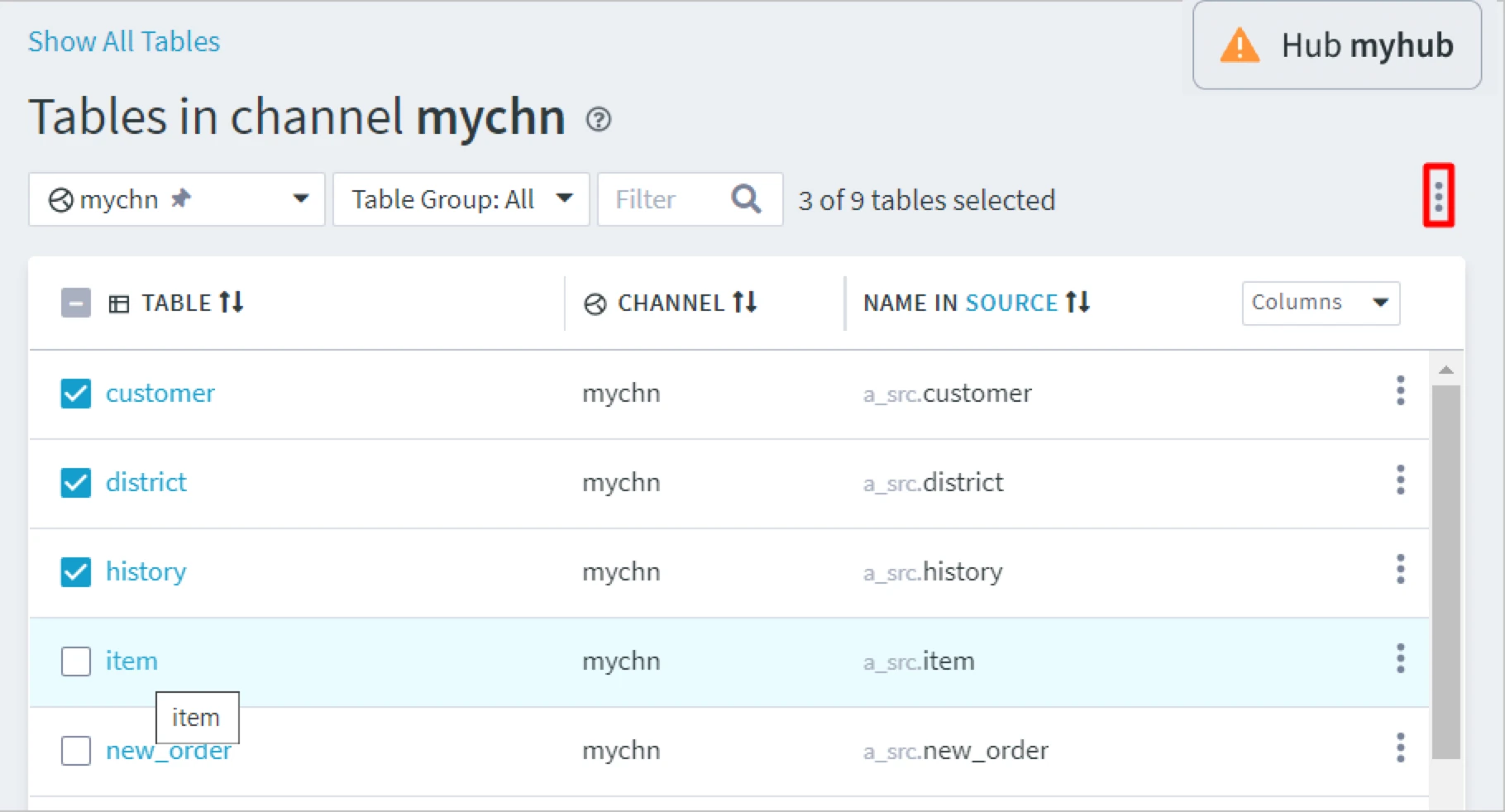
In the Change Table Group dialog:
To add the table to an existing group, select the group from the drop-down list and click Save.
To add the table to a new group, type the name of the new group in the text field and click Save.
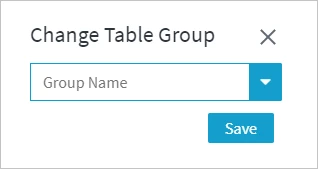
Re-activate the channel, if the table is a member of a channel with activated replication. Otherwise, skip this step.
On the Tables page, click the More Options icon
at the top right and select Activate Replication.For alternative methods to access the Activate Replication dialog, see Activate Replication.
In the Activate Replication dialog, select Jobs, Table Enrollment, and State Tables under Replication Components. Click Activate Replication.