
Azure Monitor Setup Guide
Follow our setup guide to integrate Fivetran logs into Azure Monitor.
Microsoft plans to retire the legacy Data Collector API in September 2026. We recommend migrating to the Log Ingestion API before that date.
Setup instructions
Setup instructions for legacy Data Collector API
Prerequisites
To connect Azure Monitor to Fivetran using the legacy Data Collector API, you need an Azure account with a Log Analytics workspace.
Locate workspace ID and primary key
Log in to Azure Portal.
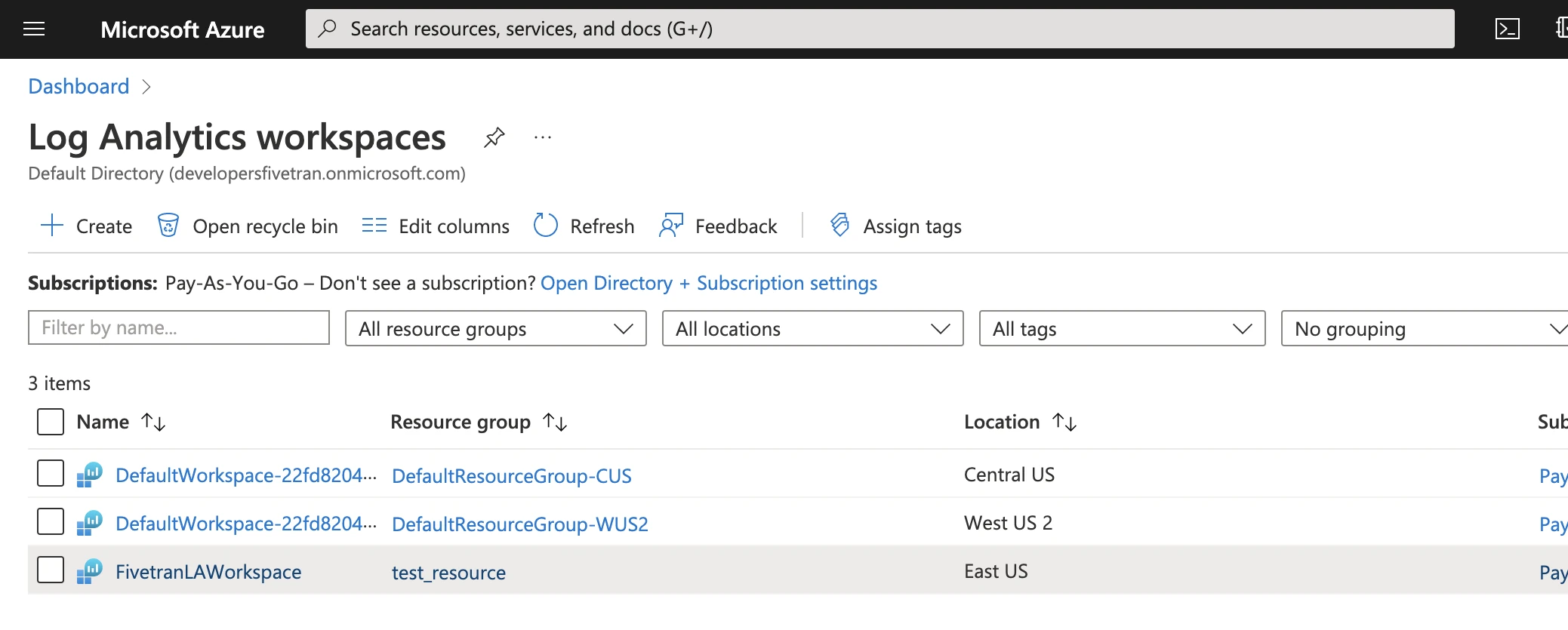
Go to Home > Log Analytics Workspace and select your workspace from the list.
In the left navigation panel, click Agents, choose the server type, and open the Log Analytics agent instructions section.
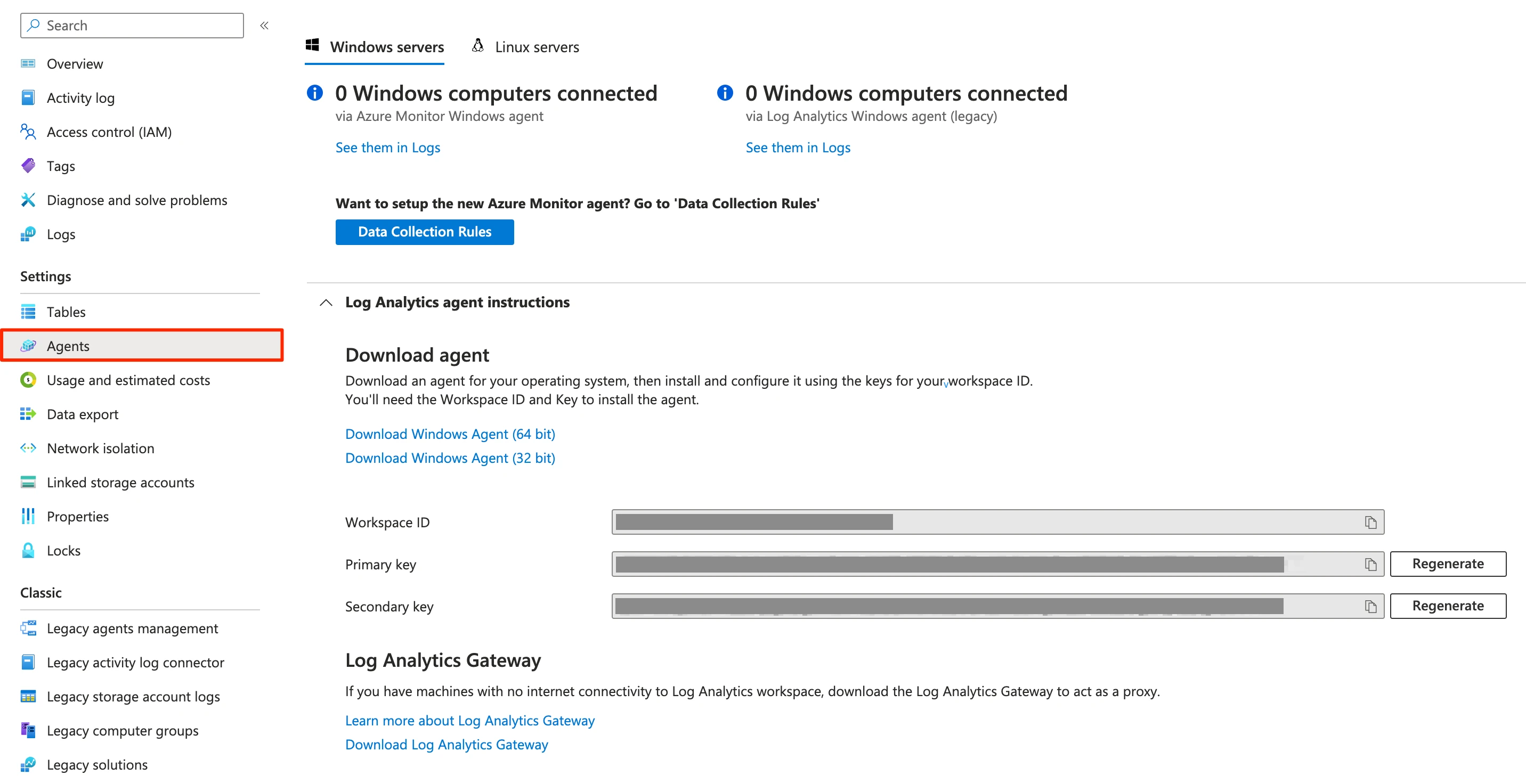
Make a note of the Workspace ID and Primary key you see in the Log Analytics agent instructions section. You will need them to configure Fivetran.
If you don't see a primary key under Log Analytics agent instructions, you can fetch it using the Azure CLI with the following commands:
az account set --subscription "<SubscriptionId>"
az monitor log-analytics workspace get-shared-keys \
  --resource-group "<ResourceGroup>" \
  --workspace-name "<WorkspaceName>" \
  --query "{primaryKey: primarySharedKey}"
The parameters required for the above CLI requests (SubscriptionId, ResourceGroup and WorkspaceName) are available in the Overview section of the corresponding Log Analytics Workspace.
Finish Fivetran configuration
- Go to the external log setup form.
- Enter the Workspace ID and Primary key you found in Step 1.
- Click Save & Test. Fivetran will take it from here and sync your logs to Azure Monitor.
Setup test
Fivetran performs the Connect to Azure Monitor Logs setup test to check service accessibility and the credentials you provided in the setup form.
Setup instructions for Log Ingestion API
Prerequisites
To connect Azure Monitor to Fivetran using the Log Ingestion API, you need:
An Azure account with a Log Analytics workspace.
A registered Microsoft Entra ID application with its Client ID, Client Secret, and Directory ID.
A configured Data Collection Endpoint (DCE) and Data Collection Rule (DCR) in your Azure environment.
A custom table in your Log Analytics workspace configured with the following columns that Fivetran sends with each log entry:
Column Type Description LevelstringLog level (e.g. INFO,WARNING,SEVERE)CreatedAtdatetimeTimestamp of the log event MessagestringLog message body
Locate Microsoft Entra ID application credentials
In the Azure Portal, navigate to Microsoft Entra ID and select App registrations.
Find your application in the list and open it.
Make a note of the Application (Client) ID and Directory (Tenant) ID shown on the overview page. You will need them to configure Fivetran.
If a client secret has not been generated yet, select Certificates & secrets > New client secret, fill in the description and expiry, then click Add. Make a note of the generated secret Value — it will only be shown once.
Locate the Data Collection Endpoint logs ingestion URI
Skip this step if you are using the DCR's own ingestion endpoint. In that case, the ingestion URI is available directly from the DCR JSON view in Step 3.
In the Azure Portal, navigate to Monitor and select Data Collection Endpoints.
Select your endpoint from the list to view its properties.
Make a note of the Logs Ingestion URI. You will need it to configure Fivetran.
Locate the Data Collection Rule properties
In the Azure Portal, navigate to Monitor and select Data Collection Rules.
Select the required DCR from the list to open it.
From the Overview page of the DCR, select JSON View.
Make a note of the following values. You will need them to configure Fivetran:
immutableId- The unique identifier of the DCR.logIngestion- The DCR-level ingestion endpoint underproperties.endpoints, if you use the DCR's own ingestion endpoint instead of a dedicated DCE.- Log stream name — The name of the stream defined in the DCR dataflow that maps to your target table. It can be found in DCR JSON View
dataflows[0].streams[0]
Finish Fivetran configuration
- Go to the external log setup form.
- Enter the Application (Client) ID, Directory (Tenant) ID and Client secret you found in Step 1.
- Enter the Logs Ingestion URI you found in Step 2 or DCR logIngestion you found in Step 3.
- Enter the DCR values
immutableIdand Log stream name you found in Step 3. - Click Save & Test. Fivetran will take it from here and sync your logs to Azure Monitor.
Setup test
Fivetran performs the Connect to Azure Monitor Logs setup test to check service accessibility and the credentials you provided in the setup form.
Migrating from the legacy Data Collector API table to a DCR-based table
How to migrate from the legacy Data Collector API table to a DCR-based table
Follow the Microsoft migration guide to migrate your existing custom logs to the DCR-based table.
If you've migrated your existing custom log table, and the table contains the createdAt_t column, you must map a new column, CreatedAt, to the existing createdAt_t column:
Add
createdAt_tcolumn in stream declaration:az monitor data-collection rule update \ --resource-group "loganalyticsdefaultresources" \ --name "ft_log_ingest_test_dcr" \ --add stream_declarations.Custom-ft_log_ingest_test_CL.columns '{"name":"createdAt_t","type":"datetime"}'Add column mapping (append your existing logic in
transformKql, if necessary):az monitor data-collection rule update \ --resource-group "<Resource group name>" \ --name "<DCR Name>" \ --set "data_flows[<Data flow number in array>].transformKql=source | extend createdAt_t = CreatedAt | project-away CreatedAt"