
Triggering & Scheduling
Running a sync manually is not that useful on its own. The real power of Activations is having your syncs run automatically. Once you've got your sync up and running, you can configure your sync to run automatically in several ways:
- Schedule (including via Cron)
- After other connections, transformations, and activation syncs complete
- After a dbt Cloud activity completes
- With Orchestration using Airflow, Dagster, or Prefect
- Programmatically via API
Schedule
Schedules let you specify a time and frequency that Activations can use to run your sync automatically. You can choose options from weekly all the way to Continuous, which means Activations checks your source roughly every minute for new changes.
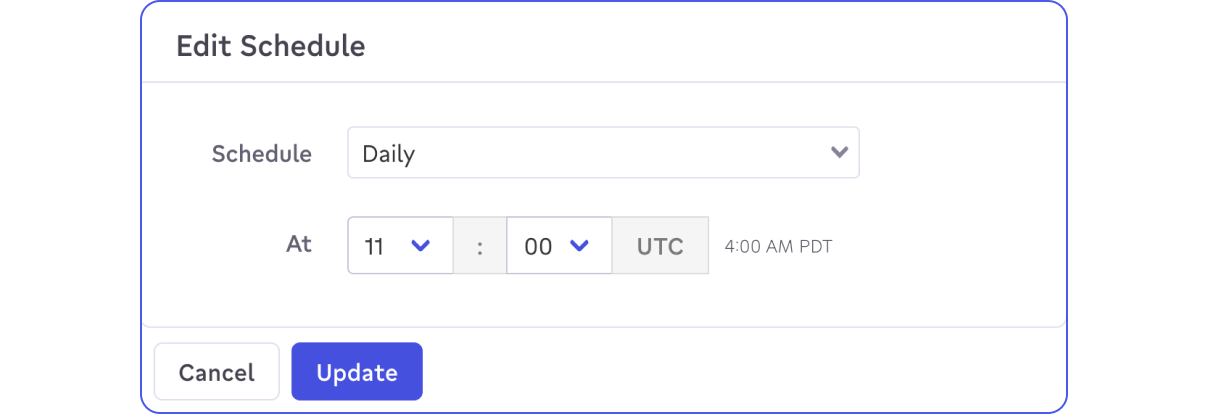
To remove a schedule from a sync, click the edit icon and select Manual from the drop down list.
Cron Custom Schedules
The last scheduling option is Cron. Cron lets you schedule syncs on arbitrary schedules such as every 3 hours, or only week days. Activations accepts standard Cron definitions up to minute granularity (second-level granularity cron definitions are not supported). A Cron schedule is specified by a series of five values, separated by spaces. In order, the values are Minute-of-hour, hours-of-day, Days-of-month, Months-of-year, and Day-of-week. The timezone is UTC.
Here's a few examples of common Cron schedules:
- Once an hour, on the hour, every four hours:
0 */4 * * * - Hourly during weekdays:
0 * * * 1,2,3,4,5 - Minutely on the 5th, 6th, and 7th hours of the day in UTC timezone:
0 5,6,7 * * *, executes sync jobs at 9pm, 10pm and 11pm PST or 12am, 1am and 2am EST
Please note: If including a range in your CRON schedule you'll want to make sure the values in the range are in a comma separated list.
Example:
Hourly during weekdays should be: 0 * * * 1,2,3,4,5 instead of 0 * * * 1-5
Other Connections, Transformations, and Activation Syncs
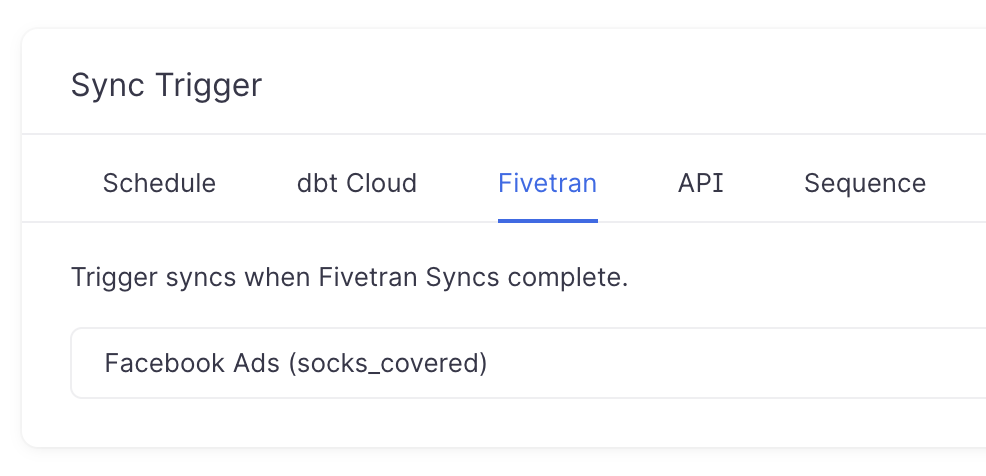
You can trigger activation syncs based on upstream activity from both other activation syncs as well as the rest of Fivetran's connections and transformations. If your syncs have dependencies and you'd like to organize them to run in order, you can use a Sequence, which runs a dependent sync whenever its specified parent sync completes successfully. On the sync configuration page, activation syncs appear in the Sequences tab, while Fivetran connections and transformations appear in the Fivetran tab.
dbt Cloud
dbt Cloud is an integration you can use to compile your dbt project, and Activations can trigger syncs whenever one of your dbt Cloud project runs has completed. Select your dbt Cloud project's job to monitor and Activations will automatically trigger a sync when it completes.
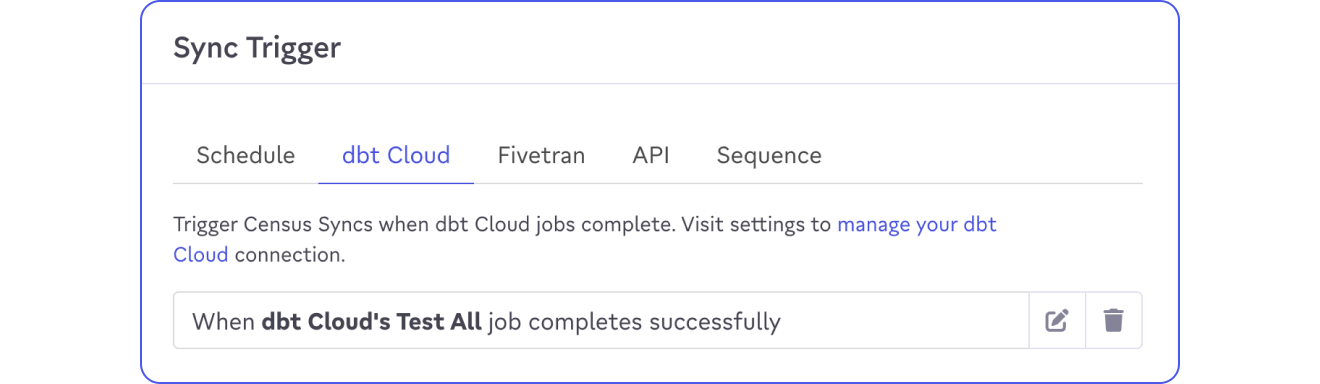
Using dbt Cloud to trigger syncs works great with dbt Models but is not required. Both dbt integrations can be used independently.
To connect Activations to your dbt Cloud, you'll first need a dbt Cloud API key. We use this to subscribe to webhooks for each job you specify.
- dbt strongly recommends you use a Service Account token, though User API keys with the correct permissions are accepted. Service Account tokens can be created by users with Account Admin (Enterprise plan) or Owner (Team plan) permissions.
- The Service Token requires at least the
developerpermission (for Enterprise) orMemberpermission (for Team) in order to configure new webhooks. See dbt Cloud docs for more details.
You'll also need to know your dbt Cloud account's region URL. This may be one of the shared regions, or a custom URL specific to your organization. It should be of the form something.getdbt.com (you can skip the https://).
With your token and your region URL in hand, you can now connect dbt Cloud to your dbt project.
- Visit Organizations Settings and select the Integrations tab.
- Provide your region URL and copy your dbt Cloud API key
- Verify your credentials are correct and have the proper permissions, then Save your integration.
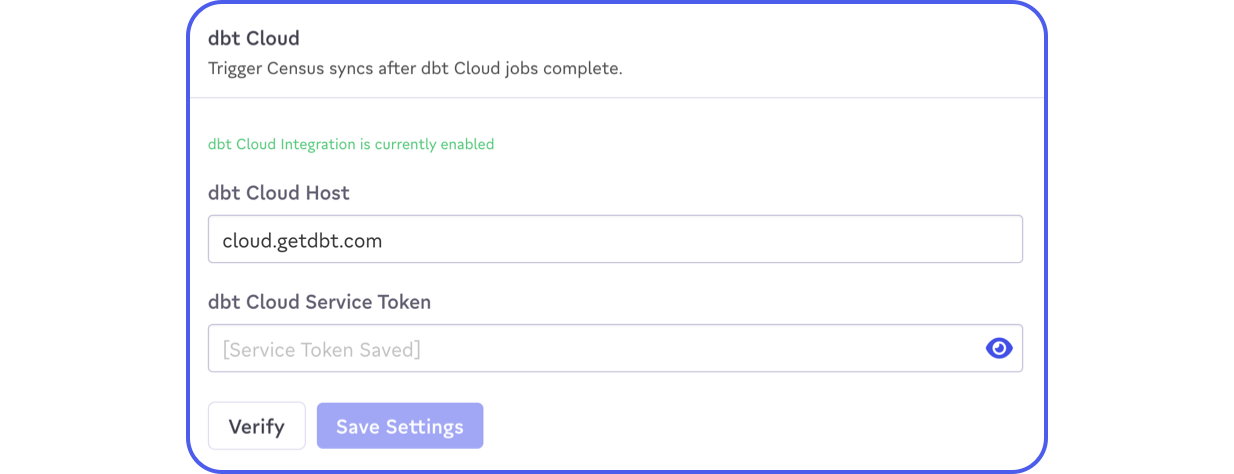
Now, you'll be able to use a dbt Cloud job to trigger syncs. Visit the Configuration tab of any of your syncs.
Sync Trigger API
Each sync can also be triggered via API. On the sync configuration page, you can access the trigger API endpoint for the sync.
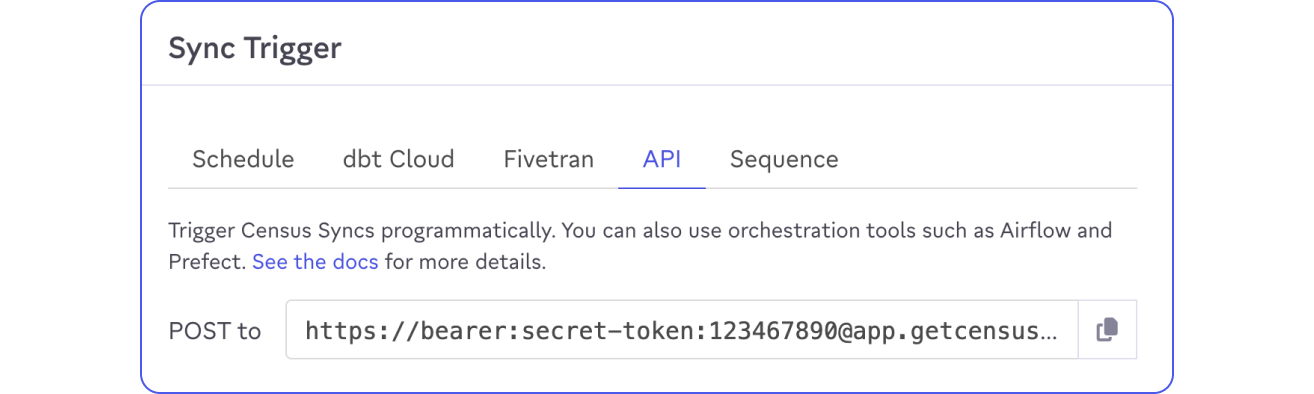
An empty HTTP POST call to this endpoint will trigger the sync (no need to provide any data in the body). You can use this API to automatically trigger activation syncs as part of your data pipeline, running syncs once the models they depend on have been rebuilt.
POST /syncs/[ID]/trigger
curl -X POST "https://bearer:[API_TOKEN]@app.getcensus.com/api/v1/syncs/[SYNC_ID]/trigger"
{
    "status": "success",
    "data": {
        "sync_run_id": 1234567890
    }
}
| Response Property | Description |
|---|---|
| status | success or error indicating whether the sync was triggered. |
| data | Present if successful. An object containing the sync_run_id |
| message | Present if error. Contains message describing the error. |
GET /sync_runs/[ID]
You can use the sync_run_id returned when successfully triggering a sync execution and get status on its progress or determine when it has completed.
curl "https://bearer:[API_TOKEN]@app.getcensus.com/api/v1/sync_runs/[SYNC_RUN_ID]"
{
    "status": "success",
    "data": {
        "error_message": null,
        "records_failed": 15,
        "records_invalid": 5,
        "records_processed": 100,
        "records_updated": 80,
        "status": "completed"
    }
}
| Response Property | Description |
|---|---|
| status | success if sync_run was found |
| data | Present if successful. Contains the following properties: |
| status |
|
| records_processed | Number of new or updated records retrieved from the source |
| records_updated | Number of records successfully sent to the destination |
| records_invalid | Number of records skipped by Activations because of data quality issues. |
| records_failed | Number of records rejected by the destination. |
Airflow
Heads up: Unlike Airflow 2, Airflow 1 doesn't show any non-"core" providers (i.e. Activations!) in the connections UI. If you're using Airflow 1, Activations should be configured as an "HTTP" Conn Type, as documented here.
Whether you're using Astronomer or self-hosting your own instance, you can use Activations' Airflow Provider to trigger and monitor activation syncs.
Visit the Activations Airflow Provider GitHub repository for more details on how to use it for your project.
Dagster
The Dagster team maintains our Dagster Activations integration for triggering syncs. You can read more in their documentation.
Prefect
Similarly, Prefect maintains our Prefect Activations integration for triggering syncs. You can read more about how it works in our blog post.