
Algolia
This page describes how to use Activations with Algolia.
Getting Started
In this guide, we will show you how to connect Algolia to Activations and create your first sync.
1. Collect your Algolia Credentials
Activations needs the following information to create an Algolia connection, both of which can be found in the same page.
First, ensure your desired application is selected in the Application dropdown menu of the Algolia UI. Then navigate to the Settings page then click on the API Keys option under Teams & Access.
- Application ID - The alphanumeric string at the top of the Your API Keys tab.
- API Key - Activations uses the
listIndexes,search, andaddObjectpermissions. We recommend you create a new API key by navigating to the All API Keys tab and pressing New API Key. Provide at least those permissions in the ACL section. You can optionally restrict Activations to a specific set of indexes as well.
2. Connect Algolia in Activations
- In Activations, navigate to Destinations
- Click the New Destination button
- Select Algolia in the dropdown list
- Enter your credentials and click Connect
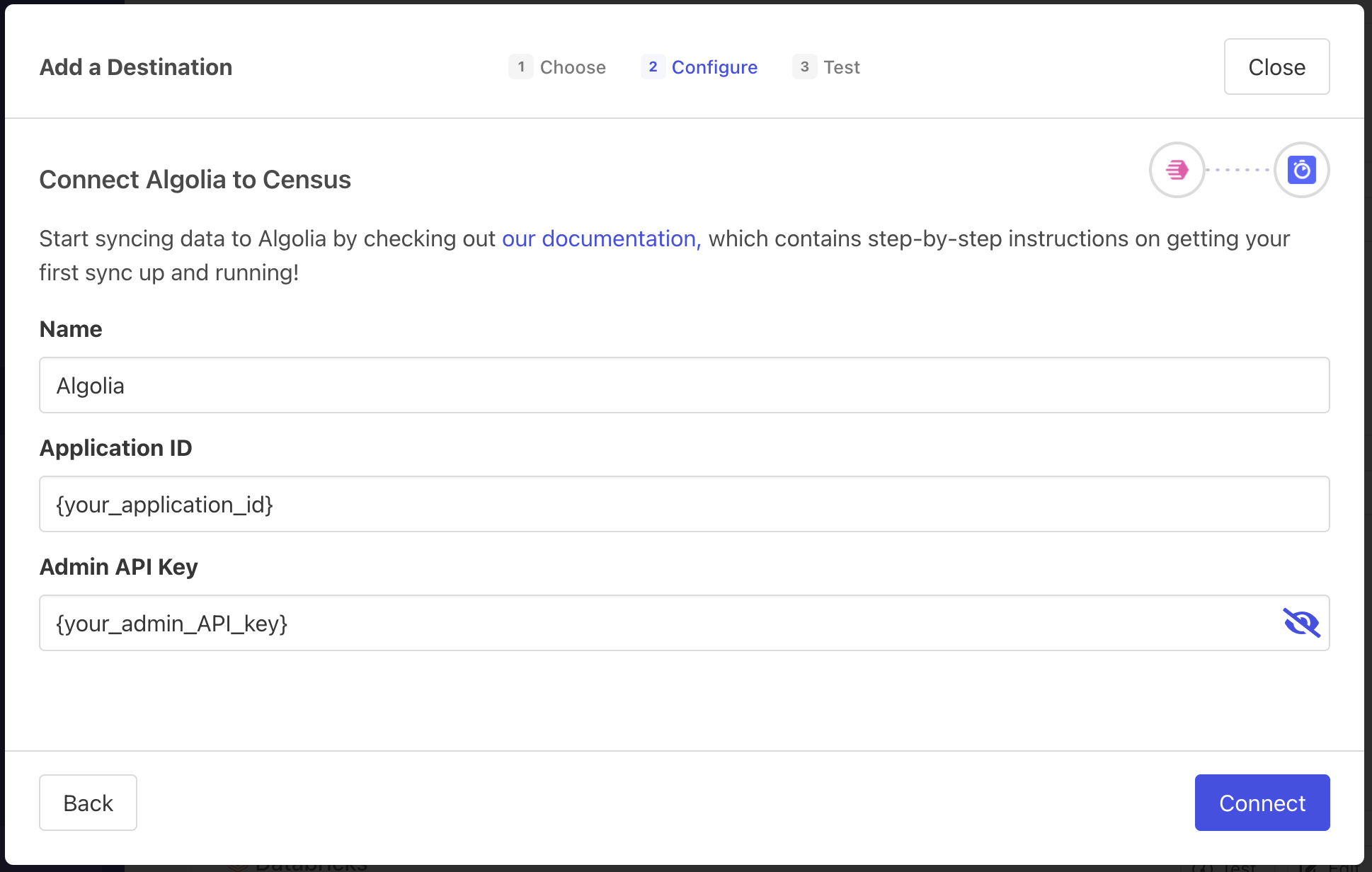
That's it! In 2 steps, you connected Activations to Algolia. If you have any questions or if you have any issues getting started, please reach out to the Support team
Supported Objects and Behaviors
Algolia stores data within collections called Indices. Your Indices in Algolia can be used as objects to sync to from Activations.
| Object Name | Supported? | Sync Keys | Behaviors |
| Index | ✅ | Object ID | Update or Create |
Contact Support if you want Activations to support more objects for Algolia.