
Slack
Turn analytics signals and insights into Slack alerts to help GTM teams identify opportunities, personalize outreach, and prevent churn. All without writing a single line of code.
Getting Started
In this guide, we will show you how to connect Slack to Activations.
Prerequisites
- Have your Fivetran account ready. If you need one, start a free trial now (or take a look at our pricing for paid plans).
- Have your Slack account ready.
- Have the proper credentials to access to your data source. See our docs for each supported data source for further information.
Step 1. Connect Activations to Slack
In the Destinations page in Activations, Click the New Destination button in the top right, and select Slack.
If you are not already logged in to Slack, you will be redirected to a page to log in to Slack to authorize your account to use Activations. Once you are logged in, you'll see a page like the image below, confirming you want to authorize Activations.
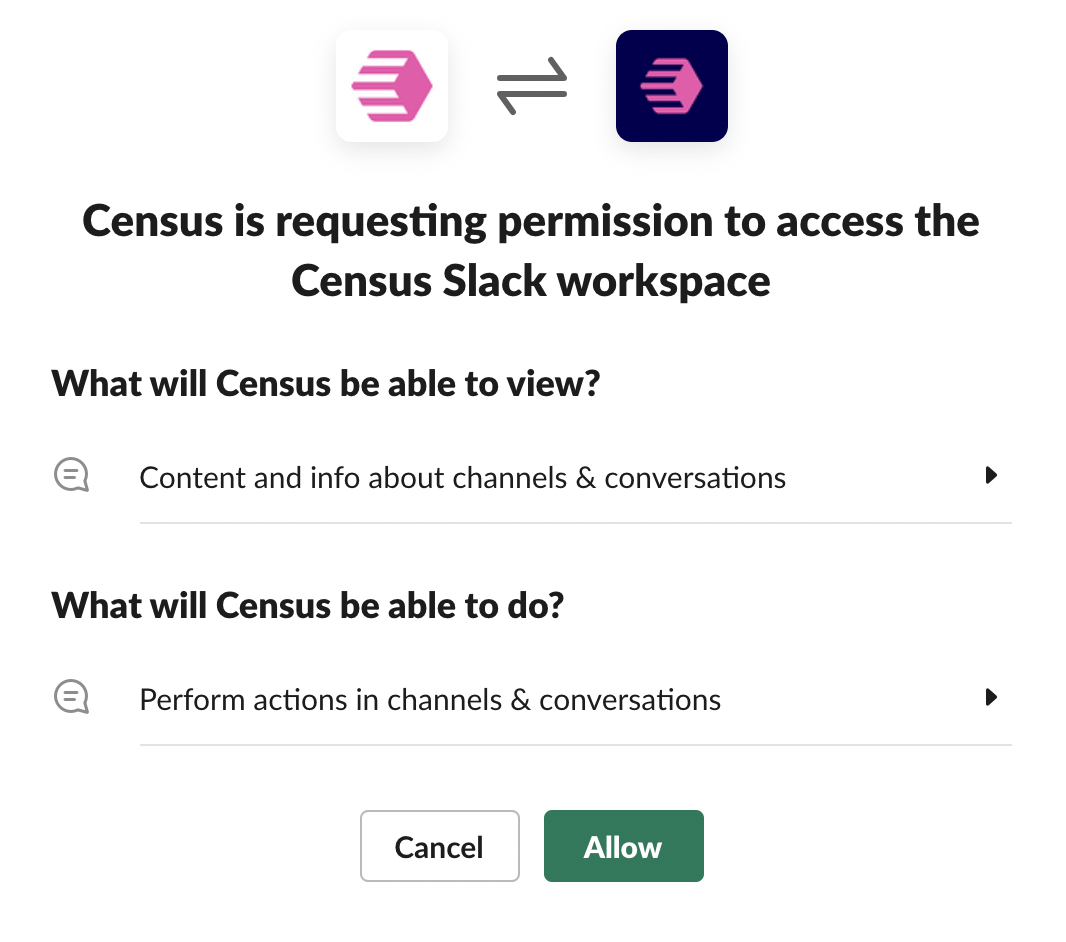
Once you've authorized Activations, you'll be redirected back to the Destinations page in Activations and you should see your Slack connection there.
Step 2. Connect Activations to your data source
See our docs for each supported data source for further information.
Step 3. Create your first Activations dataset
Navigate to the Dataset page in Activations and click the Add Dataset button.
Here you can a write SQL query to select the data you want to send to Slack.
Once you have created your dataset, give it a useful name, and click Save Dataset.
Step 4. Create your Activations Sync
Navigate to the Syncs page in Activations and click the New Sync button.
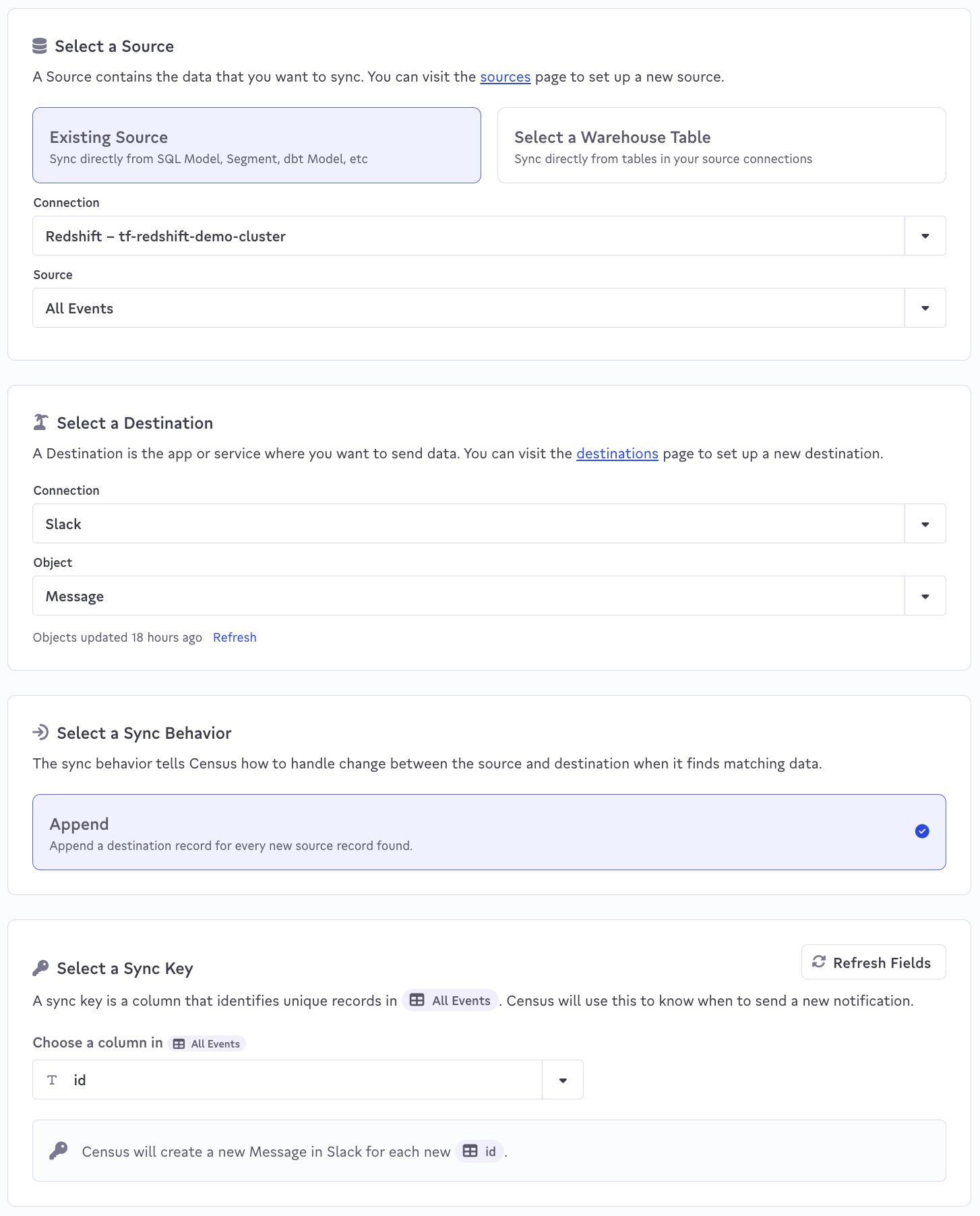
Setup your Source, Destination, and Sync Key
You'll need to start by specifying how to identify entries in your data warehouse that should trigger a Sync:
- For Source > Connection, select the data warehouse you connected in step 2.
- For Source > Source, select the dataset you created in Step 3.
- For Destination > Connection, select Slack
- For Destination > Object, Message should be auto-selected
- Next, pick the column that uniquely identifies each record in your data source. Activations will use this to identify new records that need to be used to send messages to Slack.
Setup your Message
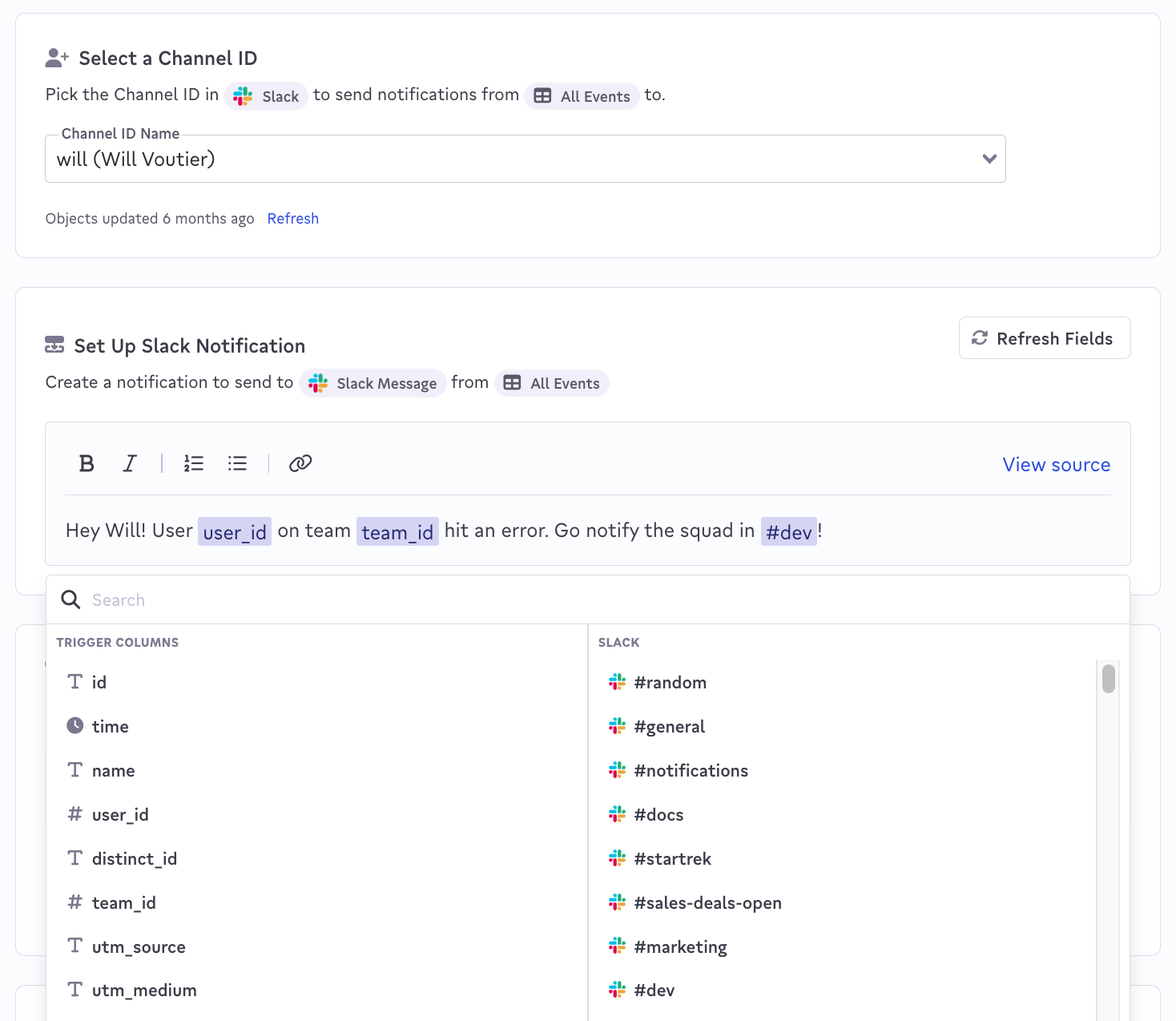
- Select the Slack channel you'd like to send messages to.
- Finally, use the text editor to customize the message that you wish to send.
- To embed values from the trigger columns or to mention users or channels from your Slack account, use the dropdown that will appear. If the list is long, try the search function.
Test your Slack message
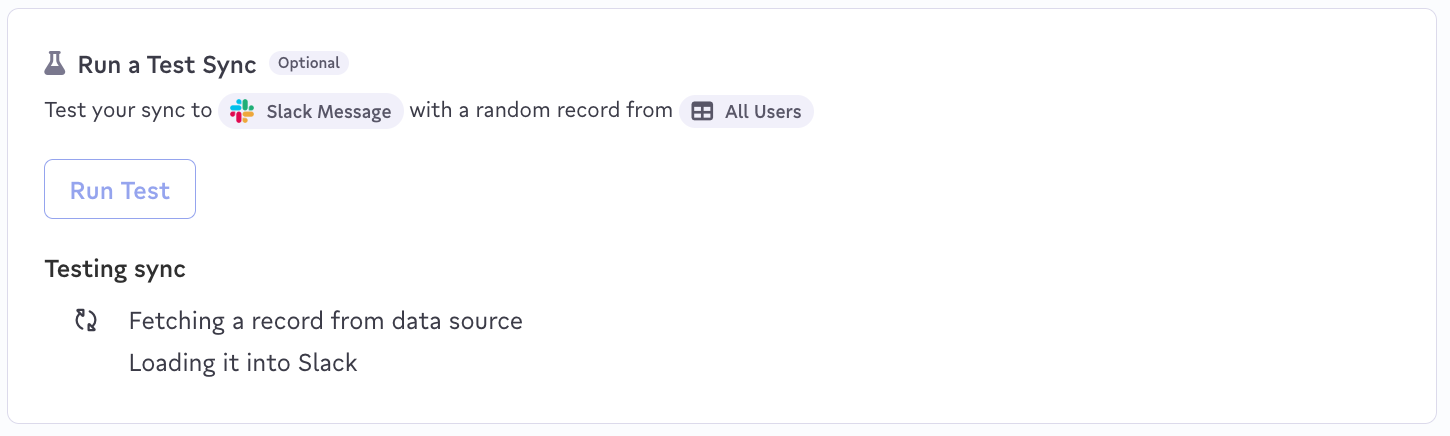
- Click the Run Test button to see a single random record sent to your destination. For testing, you may want to temporarily change the destination message yourself.
Finishing touches
- Click the Finish button and you'll be taken to your new notification. You can now Schedule the sync to run on a schedule or run it manually yourself.
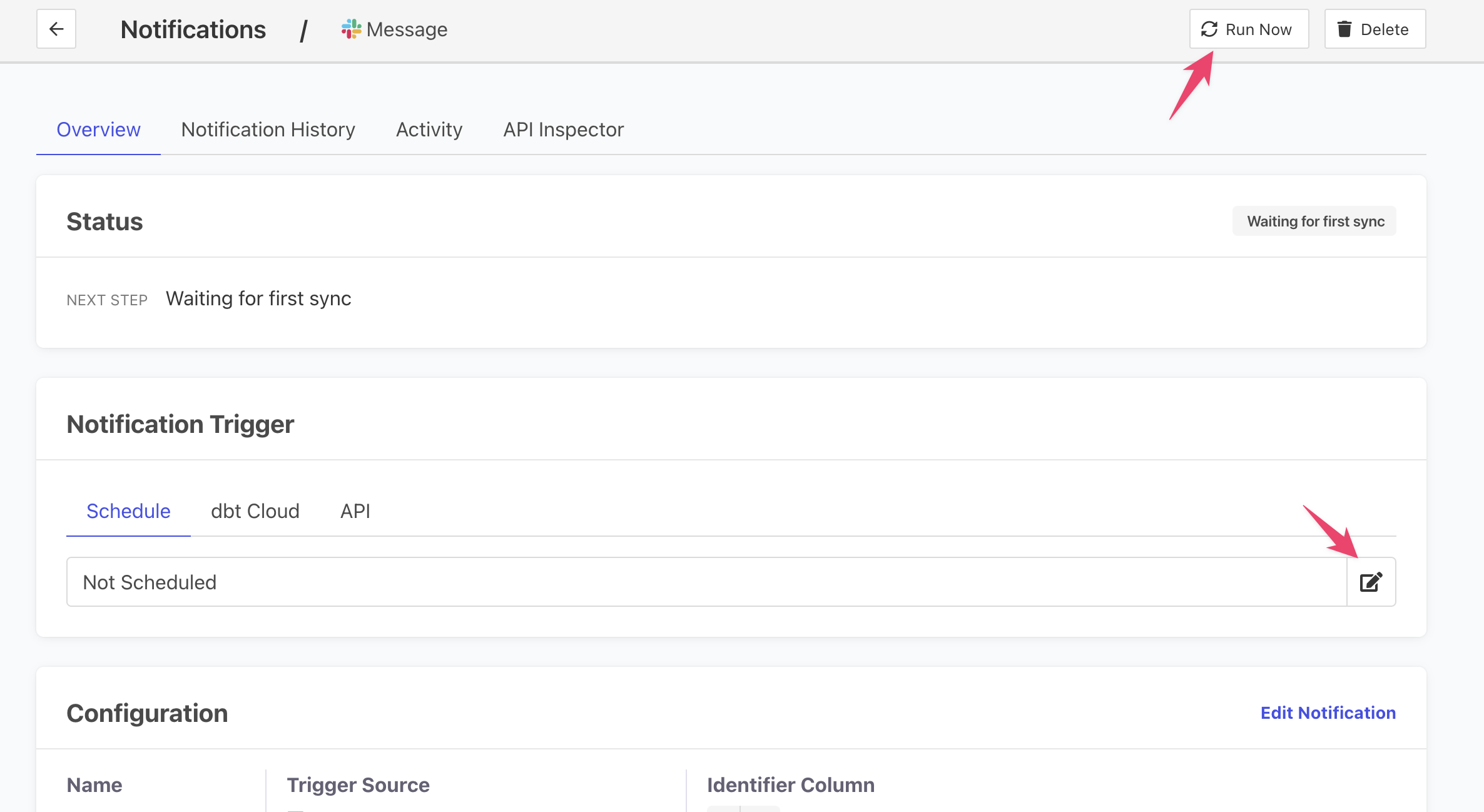
Configure your new Notification to run on a set schedule or run it manually.
Reminder: Activations will send records to a Slack channel one at a time.
Dynamic User Mentions
The Member ID can be used to mention specific channel members in a Slack message.
Example:
select '<@U012345>' as USER_MENTION_1
        ,'@U012345' as USER_MENTION_2
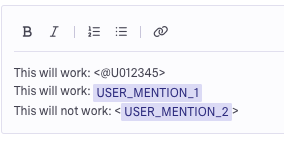
User Mention Example
Hyperlinks
To add hyperlinks there are a couple of ways to include them based on your goal.
- If you have a static list that won't be changing from record to record the template editor supports highlighting the text you want linked and copy and pasting the link to automatically hyperlink.
- If you want dynamic hyperlinks that vary based on the record you can create a column within your source data formatted like the below and reference the hyperlink column in your message template.
SELECT '<http://example.com/test | Text to display>' as hyperlink
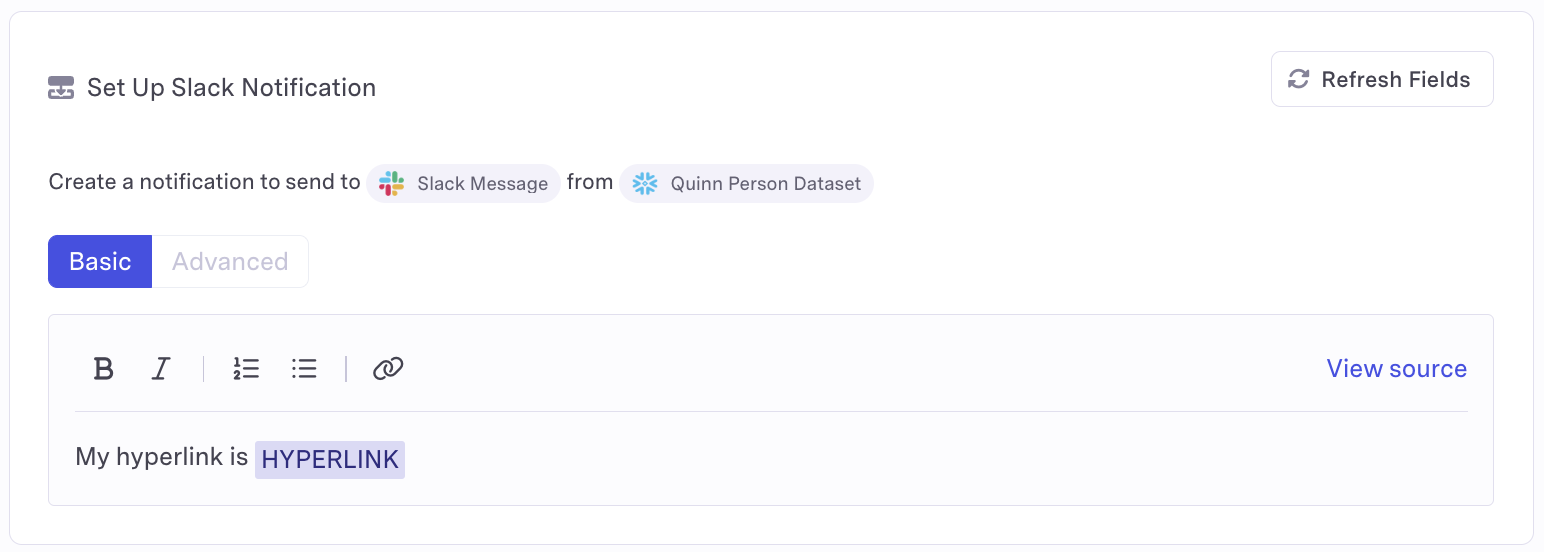
View in message template editor
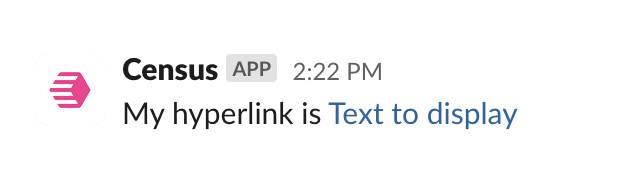
Slack message output
️ Supported Objects and Sync Behaviors
| Object Name | Supported? | Identifiers | Behaviors |
|---|---|---|---|
| Message | ✅ | Custom message template. | Send |
Activations can send data to all public channels and any private channels that Activations has been explicitly invited to (for example, /invite @census).
Activations will only write new records to a specific channel when new records appear in your data warehouse.
Learn more about all of our sync behaviors in our Syncs documentation.
Contact Support if you want Activations to support more Slack objects and/or behaviors.
Need help connecting to Slack?
If you have questions about our privacy policy, review the Fivetran Privacy Notice.