
Databricks
This page describes how to sync data to your Databricks data warehouse.
Databricks is a unified analytics platform that provides a collaborative environment for data engineering, data science, and machine learning. With Activations, you can sync data into Databricks from any source we support.
Activations supports a wide set of Databricks deployments including
- Unity Catalog
- SQL Warehouses (including Serverless)
- All Databricks LTS versions up to and including 14.3, and new versions typically work without issue.
Getting Started
In this guide, we will show you how to connect Activations to Databricks as a destination.
If you are configuring Databricks as a source (to query data from Databricks to sync elsewhere), that process is documented separately here: Databricks as a Source
Permissions
Activations will require the following permissions on the tables you wish to sync to: SELECT, MODIFY.
Configuring a new Databricks destination
First, you'll need to select which form of access credentials to use: Service Principal (recommended, but a bit more work) or Personal Access Tokens.
- If you're using a Service Principal, within your Databricks Account Console, go to the User management page and Service Principals tab.
- Create a new service principal with the Add service principal button. Give it a name you'll remember such as Activations. You can also reuse an existing one.
- Once created, click Generate secret which will create a new Client ID and Secret pair. Keep this somewhere safe as you won't be able to access it again.
- Now you'll need to add the service principal as an admin on the specific Workspace you are connecting to. In your Databricks Account console, go the Workspaces page. Click on the name of your workspace and go to the Permissions tab.
- Select your new service principal and mark them as admin on the workspace.
- If you're using Personal Access Token, you can create this for yourself. Alternatively, may want to create a new specific user account for Activations to use for auditing and access control.
- You'll first need to navigate into the specific Workspace you are connecting to. In your Databricks Account console, go the Workspaces page. Select the workspace you'd like Activations to connect to and then click Open workspace in the top right.
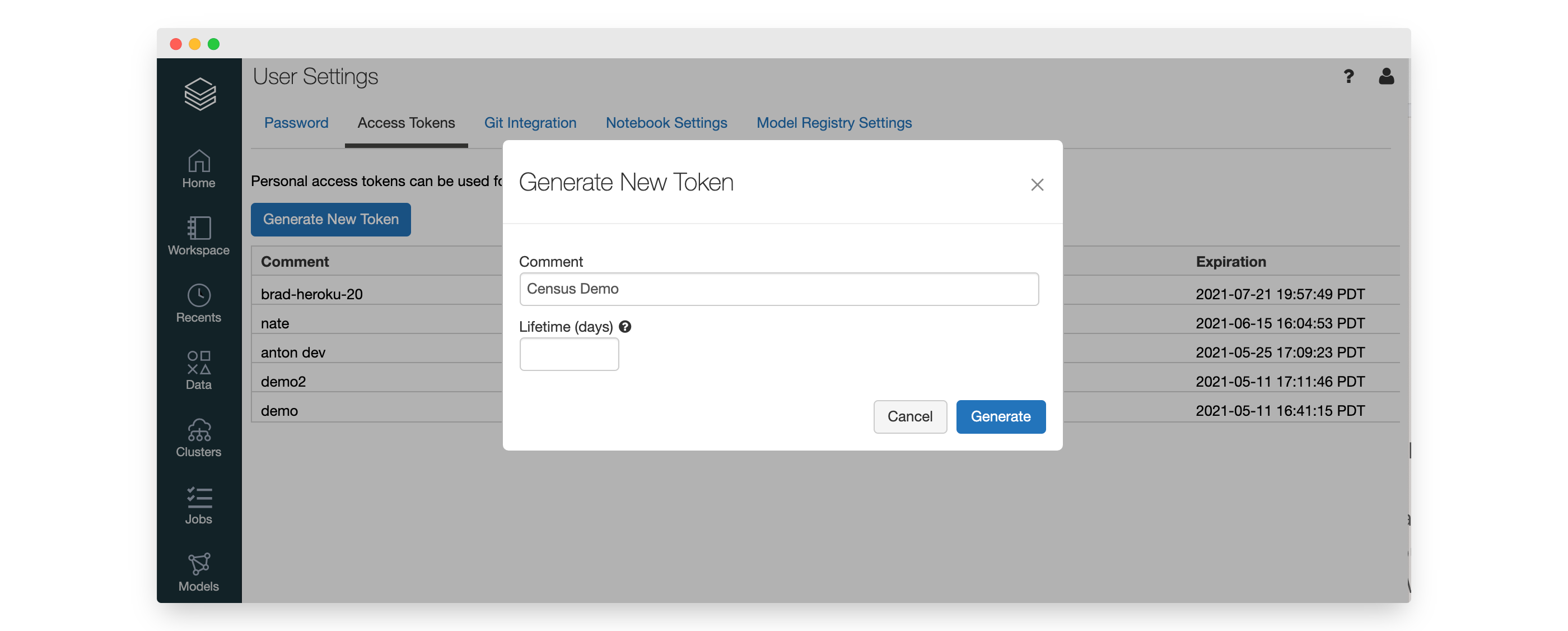
- Clicking on your Profile Icon in the top right and selecting Settings. Then click the Developer option in the left settings menu and click on Manage next to Access Tokens. We recommend you create a new Access Token:
- Name: Activations (or some other details)
- Lifetime: (clear the box) - This will prevent the token from expiring
- If you're using a Service Principal, within your Databricks Account Console, go to the User management page and Service Principals tab.
If you're not already, go into your target workspace by visiting the Workspaces page and clicking the Open link next to it. Now within your selected Workspace, select Compute from the left menu. Activations can connect to a SQL Warehouse or All Purpose Cluster. You can reuse an existing compute resource, or create a new one here. Click on the Compute you've decided to use.
If you're connecting to an All Purpose Compute Cluster:
- Service Principals cannot be connected to an All Purpose Cluster that is in the Single User Access Mode.
- All Purpose Clusters on a single node cannot be moved off Single User Access Mode without losing Unity Catalog access.
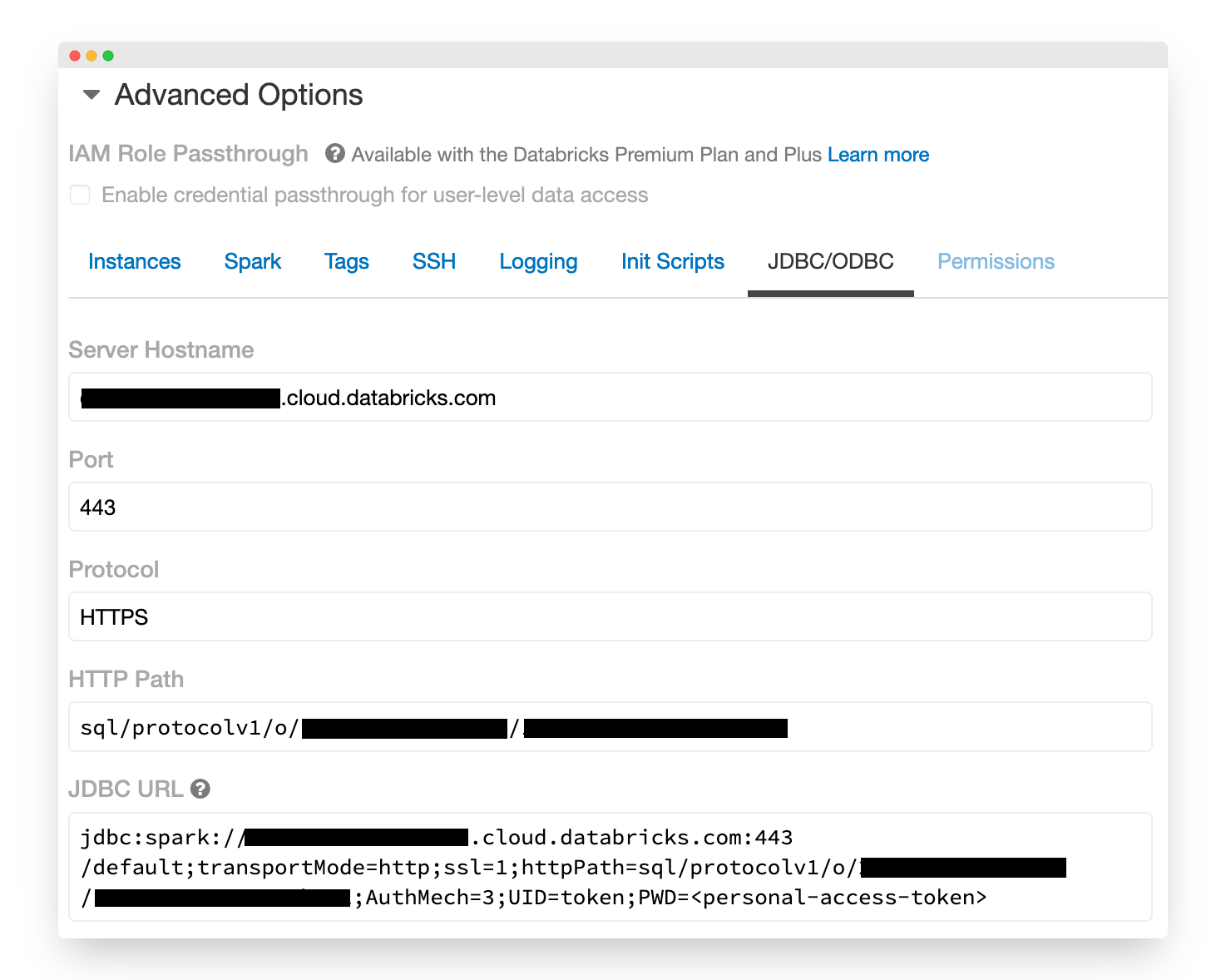
You'll need to collect three credentials to connect to your compute:
- Hostname
- Port
- HTTP Path
For SQL Warehouses, switch to the Connection details tab.
For All Purpose Clusters, in the Configuration tab, open the Advanced Options section at the bottom, then select the JDBC/ODBC section.
Now you're ready to add the connection to Activations. Visit the Destinations page in Activations, and click New Destination, selecting Databricks from the menu.
- Provide the connection credentials: Hostname, Port, HTTP Path
- Select your credential type (Personal Access Token or Service Principal), and provide the corresponding Access Token, or Client ID & Secret.
- Optionally, set the Catalog and Schema Allow lists. This will filter what Catalogs and Schemas appear in Activations. Note that if you are using Unity Catalog, this filtering will apply across all catalogs.
Click Connect.
️ Supported Objects and Sync Behaviors
| Object Name | Supported? | Sync Keys | Behaviors |
|---|---|---|---|
| Table | ✅ | Any columns that are integers or strings | Update or Create, Update Only, Add |
Learn more about all of our sync behaviors in our Syncs documentation.
Contact Support if you want Activations to support more Databricks objects and/or behaviors.
Allowed IP Addresses
If you're using Databricks's Allowed IPs network policy, you'll need to add these Activations IP addresses to your list. You can find Activations' set of IP address for your region in Regions & IP Addresses. Visit the Databricks Documentation for more details on how to specify these IPs as part of your network policy.
Need help connecting to Databricks?
You can reach out to our support team.