
Delighted
This page describes how to use Activations with Delighted.
Getting Started
In this guide, we'll show you how to connect Delighted to Activations and create your first sync.
Prerequisites
- Have your Fivetran account ready. If you need one, create a Free Trial account now.
- Have your Delighted account ready,
- Have the proper credentials to access your data source. See our docs for each supported data source for further information:
1. Create a Delighted connection
- In Activations, navigate to Destinations
- Click the New Destination button
- Search for Delighted in the search bar
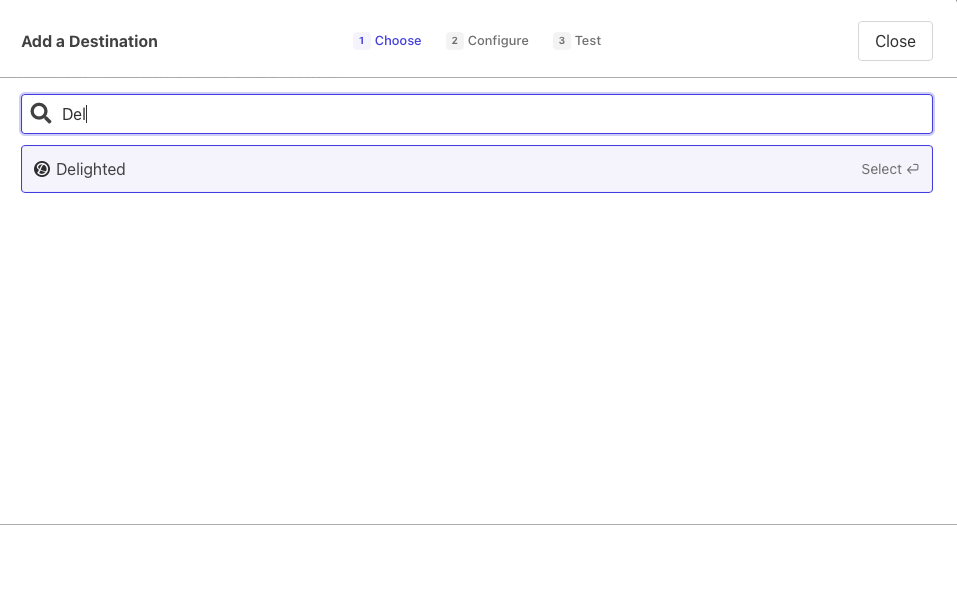
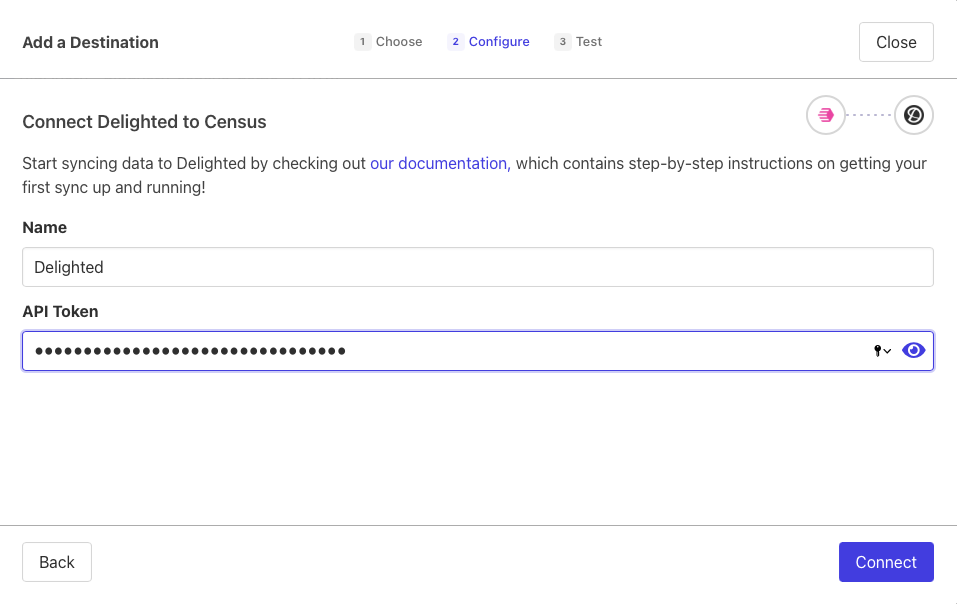
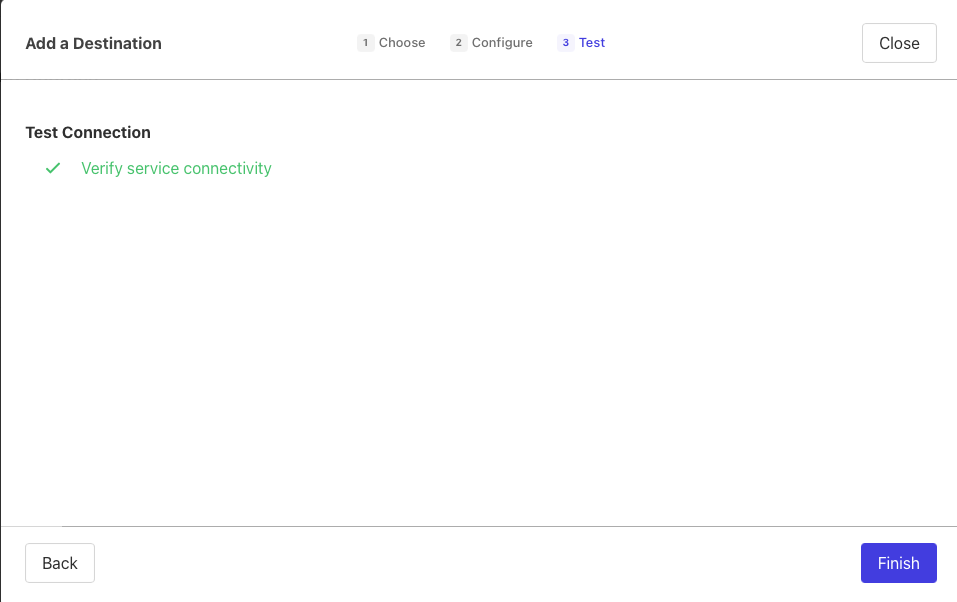
Next, you'll need your API Token from Delighted in order to connect. Your authentication flow should look like this:\
2. Create your first Model
Now navigate to the models page in your Fivetran account.
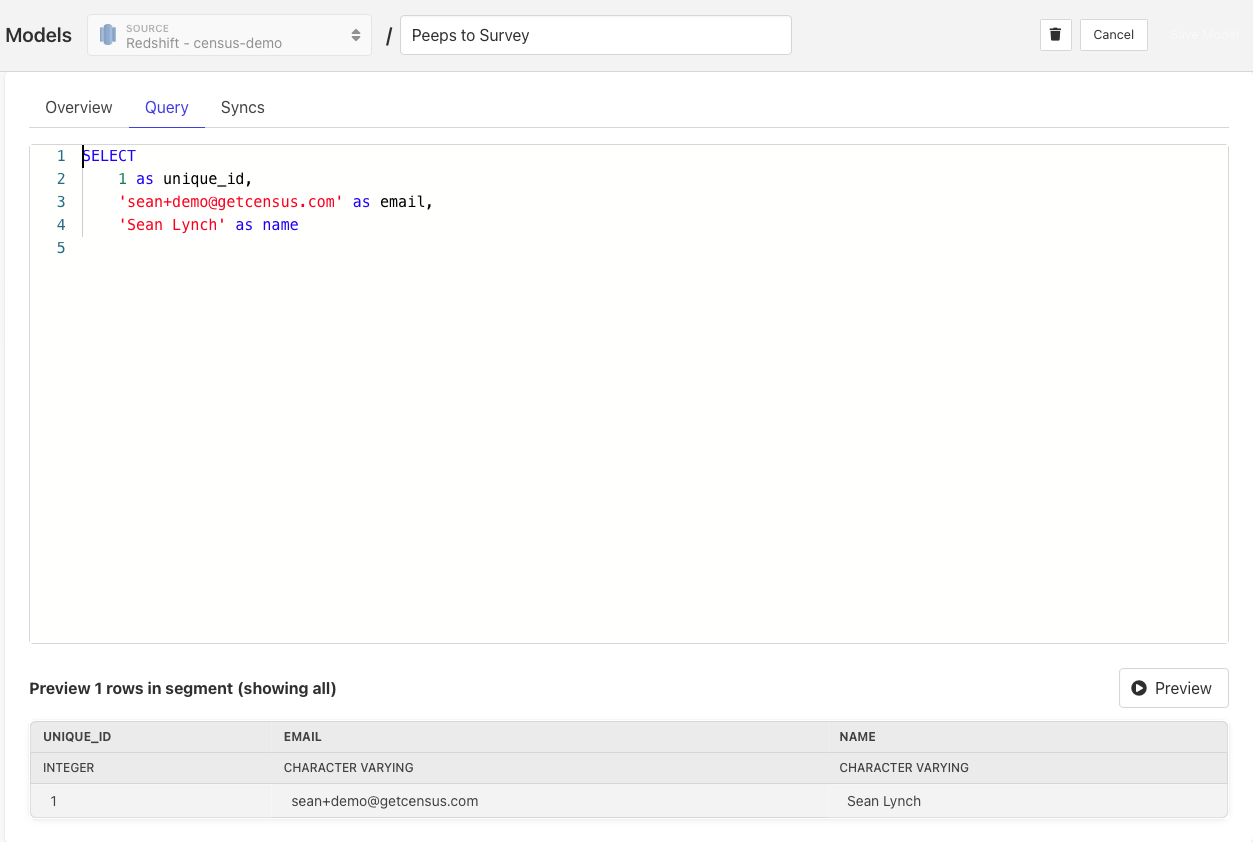
Here you will have to write SQL queries to select the data you want to send to your Delighted account. Your model can be a complex query selecting details about customers and generating metrics, or as simple as a SELECT * FROM ..., it's up to you. Once you have created your model, click Save Model.
3. Create your first Sync
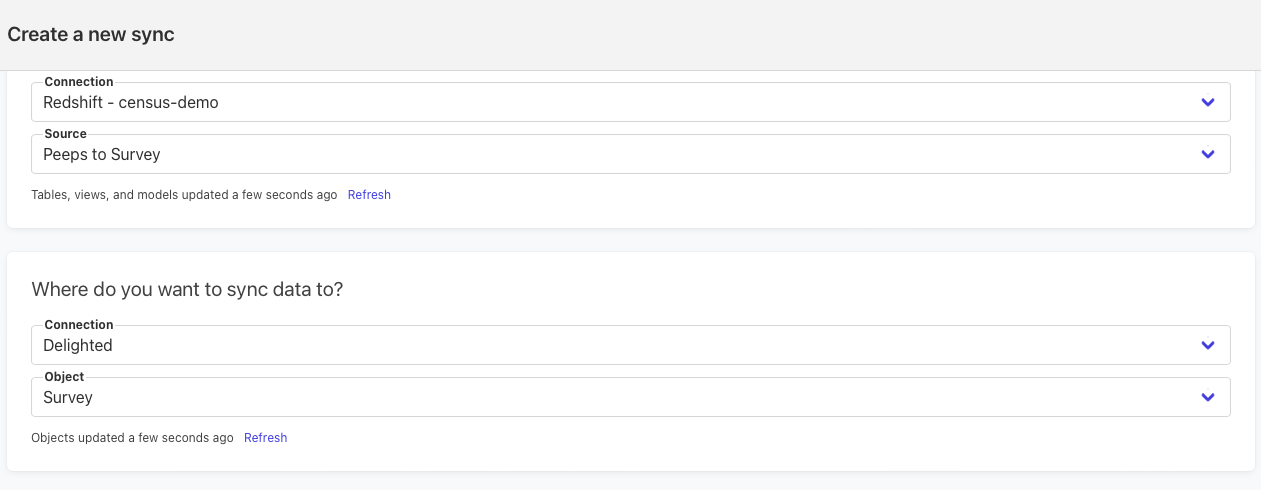
Now head to the Sync page and click the Create a Sync button.
From there, select your object. Here's an example of how that should look:
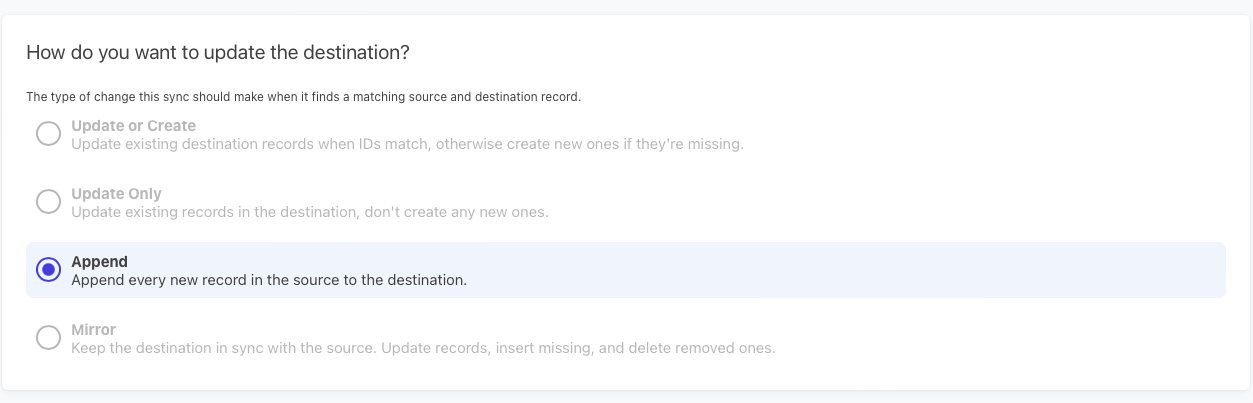
Next, select your behavior, identifier and mapped fields.
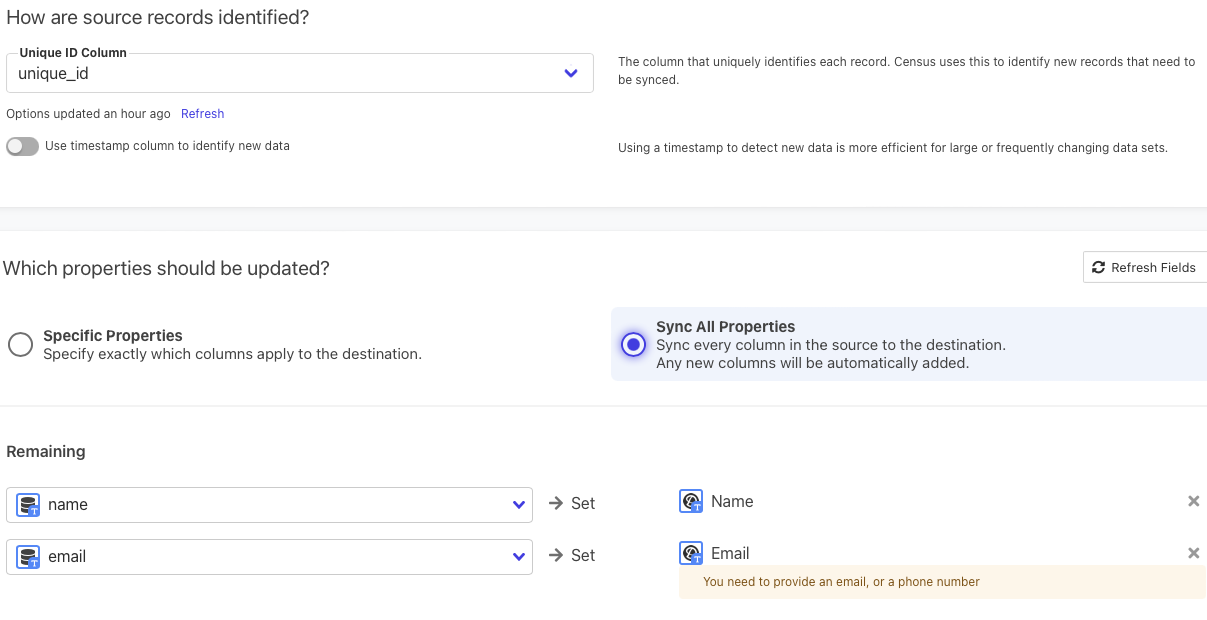
Decide whether to sync existing data or not and then click the Next button:
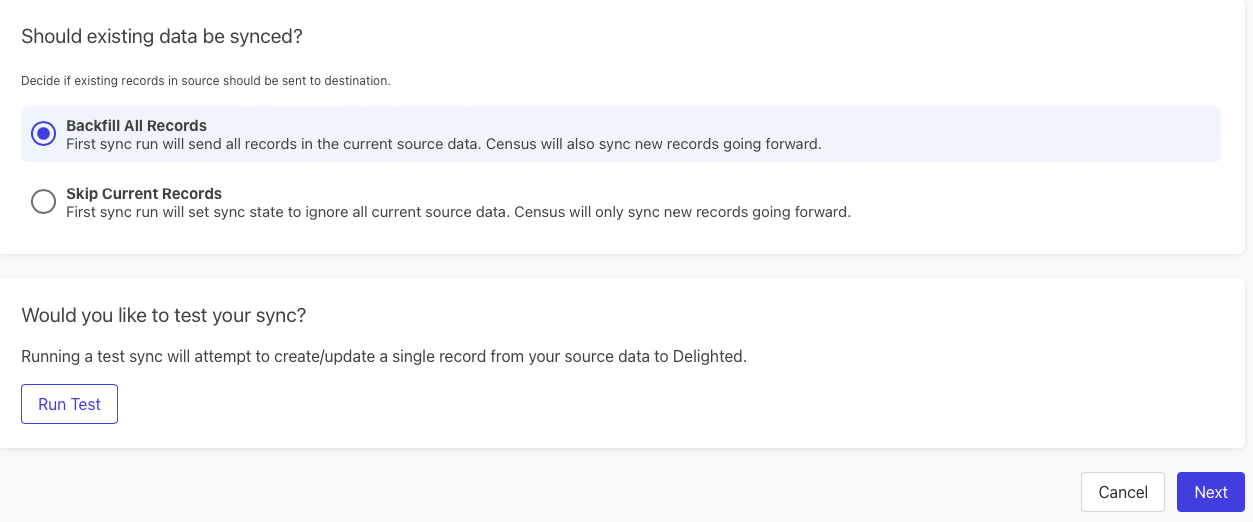
Click the Next button to see a preview of what will happen when you start the sync. You can check the "Run Sync Now" checkbox to kick off an initial sync and pick a schedule afterward.
4. Confirm the data is in Delighted
You should be able to view your data in Delighted now.
Supported Objects and Sync Behaviors
| Object Name | Supported? | Sync Keys | Behaviors |
|---|---|---|---|
| Survey | ✅ | N/A | Send |
| Autopilot | ✅ | Update or Create, Update, Mirror |
Learn more about all of our sync behaviors in our Syncs documentation.
Contact Support if you want Activations to support more Delighted objects and/or behaviors
Need help connecting to Delighted?
Contact us via the Support portal.