
Asana
This page describes how to use Activations with Asana
Getting Started
In this guide, we will show you how to connect Asana to Activations and create your first sync.
Prerequisites
- Have your Fivetran account ready. If you need one, create a Free Trial account now.
- Have your Asana account ready.
- Have the proper credentials to access to your data source. See our docs for each supported data source for further information:
1. Connect Asana
- Once you are in Activations, navigate to Destinations
- Click the New Destination button
- Select Asana in the list
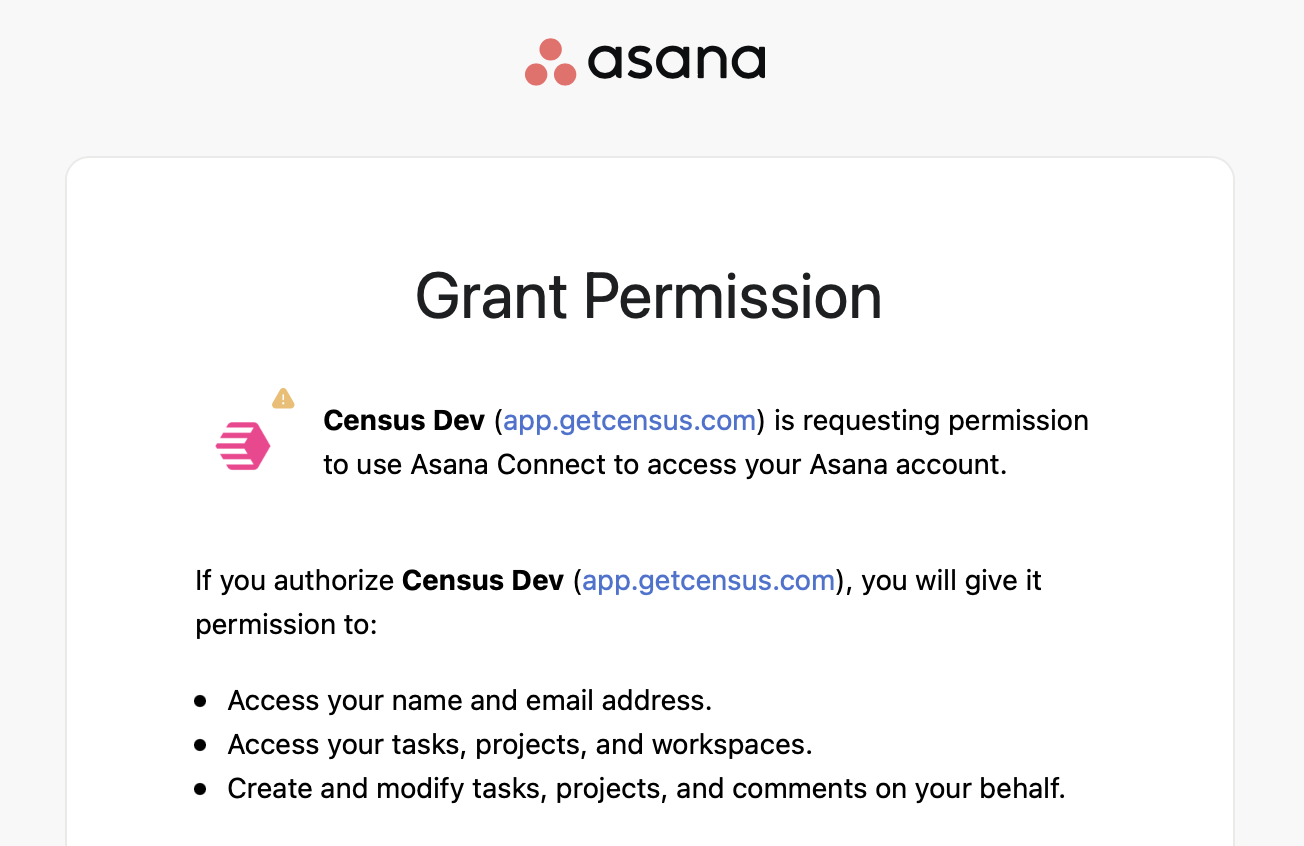
You will be redirected to a page to log in to Asana to authorize access to your account. Once you sign in, you'll see a page like the image below, confirming you want to authorize Activations.
️ Supported Objects and Sync Behaviors
Asana's primary object is a Task, which we support in Activations.
| Object Name | Supported? | Sync Keys | Behaviors |
|---|---|---|---|
| Task | ✅ | External ID, Task ID (gid) | Add, Update or Create, Update Only |
Learn more about all of our sync behaviors in our Syncs documentation.
Contact Support if you want Activations to support more Asana objects and/or behaviors.
If you run into a dead end, open a ticket in the Fivetran Support portal.