
CleverTap
This page describes how to use Activations with CleverTap.
Getting Started
- Navigate to the Destinations page in Activations and click New Destination.
- Select CleverTap from the menu.
- Enter your Account ID, Passcode, and Region. You'll need to generate a passcode from the Settings > Passcodes screen in the CleverTap app (screenshot below). The account ID and region can be found in the URL: https://us1.dashboard.clevertap.com/K97-K78-1234/main.
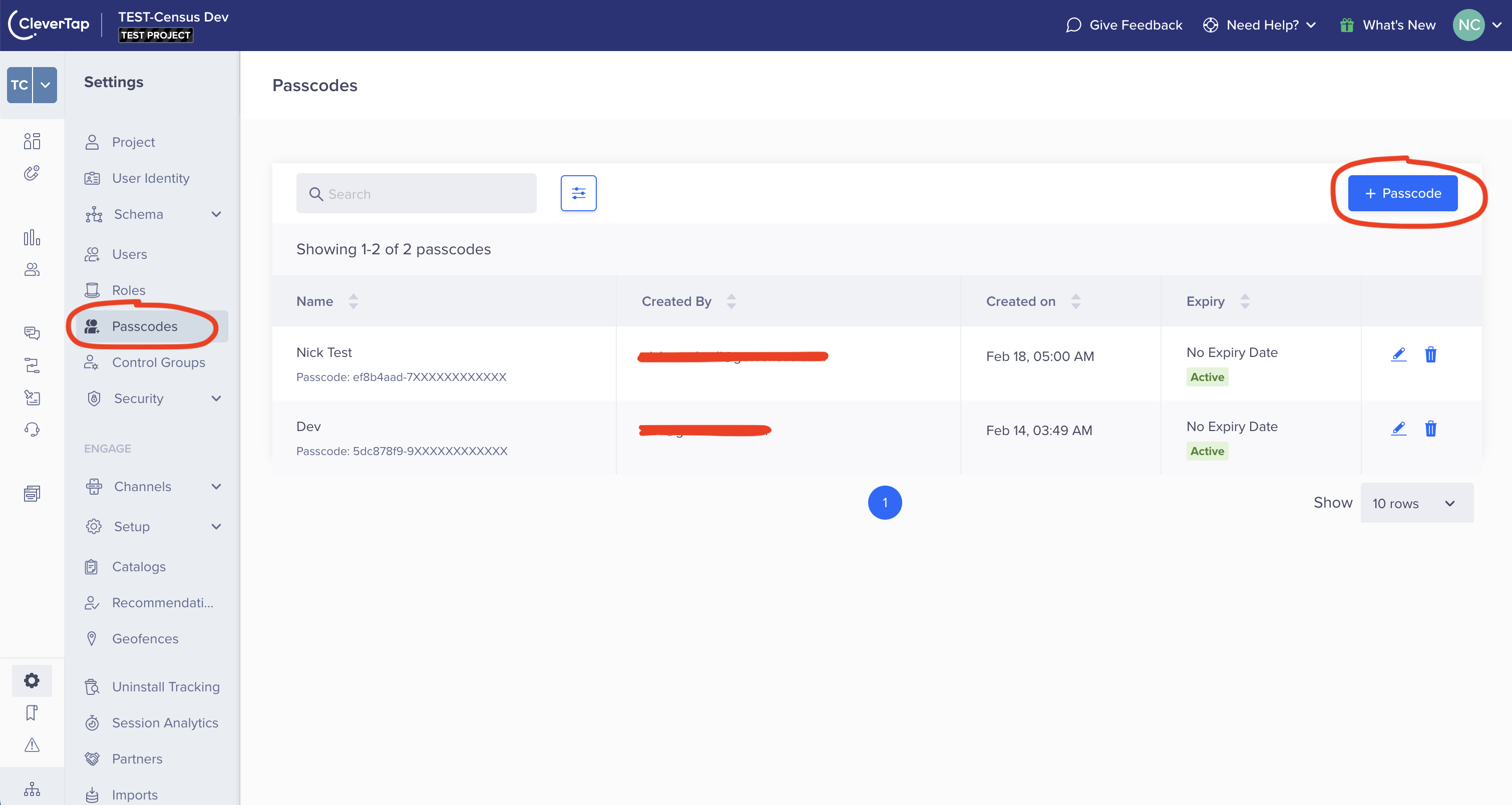
Generate a passcode in the CleverTap app.
Supported Objects and Sync Behaviors
| Object Name | Supported? | Sync Keys | Behaviors |
|---|---|---|---|
| Event | ✅ | N/A | Send |
| Profile | ✅ | Facebook ID, Global Object ID, Google Plus ID, or User Identity | Update or Create |
Learn more about all of our sync behaviors in our Syncs documentation.
Contact Support if you want Activations to support more CleverTap objects and/or behaviors.