
NetSuite
This page describes how to use Activations with NetSuite.
Getting Started
In this guide, we will show you how to connect NetSuite to Activations and create your first sync.
Prerequisites
- Have your Fivetran account ready. If you need one, create a Free Trial account now.
- Have your NetSuite account ready, with the Administrator role.
This process involves several steps - please set aside 15-30 minutes to complete it. NetSuite configuration can be complex, so if you have any questions please contact Support and we'll help you tailor these instructions to your needs.
- Have the proper credentials to access to your data source. See our docs for each supported data source for further information:
1. Create an Integration Record for Activations
Visit the integrations page or use the global search to look for and navigate to: page: Manage Integrations

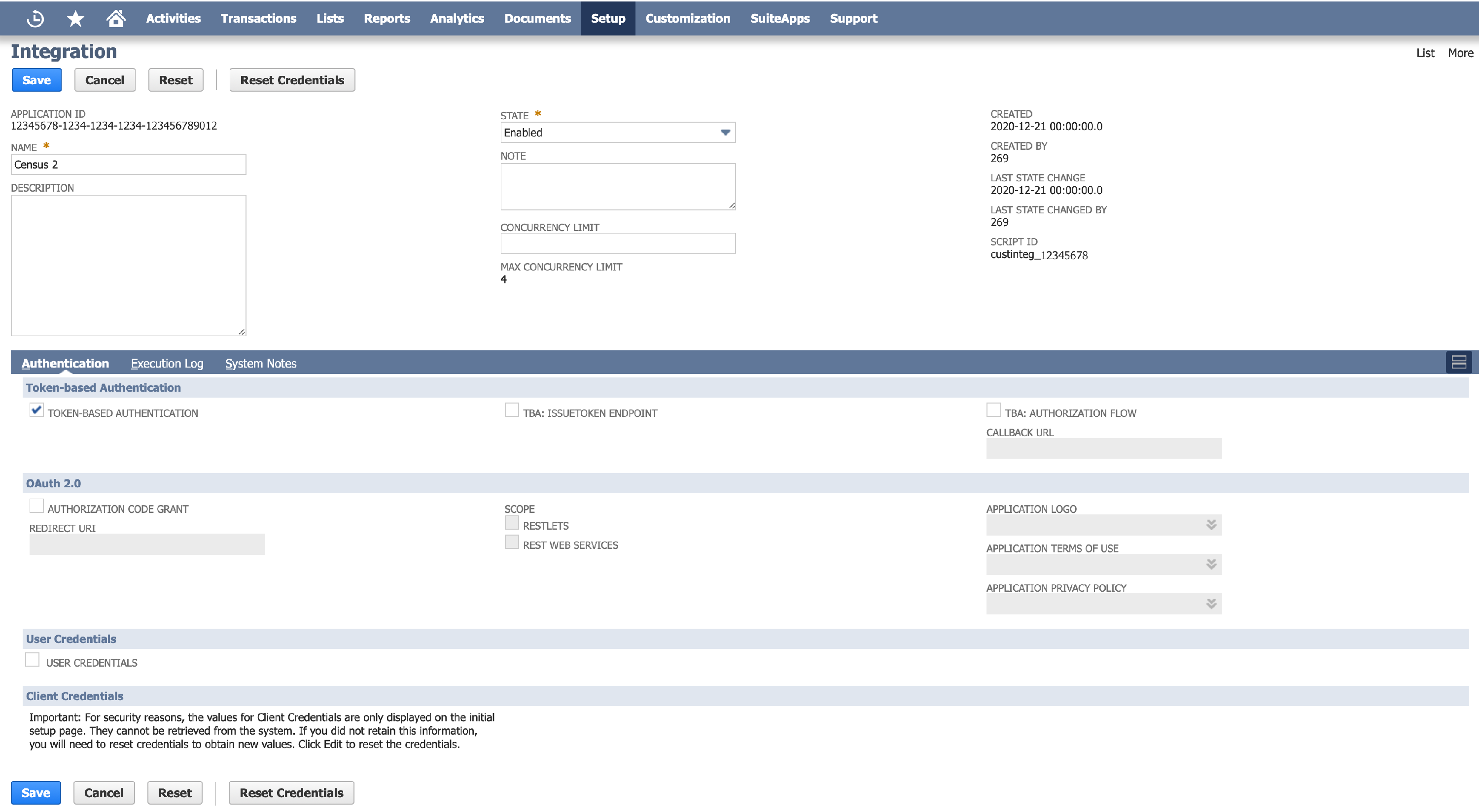
Create a new integration with the follow properties:
- Give it a name that you'll recognize, such as Activations
- Check TOKEN-BASED AUTHENTICATION
- Leave OAuth 2.0 AUTHORIZATION CODE GRANT unchecked
- Leave TBA: AUTHORIZATION FLOW unchecked
- Set State to Enabled
Click Save when finished.
Copy and paste the CONSUMER KEY / CLIENT ID and CONSUMER SECRET / CLIENT SECRET to a password manager. You'll need those later to paste into Activations.
2. Enable Token Based Authentication
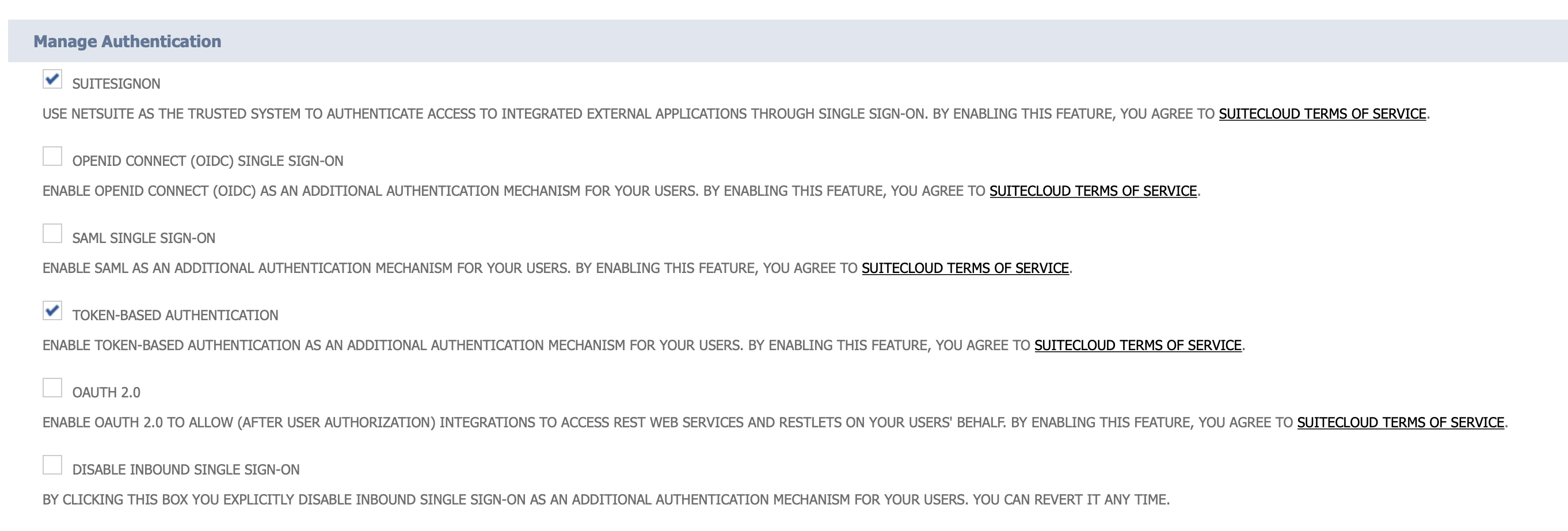
- Global search to page: Enable Features
- Navigate to the tab SuiteCloud > Manage Authentication
- Make sure Token Based Authentication is checked
- Save
3. Create a Token Role
The Administrator user you're using with NetSuite and Activations also needs "Token Role".
- Global search to page: New Role
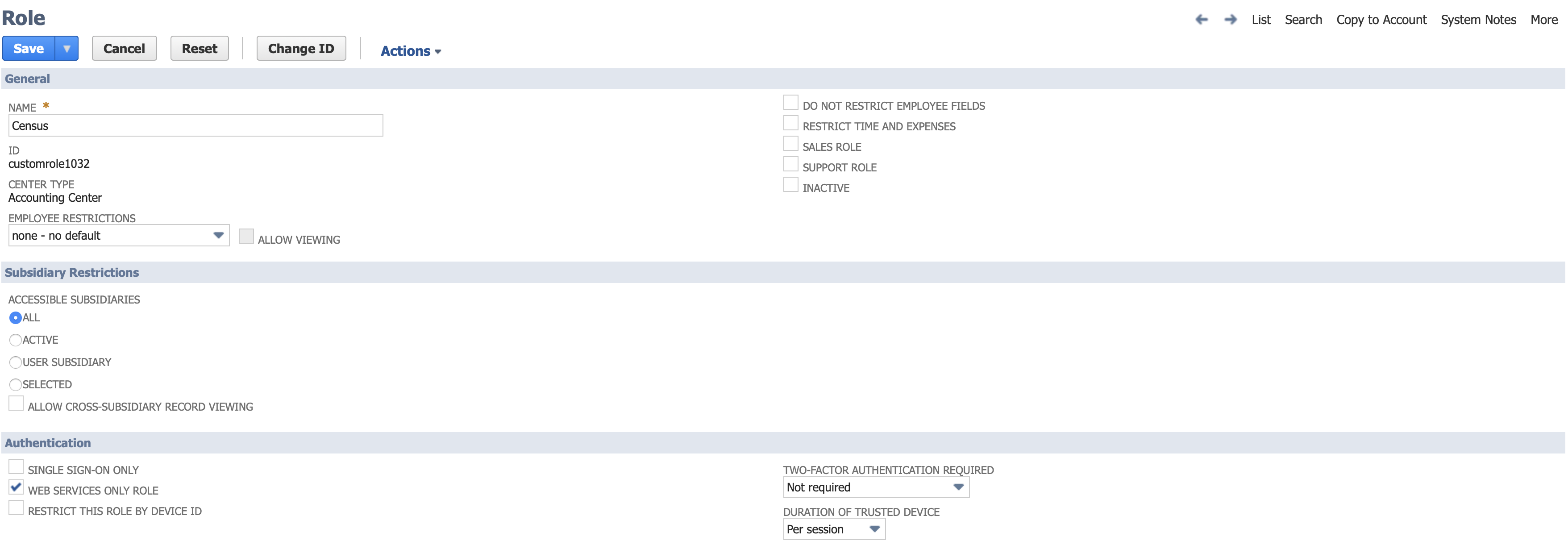
- Name the role: Activations
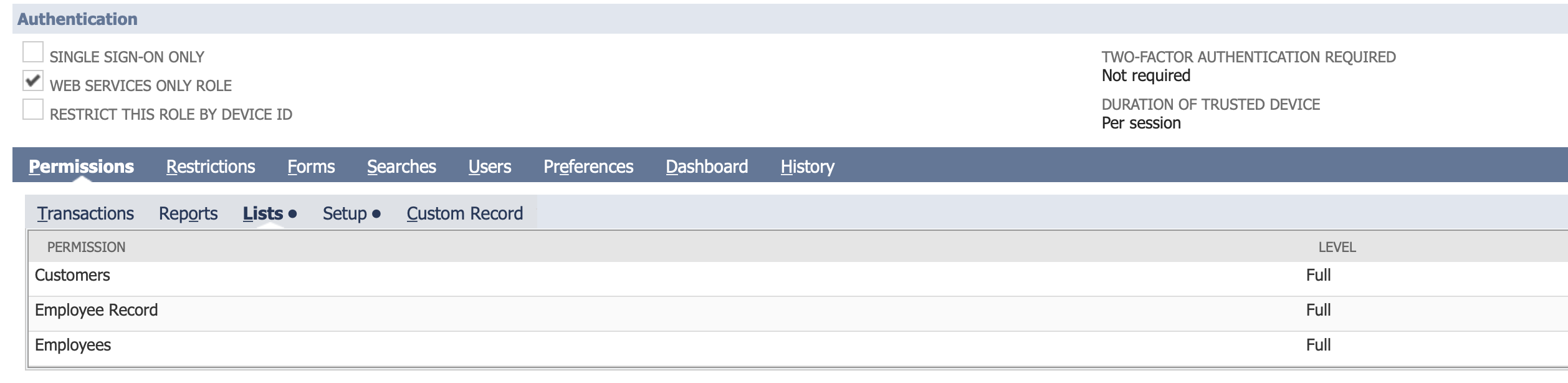
- Check WEB SERVICES ONLY ROLE
- Check DO NOT RESTRICT EMPLOYEE FIELDS
- For multi-subsidiary NetSuite users**,** check ALL under ACCESSIBLE SUBSIDIARIES
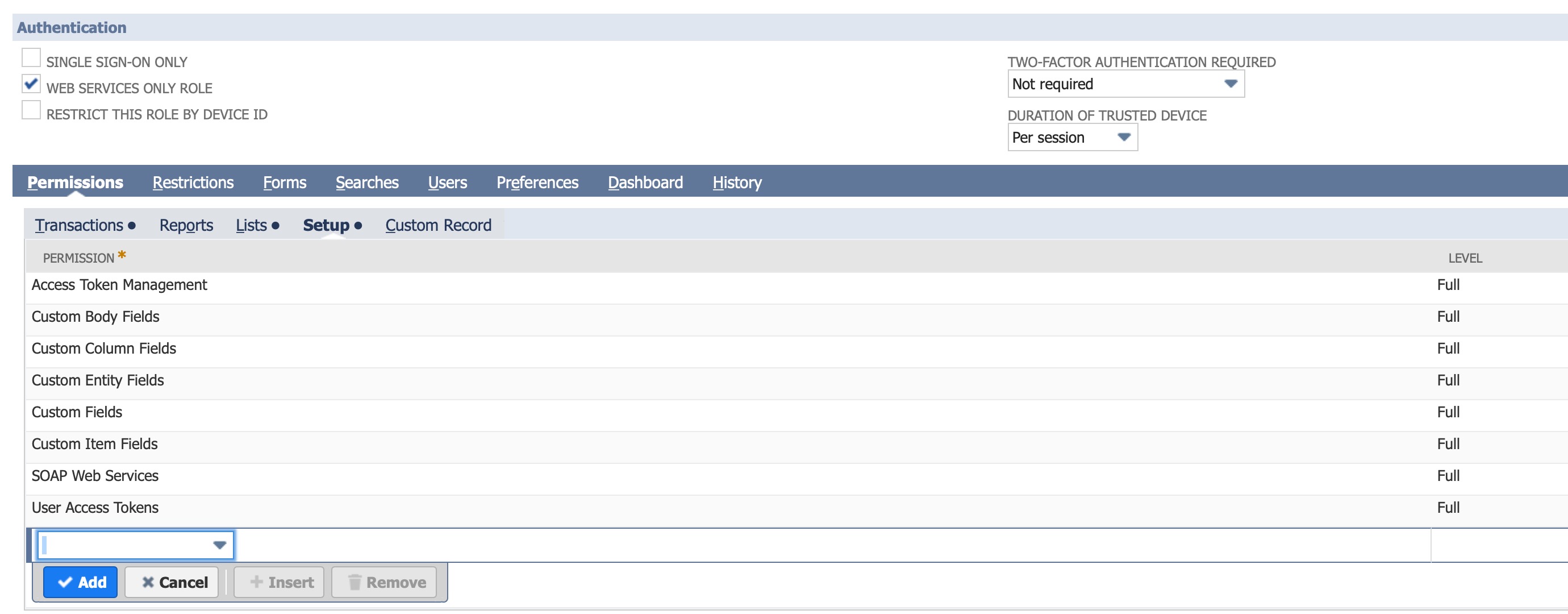
- Under Permissions > Setup, add the following permissions:
- Access Token Management: Full
- Custom Body Fields: Full
- Custom Column Fields: Full
- Custom Entity Fields: Full
- Custom Fields: Full
- Custom Item Fields: Full
- SOAP Web Services: Full
- REST Web Services: Full
- User Access Token: Full
7. Under Permissions > Lists, Give your Role the appropriate permissions for the NetSuite objects you'll be updating. For example, to update Customers, you'll want to give this role the Lists > Customers (Full) permission.
4. Add Token Management Permissions
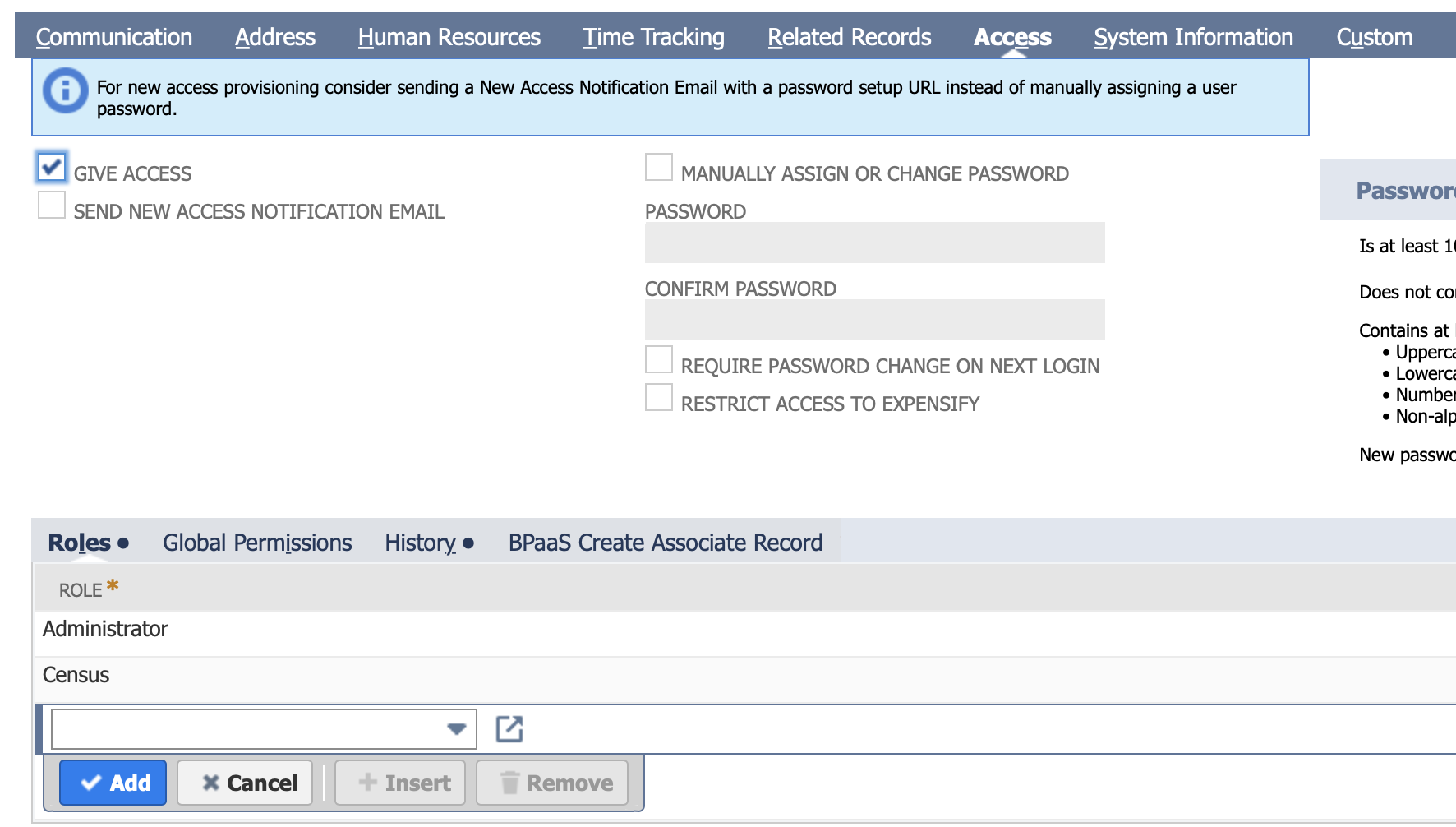
- Global search to page: Employees
- Edit the employee record of the Admin user you will be using Activations with.
- Navigate to Access > Roles and add the Token Role you just created above.
5. Create Access Tokens
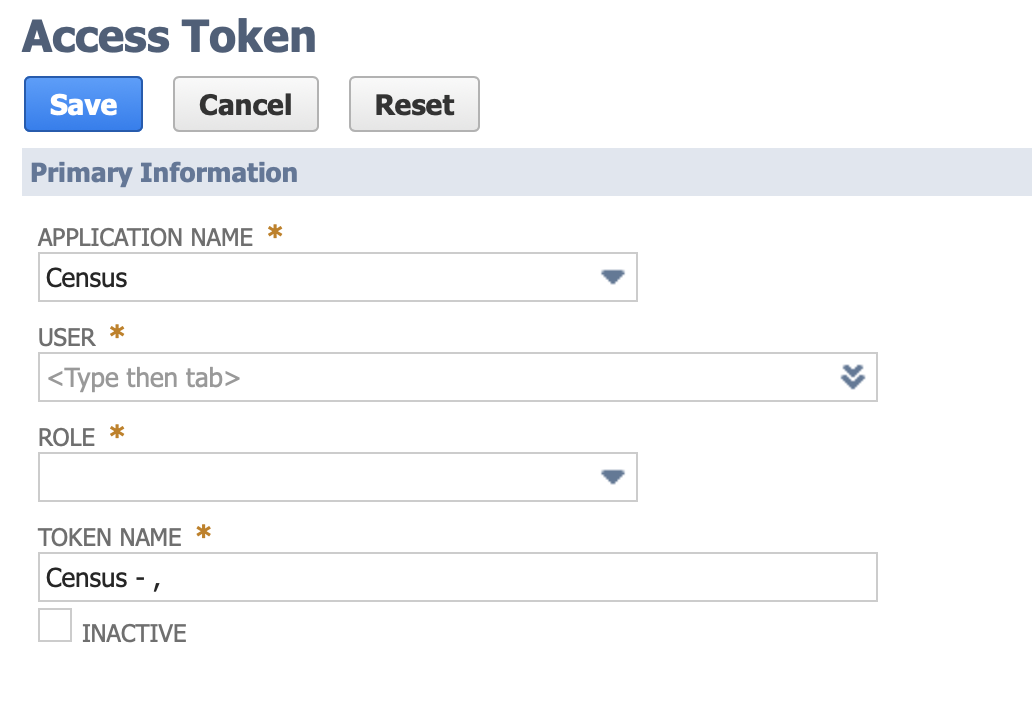
- Global search to page: Access Tokens
- Click New Access Token
- Select the application and role we created above, then press Save
- Copy and paste the new Token ID and Token Secret to your password manager or file. We'll use it below.
Note: Netsuite permission changes to a role or user do not occur immediately. These changes typically take anywhere from a few minutes to a few hours, and they can even take up to 24 hours to go into effect. If you are confident that you have given Activations the correct permissions above and experience an error setting up the connection, we recommend waiting for these changes to go into effect before testing the connection again.
6. One more thing: NetSuite Account ID
The last bit of information you’ll need is your NetSuite Account ID:
- Global search to page: Company Information.
- Your ACCOUNT ID will be found on that page. Copy and paste it as well.
7. Finally, Configure Your Activations Connection
Now in Activations, add a new Destination.

Paste the Account ID of your NetSuite Account, as well as the Consumer Key, Consumer Secret, Token ID and Token Secret created above.

Click Save Connection, and click Test to double check your connection information.
You're ready to start using Activations to load data from your warehouse to NetSuite! If you have any trouble with these steps, please don't hesitate to reach out to our Support team and we'll help get this setup.
Sync Speed
NetSuite's API speed and rate limitation are complex and are tied to the plan you are on but you can expect a speed of ~500 records sync / minute on their base plan,
| Service | Records sync / Minute |
|---|---|
| NetSuite | 500 |
Please note that you can contact your Customer Success Manager at NetSuite to increase your NetSuite account API concurrency to increase the records sync speed.
️ Supported Objects
This is is the current list of NetSuite objects supported by our destination. There are many more and we add them on a case by case basis. If you need a different type of object, please contact us to let us know which object do you need, and we will be happy to support it.
| Object Name | Supported? |
|---|---|
| Account | ✅ |
| Billing Account | ✅ |
| Cash Sale | ✅ |
| Class | ✅ |
| Contact | ✅ |
| Credit Memo | ✅ |
| Currency | ✅ |
| Customer | ✅ |
| Customer Deposit | ✅ |
| Customer Payment | ✅ |
| Customer Refund | ✅ |
| Customer Status | ✅ |
| Custom Record | ✅ |
| Department | ✅ |
| Employee | ✅ |
| Invoice | ✅ |
| Inventory Item | ✅ |
| Inventory Adjustment | ✅ |
| Item Fulfillment | ✅ |
| Item Receipt | ✅ |
| Journal Entry | ✅ |
| Location | ✅ |
| Other Charge Item | ✅ |
| Partner | ✅ |
| Purchase Order | ✅ |
| Sales Order | ✅ |
| Subscription | ✅ |
| Subscription Change Order | ✅ |
| Subsidiary | ✅ |
| Vendor | ✅ |
| Vendor Bill | ✅ |
Please note that NetSuite doesn't support the creation of fields via Activations and currently we don't support add all fieldsfeature for NetSuite
Generic HTTP Requests
If you wish to make a request to any NetSuite REST API endpoint that is currently not supported via one of our existing objects, you can manually configure a generic HTTP request of your choosing.
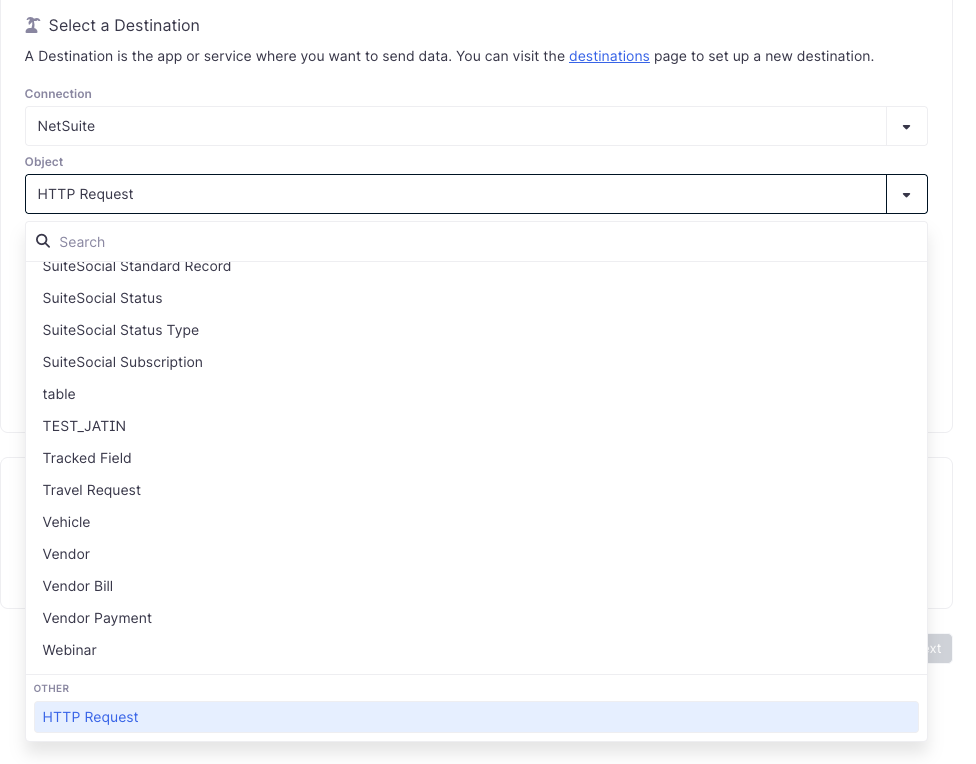
- Select
HTTP Requestin the object selector
- Put in your URL. Your endpoints must be part of
https://<account_id>.suitetalk.api.netsuite.com/services/rest/record/v1, if you wish to send data to a different endpoint, please reach out to the Support team.
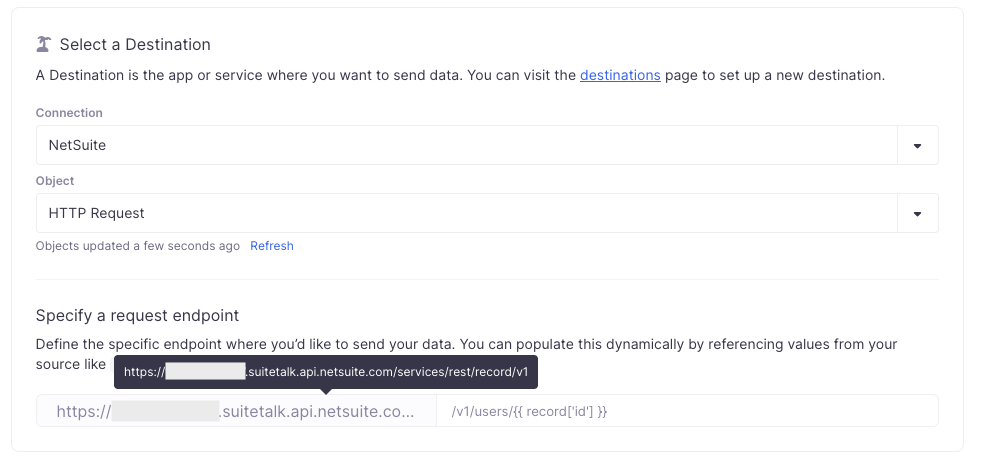
- Configure the rest of the sync as you would for a general HTTP Request destination, and we'll use your existing NetSuite credentials under the hood.
Supported Sync Behaviors
Learn more about all of our sync behaviors in our Syncs documentation.
| Behaviors | Supported? | Objects |
|---|---|---|
| Update or Create | ✅ | All |
| Update Only | ✅ | All |
| Create Only | ✅ | All |
Contact Support if you want Activations to support more Sync Behaviors for this destination
Netsuite Quirks
Netsuite is one of our most complex destinations, and some objects have behavior that is not explained in the Netsuite docs. Here are some known quirks to be aware of:
Customer Payment
- The
Accountfield cannot be set on record creation; it can only be set on record update - In order to change a Customer Payment status to "Deposited", you must send a record update that both sets the
Undep Funds(short for "undeposted funds") field tofalse, and sets theAccountfield to the bank account into which the funds were deposited.
Invoice
- If you're syncing to the Item List on the Invoice object your Item List data will need to be formatted in a JSON array like the following example.
[{"amount": 2.5, "item": {"internalId": "13"}, "quantity": 1}]. - For more information on the Invoice schema please visit Netsuite's Schema Browser
Using TranId as a Sync Key
- In order to sync to the
TranIdfield, Allowed Override will need to be checked for the Document Numbers of the object. - Example: Setup > Company > Auto-Generated Numbers > Document Numbers > Journal
- For more information on Auto Generated Numbers please visit the Netsuite Help Center
For more information on all Netsuite Objects and their fields please visit Netsuite's Schema Browser