
Braze
This page describes how to use Activations with Braze.
Note on Braze API Costs
Braze prices its API on a per data point update basis. Activations ensures that only fields that need to be updated are sent (rather than a copy of the entire record). Please be aware that large datasets, which change often can increase your Braze API usage. Read More.
Getting Started
In this guide, we will show you how to connect Braze to Activations and create your first sync.
Prerequisites
- Have your Fivetran account ready. If you need one, create a Free Trial account now.
- Have your Braze account ready, with create access for Braze API keys.
- Have the proper credentials to access to your data source.
1. Create a Braze API key
Braze lets you create a number of API keys, each with their own set of permissions. You'll almost certainly want to create a new API key for Activations rather than reusing an existing one.
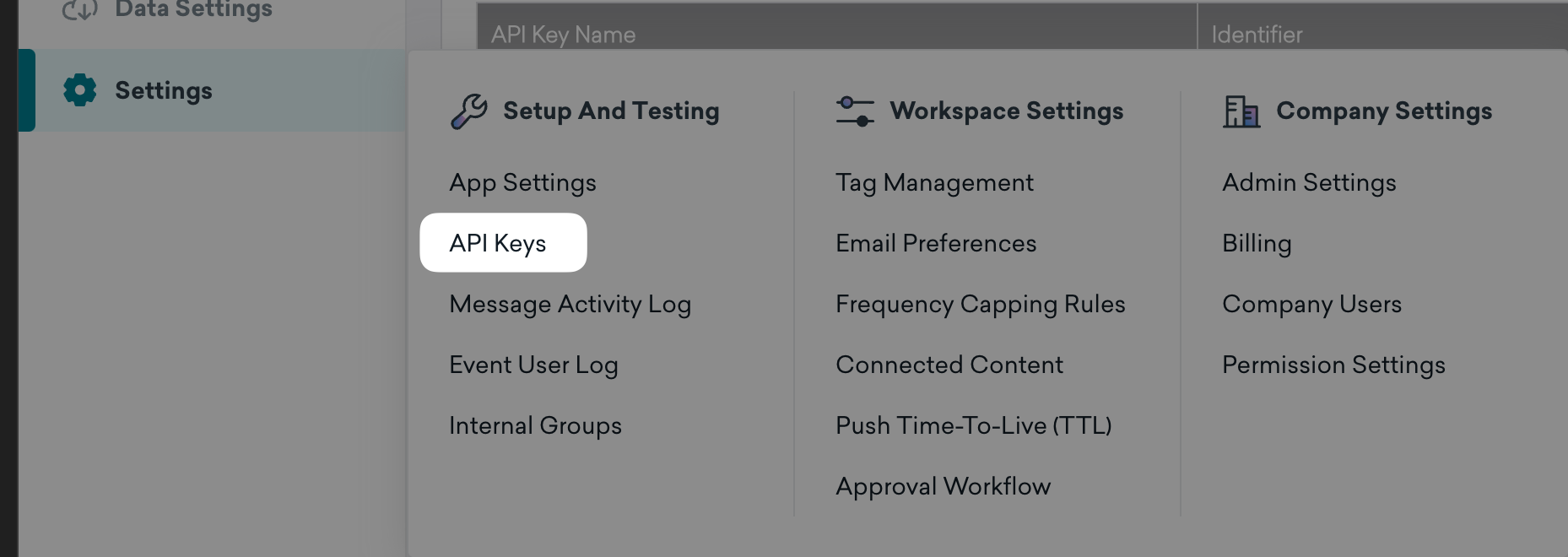
Within Braze's left navigation bar, scroll down to the very bottom. In the Settings tabs, under the subheading Setup And Testing, click API Keys.
Then, inside the API Settings tab, under Rest API Keys, click + Create New API Key.

Provide a name you'll recognize ("Activations" is a good choice) and select the following permissions:
- All User Data permissions, except for
users.delete
You must include users.delete if you want to do the remove option of Mirroring users
- For API-triggered Campaigns:
campaigns.listandcampaigns.trigger.send - For Catalogs: All Catalogs permissions
- For Subscription Group Membership: All Subscription permissions
- This permission set may change as we add support for more Braze objects so you may want to grant more permissions now or plan to update the API key in the future.
Scroll down and click Save API Key.
Finally, copy the long code you see under Identifier. We'll use that in a minute.

2. Select your Braze API Endpoint
Braze requires that we use a slightly different URL to access your account depending on where it's been set up. See the full list of all Braze API Endpoints. In general, you just need the number from the URL you see in your browser when you're signed into Braze.
For example, if your Braze URL is https://dashboard-03.braze.com/, then your API Endpoint should be https://rest.iad-03.braze.com.
3. Add your Data Import Key (optional)
When syncing to Braze Cohorts you need to provide your Data Import key. To find this key login to your instance in Braze and navigate to Technology Partners under Integrations and then select Activations. You will find your Data Import Key and your Rest Endpoint here. Paste those values into the respective credential fields when setting up the connection.
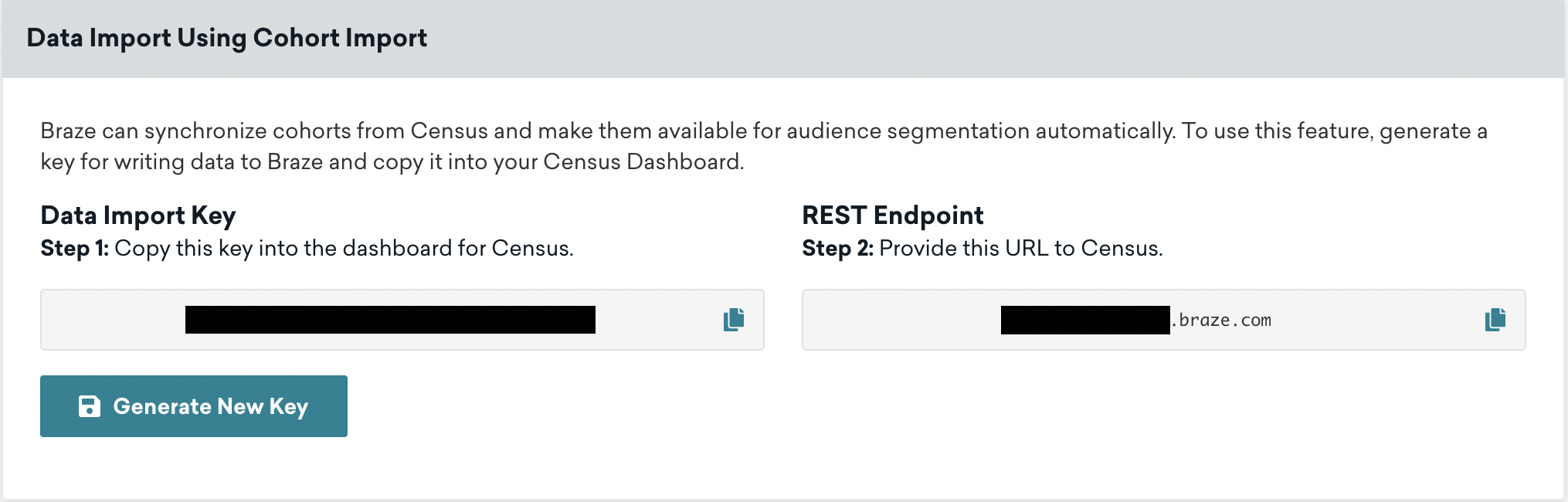
Activations Technology Partner page in Braze
4. Create the Activations Connection
Great! Now let's pull it all together.
- In the Destinations page, click on New Destination, and select "Braze"
- You can provide whatever name you like for the connection
- Provide the appropriate Braze Endpoint URL
- Copy and paste your new Braze API key
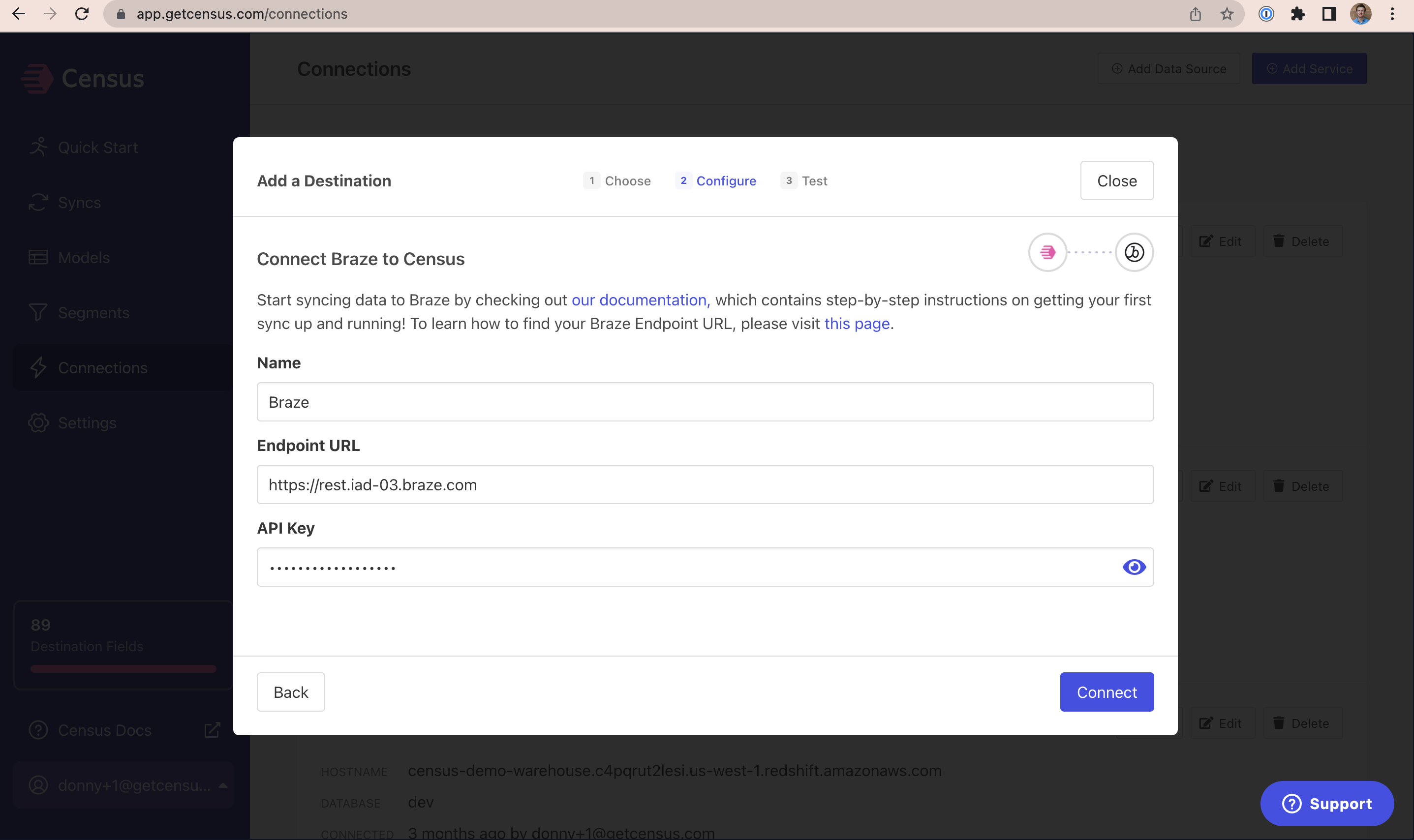
Click Connect
After the Connection Test is Green, you're all set and ready to get syncing! 🎉
Supported Objects and Sync Behaviors
Activations currently supports syncing to the following Braze objects.
| Object Name | Supported? | Sync Keys | Behaviors |
|---|---|---|---|
| Event | ✅ | Event ID | Send |
| Purchase Event | ✅ | Any Unique Identifier | Send |
| API-Triggered Campaign | ✅ | External User ID, Activations Tracking ID | Send |
| API-Triggered Canvas Entry | ✅ | External User ID, Activations Tracking ID | Send |
| Catalog | ✅ | Catalog ID | Update or Create, Update, Mirror |
| Cohort | ✅ | External User ID, User Alias | Update or Create |
| Subscription Group Membership | ✅ | See Here | Mirror |
| User | ✅ | Email, External User ID, User Alias | Update or Create, Update, Delete, Mirror |
Activations supports custom fields on both Braze User and Event objects. You can map any field from your data source to a custom field in Braze. Activations will automatically create the custom field in Braze if it doesn't already exist.
Learn more about all of our sync behaviors in our Syncs documentation.
Contact Support if you want Activations to support more Braze objects and/or behaviors.
Arrays, Objects, and Array of Object fields
Activations supports sending structured data such as Arrays, Objects, and Arrays of Objects to Braze. The behaviors of these fields are a bit different.
- Arrays are really arrays of single values (for example,
["VIP", "New User Last 30 Days", "Promotion Candidate"]). If your array contains mixed values including integers and booleans, Braze will convert all of them to strings. - Objects are key-value pairs (for example,
{"key": "value"}). Activations will send the object as a stringified JSON object. - Arrays of Objects are arrays of key-value pairs (for example,
[{"key": "value"}, {"key2": "value2"}]). These have special behavior in Braze. To limit datapoint writes, Activations will do a deep diff of the objects in the array and only send changes. Each object in the array must have an obvious ID field which can be used to calculate the diff. The ID field must be unique, and either an integer or a string. Activations will look for a field called"id"first. If one isn't found, it will attempt to guess by looking for fields that are unique integers/strings. - Arrays of Objects require timestamp fields to be formatted as
$timerather than strings (for example,[{"start_date": {"$time": "1900-01-01T00:00:25Z"}}]) - User Push Tokens are a special type of Array of Objects - To send push tokens, your data should be structured as an array of objects with 2-3 values:
app_id,token, and an optionaldevice_id.
Mirror Mode Options
Braze's Mirror behavior optionally supports a choice of two actions when a record is removed from the source. This can be configured when setting up the sync initially. The first time the sync is performed, the records will be used as a basis for mirroring behavior in future syncs:
- Delete record - This is the typical behavior for most mirror syncs. When a record is removed from the source, the corresponding record will be deleted from Braze.
- Null out fields - This is a new behavior for mirror syncs in Braze. In this case, when a record is removed from the source, the currently mapped fields of the synced record will be removed from the destination record (by setting them to Null). The identifier will not be removed from the destination record.
- Subscription Group Membership - This will unsubscribe users from the corresponding subscription group, as described above.
Regardless of which option is selected, mirror syncs identify deletions of each type by comparing against the data they have already sent -- not the data that might or might not already exist in Braze. This means that the first sync will be an upsert for all records, and the second and following syncs will account for deletions from the source data.
User Aliases
In Braze, users can be alternatively identifier by a user alias. A user alias is a JSON object with two keys: alias_label and alias_name . For example: {"alias_label":"instagram_id", "alias_name":"7372382492"}. When updating users by User Alias, you should pass Activations the alias as a string from your warehouse (TEXT, CHAR, VARCHAR, or STRING) - do not use your warehouse's OBJECT, JSON, STRUCT, or RECORD type.
✉️ Subscription Group Memberships
Activations offers a way to manage your Braze Subscription Groups via your data hub. The current behavior is that you are to "Mirror" the subscribed users from your user base. It is required that you have, within the source:
- The Subscription Group Id in Braze
- Braze User External ID OR email
This source model should be all of your Subscribed users for their Subscription groups. If a previously-synced subscription group / user pair no longer appears in your data source, Activations will unsubscribe that user from that subscription group.
If you have a query that returns the external id, subscription group id, and status columns. Your source model should logically look like this:
SELECT
external_id, subscription_group_id
FROM
subscription_table
WHERE
status = 'subscribed'
Only an identifier (Braze User External Id or email) and the Subscription Group Id should be mapped fields. This is a special unsubscribing mirror for user/group pairs that no longer appear in the data source.
Cohorts
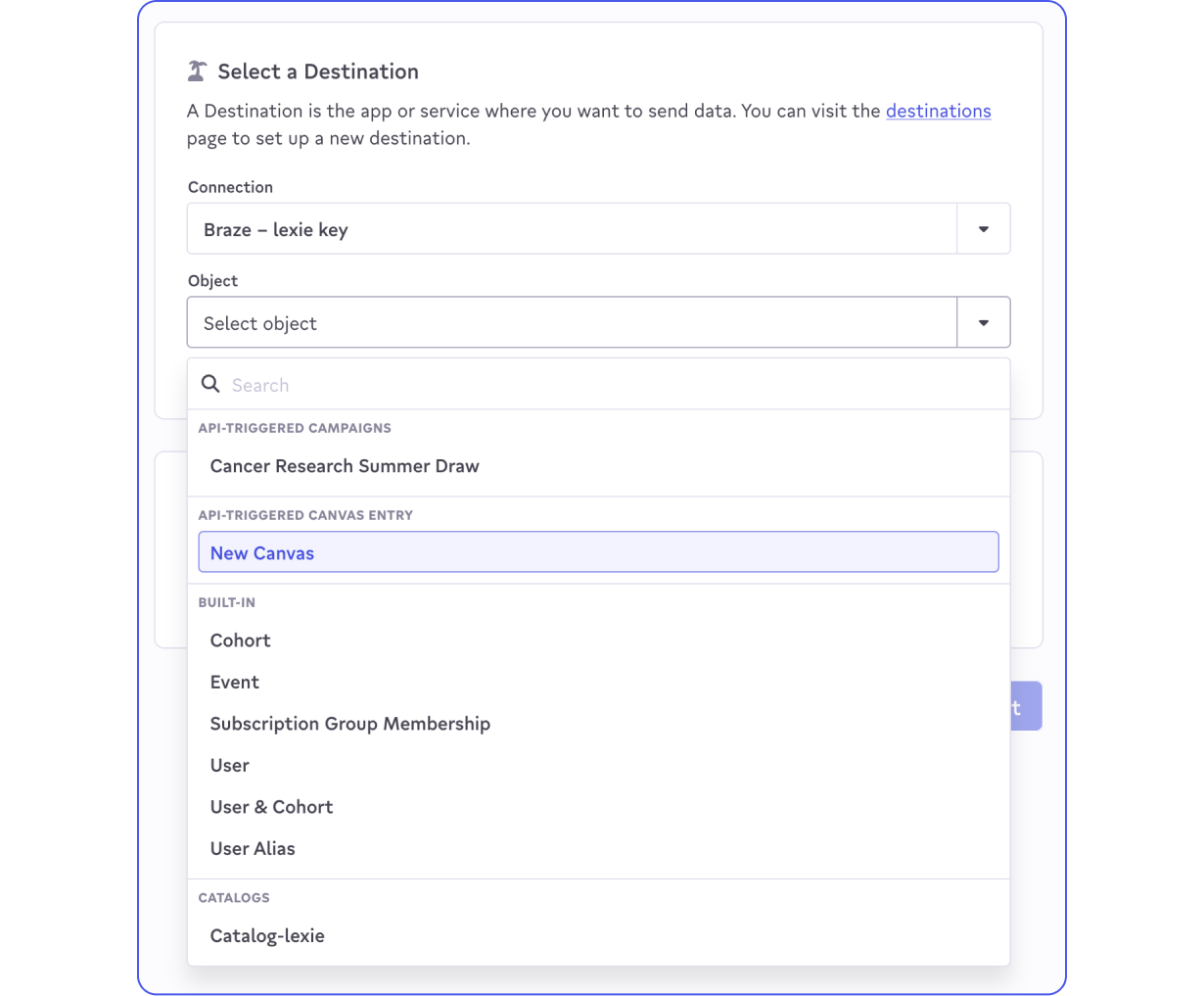
Braze Cohorts allow users of Activations to define and sync user cohorts between Activations and Braze. To get started make sure your data import key is set on the connection. Then when creating a new sync to Braze select User & Cohort as destination object.
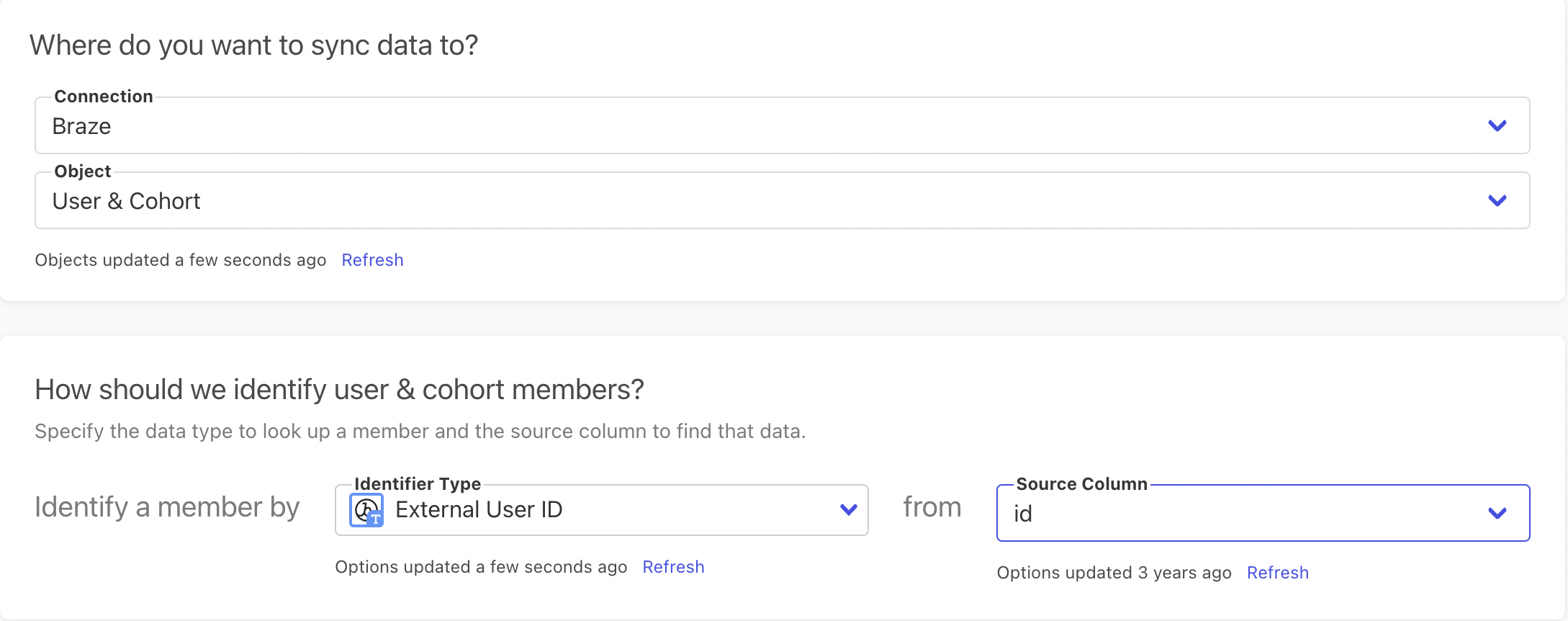
Braze Sync Configuration for User & Cohort
Select the source column for identifying users that you want to add to a Cohort. Right now we can only identify Braze users for Cohorts by External User ID. Then select what Cohort you would like to sync to. You can select an existing Cohort from the dropdown list, define a new Cohort, or select a source column to dynamically get the Cohort name value.
If you want a user to be removed from the Cohort if they are removed from the source dataset then select remove matching record from cohort from the dropdown.
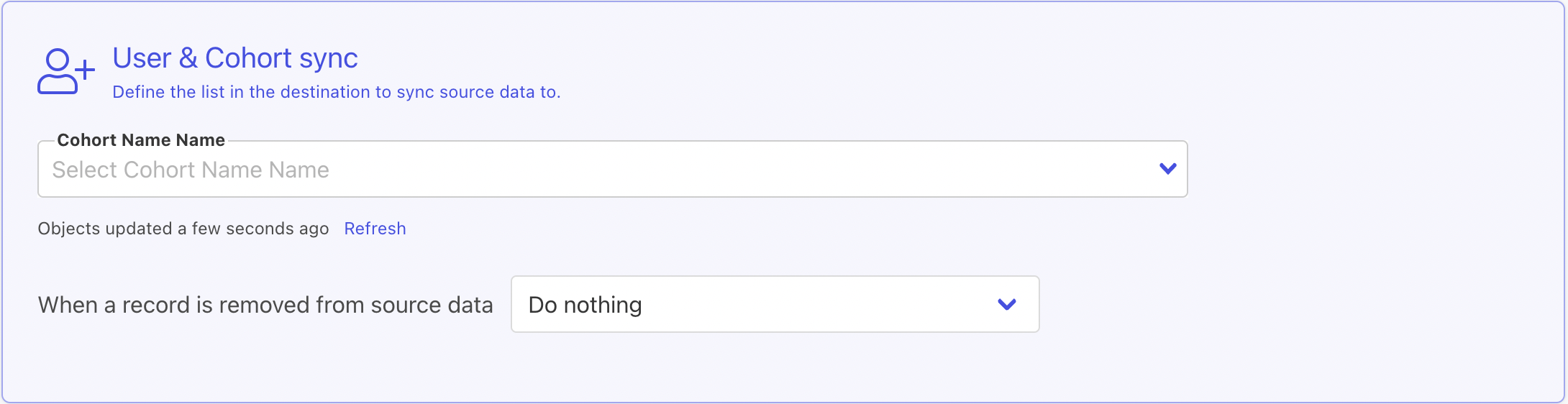
Cohort Sync Editor Configuration Panel
Finally, add any User fields to the mapper. During a sync any fields that you map will first be synced to the User object to update what already exists in Braze and then the updated User will be added to the specified Cohort. Now you can run your sync!
Once you have synced to a Braze Cohort you can take advantage of it in Braze by navigating to Engagement > Segments and then either create a new segment or select an existing one. In the Braze Segment builder you can then add a new filter and select Activations Cohorts from the dropdown. The cohorts that you've created in Activations will be available here and any Users in those segments will automatically have the correct filtering logic applied.
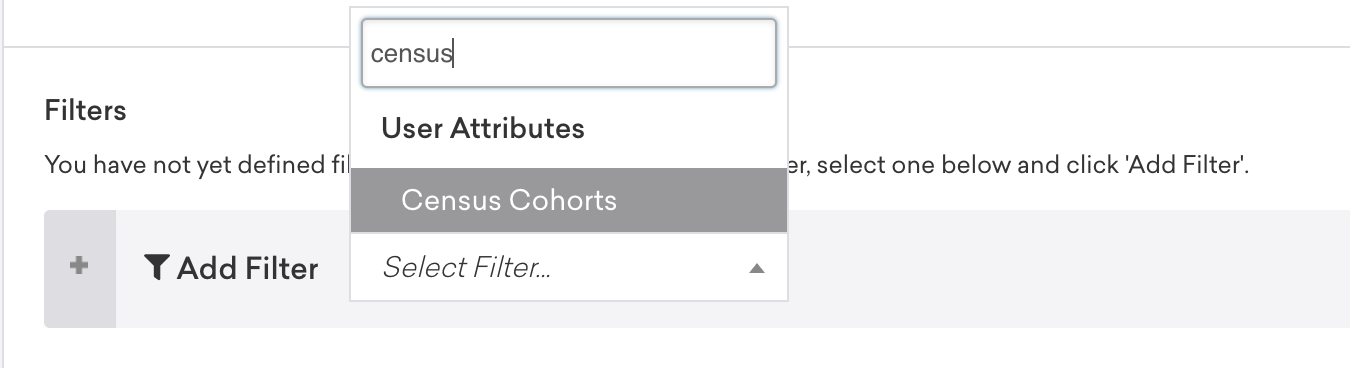
Activations Cohorts custom filter in Braze
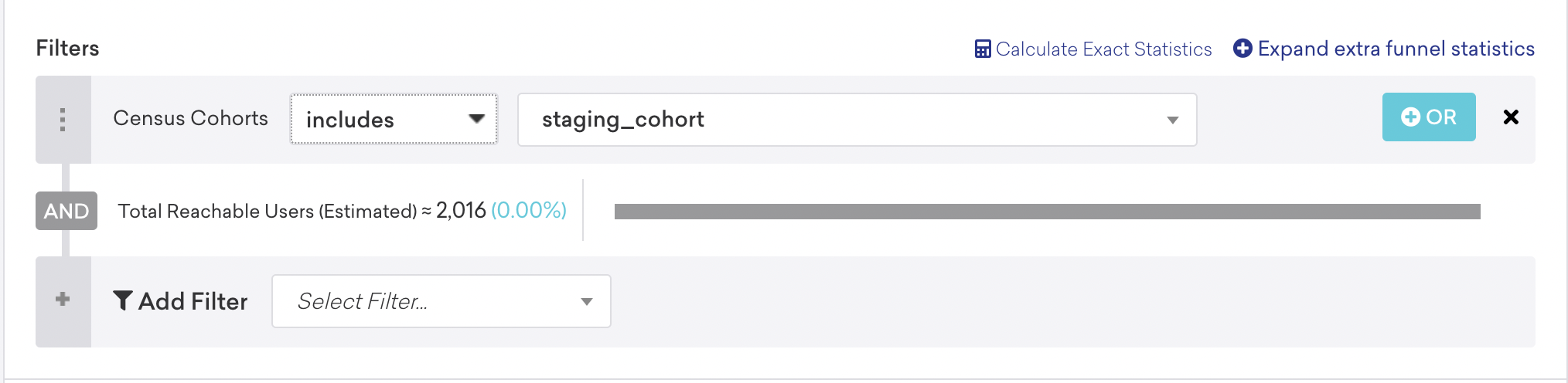
Activations Cohort custom filter in Braze
Catalogs
To sync to Catalogs, you'll need to do two additional steps:
- Make sure your API key in Braze provides write access to Catalogs (
catalogs.*). If you didn't include this permission previously when connecting to Activations, you may need to generate a new API Key - Create the catalog in Braze first, so that it shows as an option in Activations.
API-Triggered Campaign and Canvas Entry
API Triggered Campaign and Canvas Entries are useful for triggering transactional actions within Braze. Like Catalogs, you will need to create the Campaign/Canvas Entry in Braze first before it appears as a destination object in Activations.
If your users can be entered into the same Canvas or Campaign multiple times, use Activations Tracking ID as the sync key. External ID will still need to be mapped as a required field.
You can read more about Braze API-Triggered Campaigns and Canvas Entries in their documentation.
User Data Protections
Activations supports Braze's user properties related to user data protections: email_open_tracking_disabled and email_click_tracking_disabled.
These are boolean properties. Set them to true to disable open or click tracking in future emails sent to the user.
Data Points
Activations uses an internal BrazeDiff mechanism during every sync to minimize Braze data points usage.
During every sync (including Full Syncs), Activations will automatically compare the data coming from your data source with the data already present in Braze. Activations will calculate the diff between the two and only send changed data. If there is no new values in the source, Activations will not send any changes to Braze.
Note that certain built-in fields in Braze, such as Country and Gender, have automatic standardization that happens in Braze. i.e.: "United States" from SQL becomes "US" from Braze's API.
So when using these type of values, we recommend either:
- Pre-standardize your fields to match Braze’s format (i.e. "US")
- Use Custom Attributes to store them instead
When syncing to Arrays of Objects, Activations will perform a deep diff of all of the objects in the array. This means that if you have an array of objects, and only one object in the array changes, only that object will be sent to Braze. As mentioned above, make sure that each object in the array has a unique ID field that can be used to calculate the diff.
Data Types in Braze
With Activations, you know have the ability to specify which Data Type your syncs are referring to. When you change the data type, the next Activations sync will be a full sync. If the Activations destination field data types match up with the Braze data types, Activations will perform the Braze export and comparison with your data.
Please make sure you validate the data types on Custom Attributes, that they are as you would expect in the Sync mappings.
An example of this is when the Braze Custom Attribute Type that is "Automatically detect (Time)", we strongly recommend making sure that the Activations Destination field type as shown below of type "DateTime" as shown below.
