
This page describes how to use Activations with Pinterest.
Getting Started
Note: You will need admin rights in your organization's Pinterest Business Account to be able to successfully authenticate the connection.
- Navigate to the Destinations page in Activations and click New Destination.
- Select Pinterest from the menu.
- Follow the Pinterest OAuth authentication flow, which will ask you to log in with your Pinterest username and password.
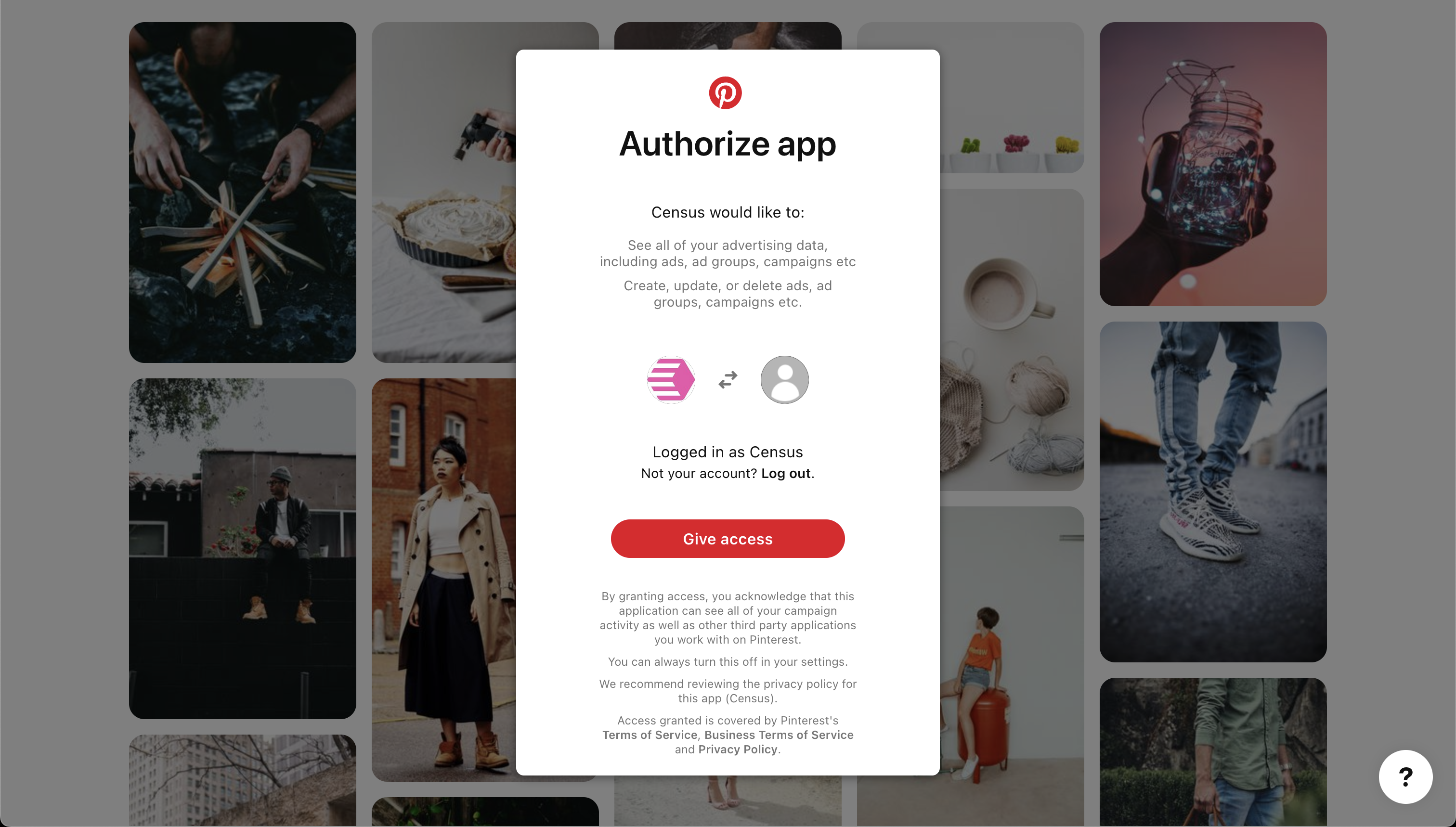
Connect Activations to Pinterest via OAuth.
Supported Objects and Sync Behaviors
| Object Name | Supported? | Sync Keys | Behaviors |
|---|---|---|---|
| Customer List | ✅ | Email, IDFA, MAID ** | Mirror, Update or Create |
| Conversion | ✅ | Any unique identifier | Send |
Note: Pinterest requires emails to be lowercase and can be plain text or hashed using SHA1, SHA256, or MD5. MAIDs and IDFAs must be hashed with SHA1, SHA256, or MD5. You have the option to provide plain-text versions of any of these to Activations and we will automatically hash the values before passing them along to Pinterest.
Learn more about all of our sync behaviors in our Syncs documentation.
Contact Support if you want Activations to support more Pinterest objects.