
Coupa Setup Guide
Follow our setup guide to connect Coupa to Fivetran.
Prerequisites
To connect Coupa to Fivetran, you need a Coupa account.
To edit the response filters, you need the Administrator role or the api_filters/index permission.
Setup instructions
Find hostname
- Log in to your Coupa account.
- Find the hostname in the URL of your Coupa account and make a note of it. Coupa accounts have hostnames in the following format:
{customer_name}.coupahost.comor{customer_name}.coupacloud.com.
The protocol parts of the URL https:// and http:// are not part of the hostname.
Find client ID and client secret
In your Coupa account, go to the Setup tab.
In the Integrations section, click Setup > Oauth2/OpenID Connect Clients. You can type ‘oauth’ in the Search box to find it faster.
Click Create.
For Grant Type, select Client credentials.
Enter the following information: - A Name for the client, - Login - Contact Firstname - Contact Lastname - Contact Email
Select the read scopes listed in the section below.
- core.accounting.read
- core.approval.read
- core.budget.read
- core.business_entity.read
- core.catalog.read
- core.common.read
- core.contract.read
- core.contracts_template.read
- core.easy_form_response.read
- core.expense.read
- core.integration.read
- core.inventory.adjustment.read
- core.inventory.asn.read
- core.inventory.consumption.read
- core.inventory.receiving.read
- core.inventory.return_to_supplier.read
- core.inventory.transfer.read
- core.inventory.transaction.read
- core.invoice.read
- core.item.read
- core.order_pad.read
- core.pay.charges.read
- core.pay.payments.read
- core.payables.external.read
- core.project.read
- core.purchase_order.read
- core.requisition.read
- core.sourcing.read
- core.sourcing.pending_supplier.read
- core.sourcing.response.read
- core.supplier_information_tax_registrations.read
- core.supplier.read
- core.supplier.risk_aware.read
- core.user_group.read
- core.user.read
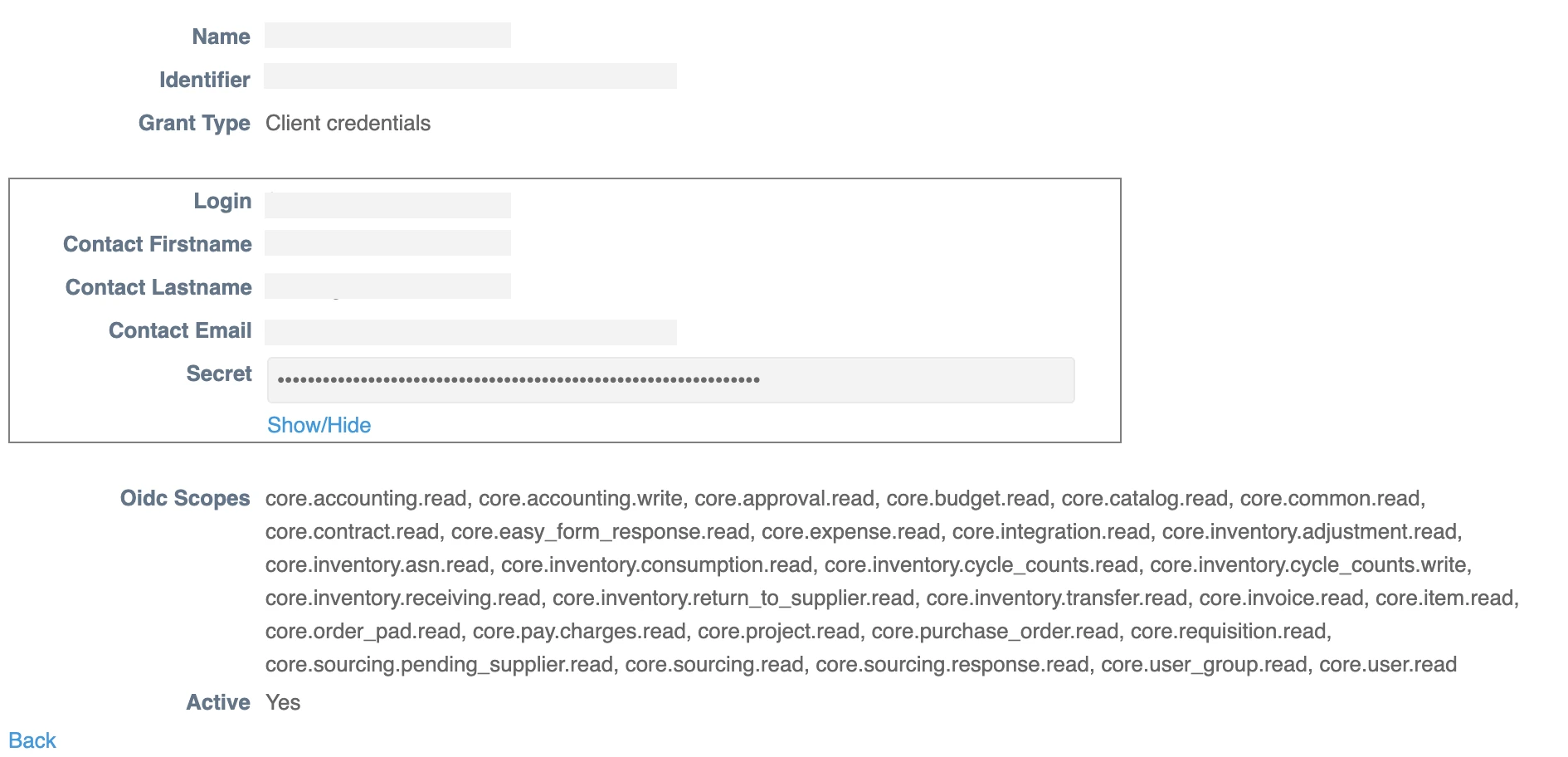
Make a note of your Client ID displayed next to Identifier. You will need it to configure Fivetran.
Click Show/Hide under Secret to see your Client Secret, and make a note of it. You will need it to configure Fivetran.
Read Coupa's OAuth documentation to learn how to create an OAuth2/OIDC Client key.
(Optional) Edit API response filters
Coupa uses API filters to constrain the volume of data in the response. It labels the default filters using the pattern default_[ResourceName]_filter.
To edit the default filters and exclude certain fields from the response, go to Setup > Integrations > API Filters.
If you configure a filter that blocks certain fields from coming in the response, we sync these fields as null.
Finish Fivetran configuration
- In the connection setup form, enter the Destination schema name of your choice.
(Hybrid Deployment only) If your destination is configured for Hybrid Deployment, the Hybrid Deployment Agent associated with your destination is pre-selected for the connection. To assign a different agent, click Replace agent, select the agent you want to use, and click Use Agent.
- In the Instance URL field, enter the hostname you found.
- Enter the Client ID and Client Secret you found.
- Click Save & Test. Fivetran will take it from here and sync your Coupa data.