
Impact Brand Setup Guide
Follow our setup guide to connect Impact Brand to Fivetran.
Prerequisites
To connect Impact Brand to Fivetran, you need an Impact Brand account.
Supported authentication methods
You can create the connection using one of the following authentication methods:
- Basic
- OAuth2.0
Setup instructions
(Optional) Find Account SID and Auth token
Skip this step if you want to authenticate the connection using OAuth 2.0.
Log in to your Impact Brand account.
On the right navigation menu, click Settings.
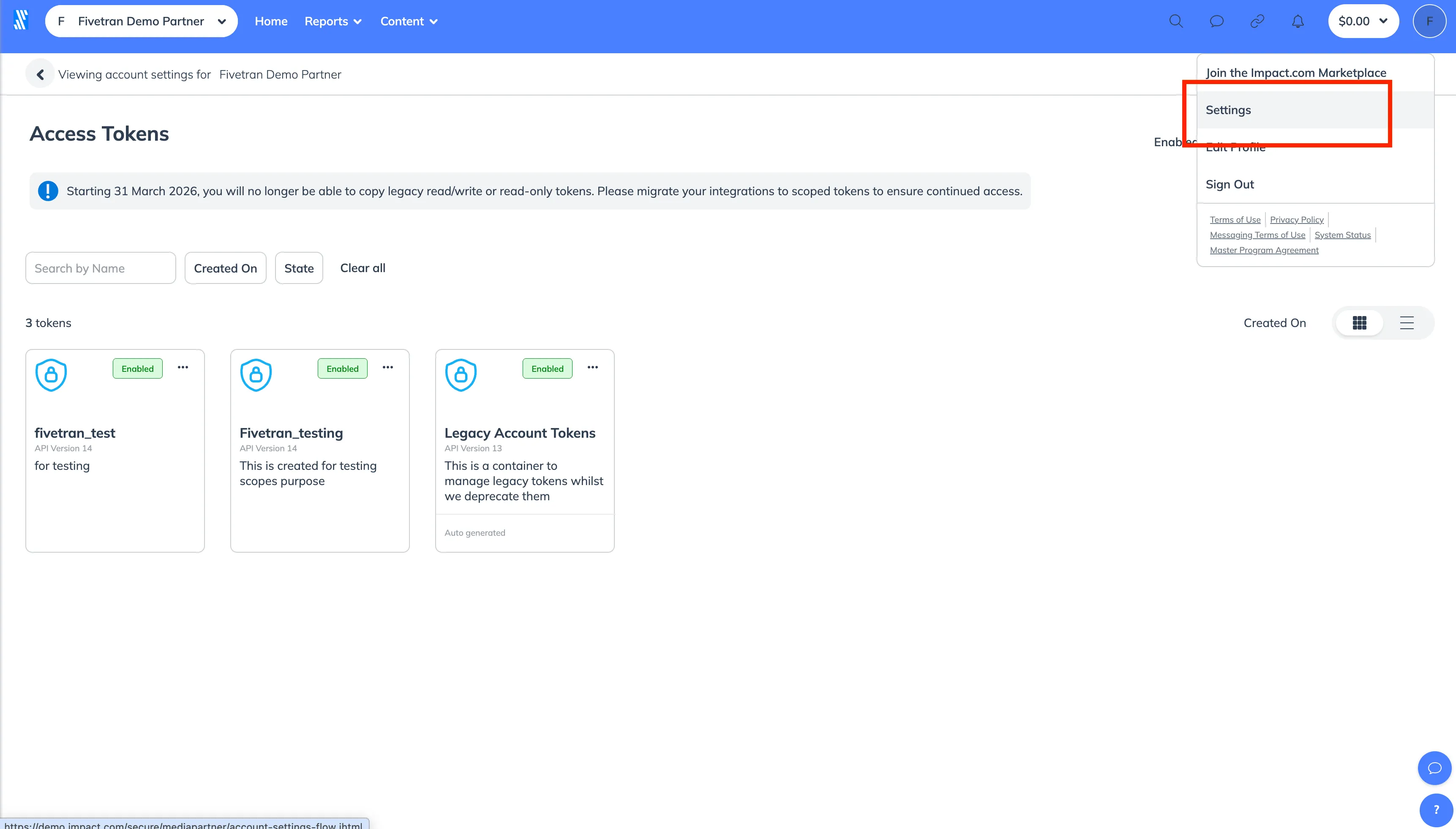
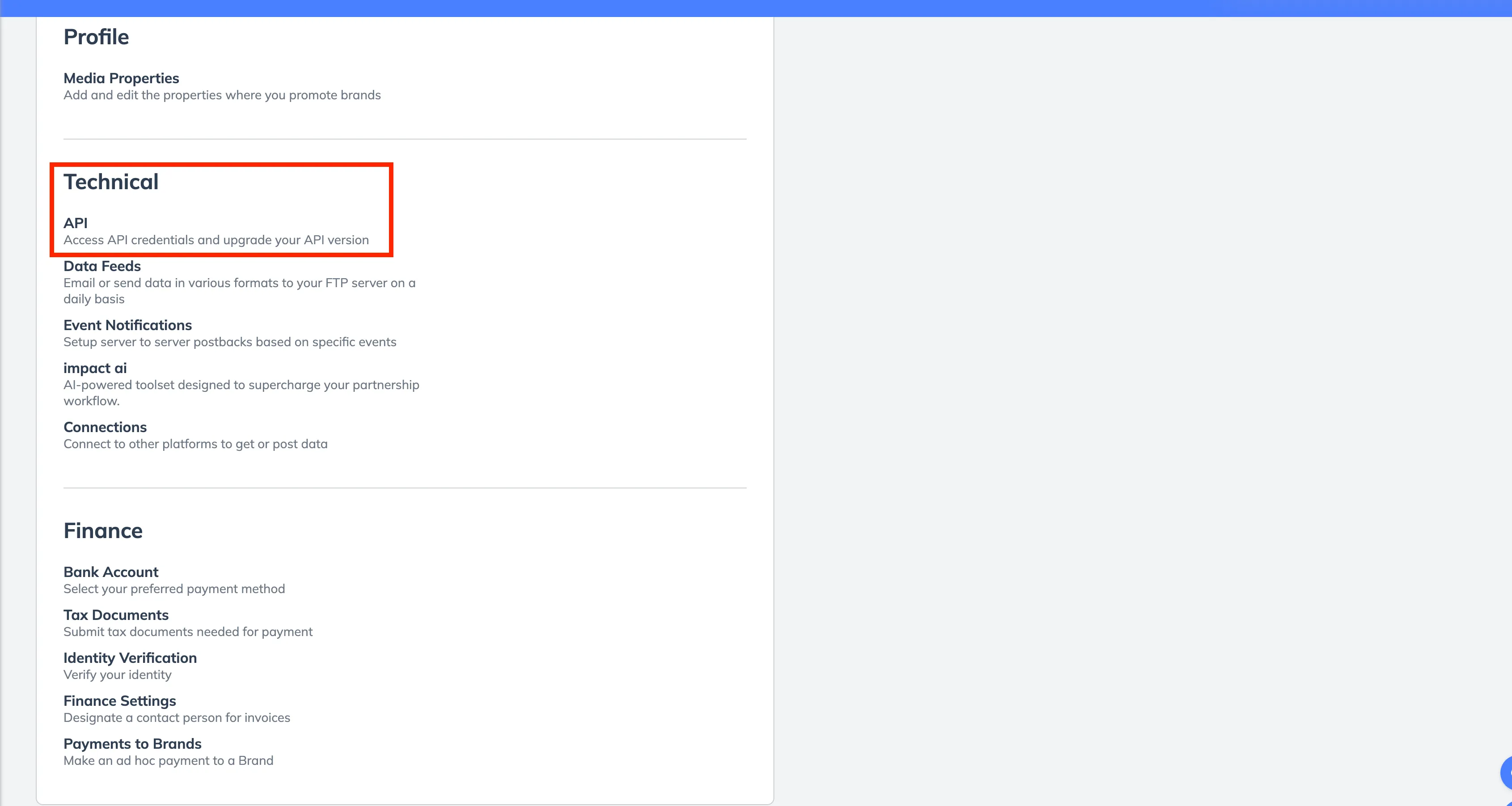
In the TECHNICAL section, click API.
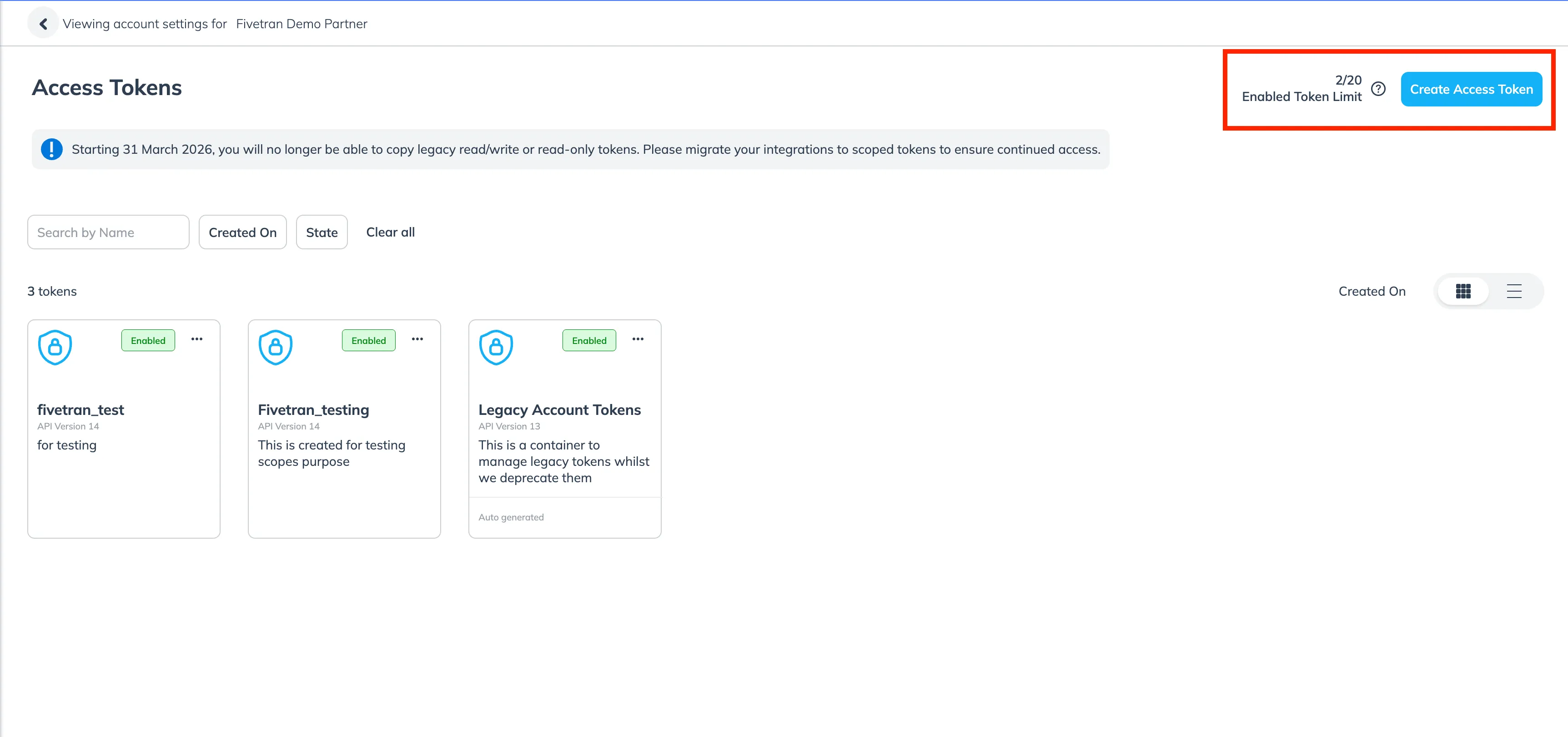
Click Create Access Token.
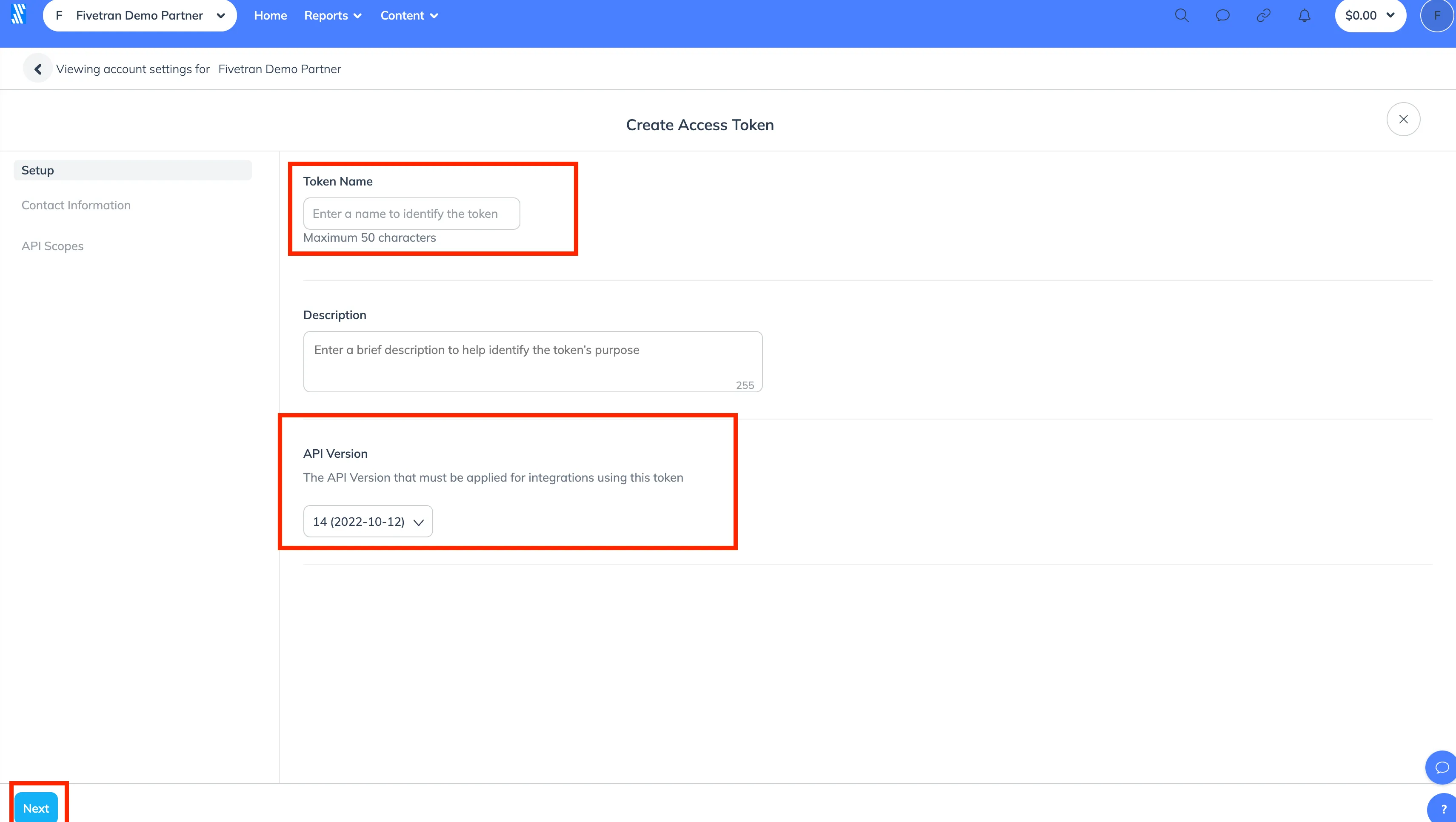
In the Create Access Token window, provide a unique label in the Token Name field. Ensure the API Version is set to 14 (2022-10-12), then click Next.
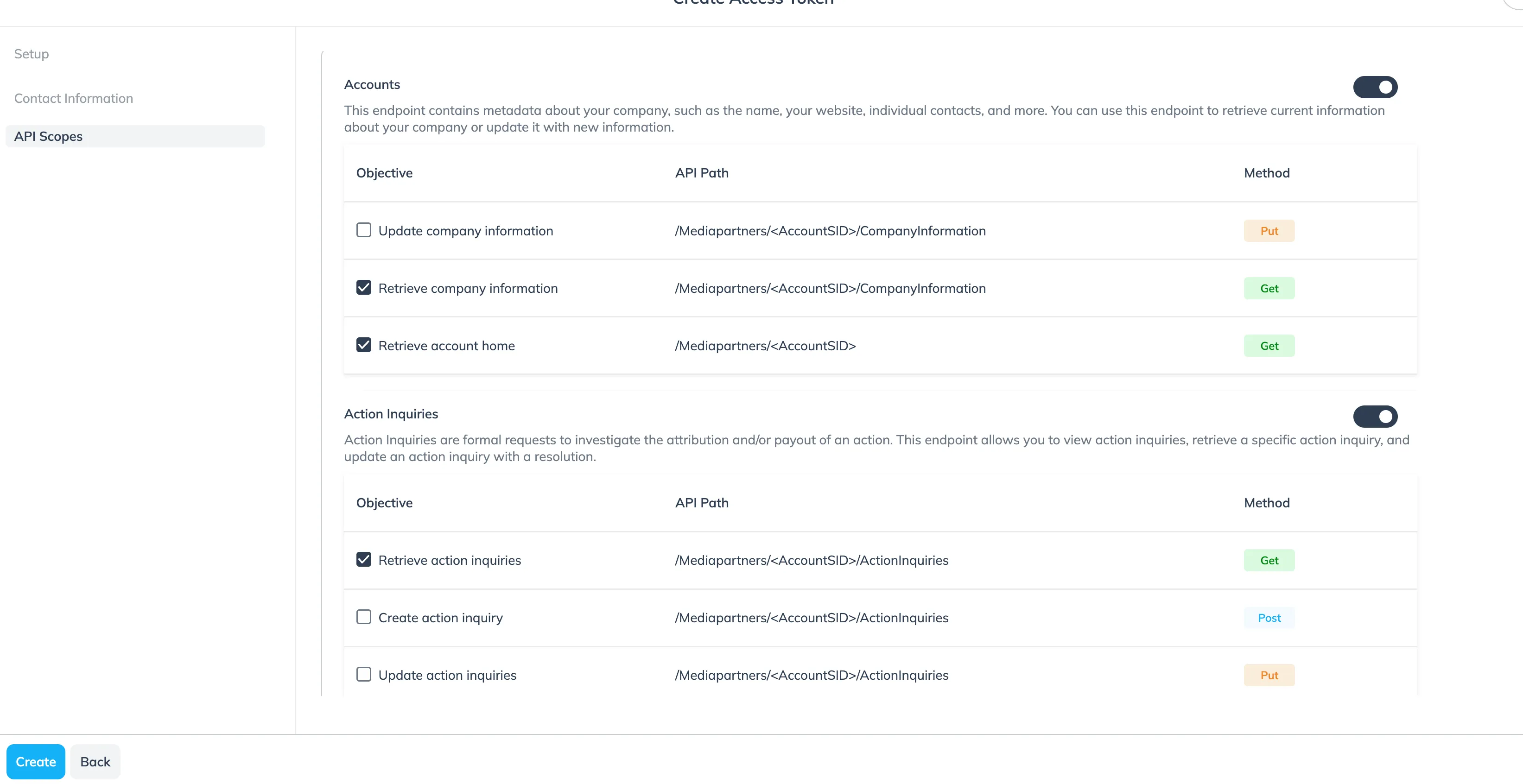
On the API Scopes screen, locate the scopes required for your integration. Enable the Get method for these scopes and select Create to generate the token.
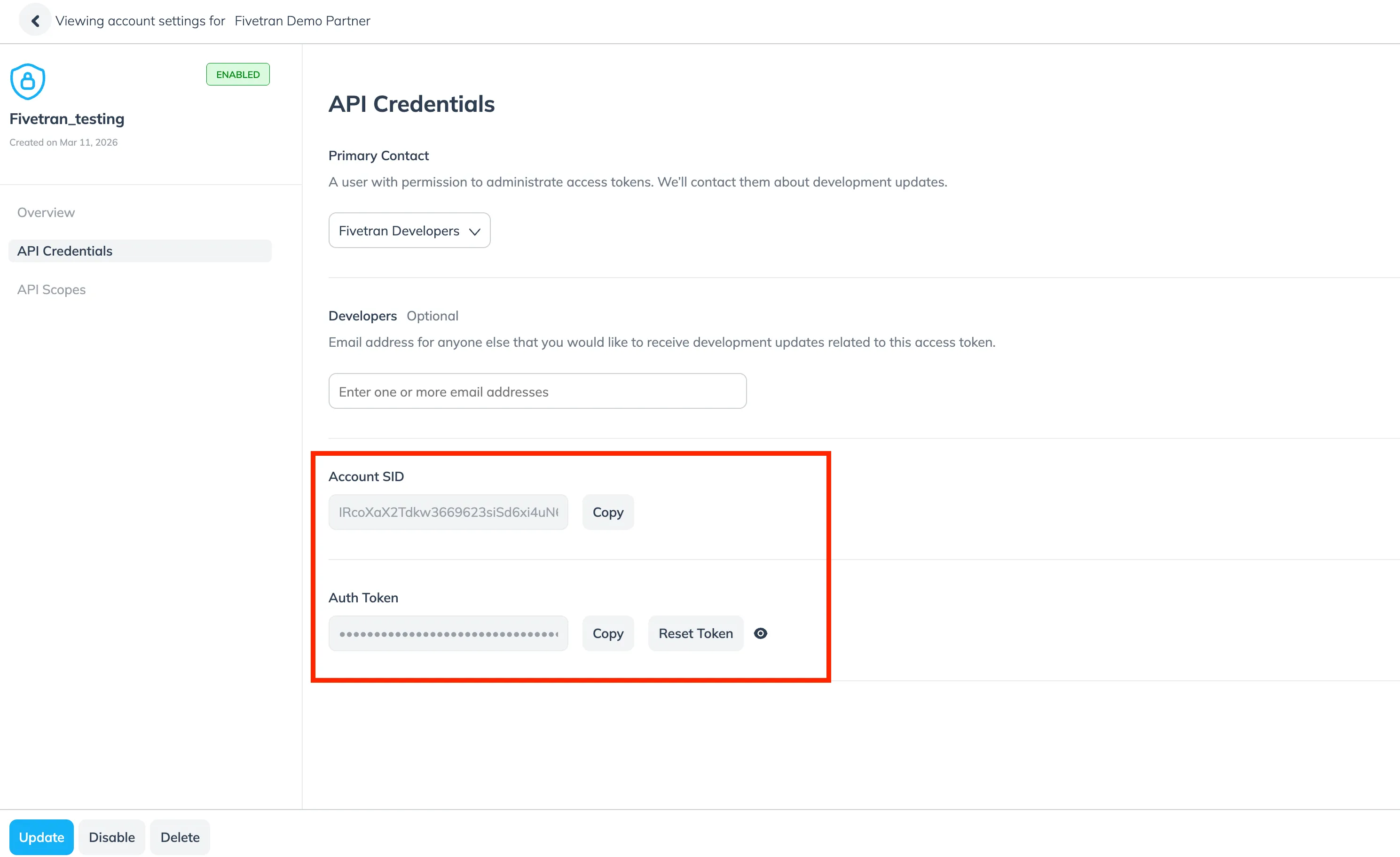
Once the token is created, click on the token name you have created. Click on the API Credentials and make a note of the Account SID and Auth Token. You will need them to configure Fivetran.
Finish Fivetran configuration
In the connection setup form, enter the Destination schema name of your choice.
In the Authentication type drop-down menu, select one of the following authentication methods:
Basic: Enter the Account SID and Auth Token you found.
OAuth 2.0: Click Authorize to allow Fivetran to access your Impact Brand account using OAuth. You will be redirected to your Impact Brand account to authorize Fivetran's access. Once you have finished, you will be redirected back to Fivetran.
(Hybrid Deployment only) If your destination is configured for Hybrid Deployment, the Hybrid Deployment Agent associated with your destination is pre-selected for the connection. To assign a different agent, click Replace agent, select the agent you want to use, and click Use Agent.
Click Save & Test. Fivetran will take it from here and sync your Impact Brand data.