
Smartsheet Setup Guide
Follow our setup guide to connect Smartsheet to Fivetran.
Prerequisites
To connect Smartsheet to Fivetran, you need an active Smartsheet account with access to the sheets you want to sync.
Setup instructions
Configure Smartsheet for authentication
Follow the configuration instructions for your chosen authentication method.
API token
Log in to your Smartsheet account.
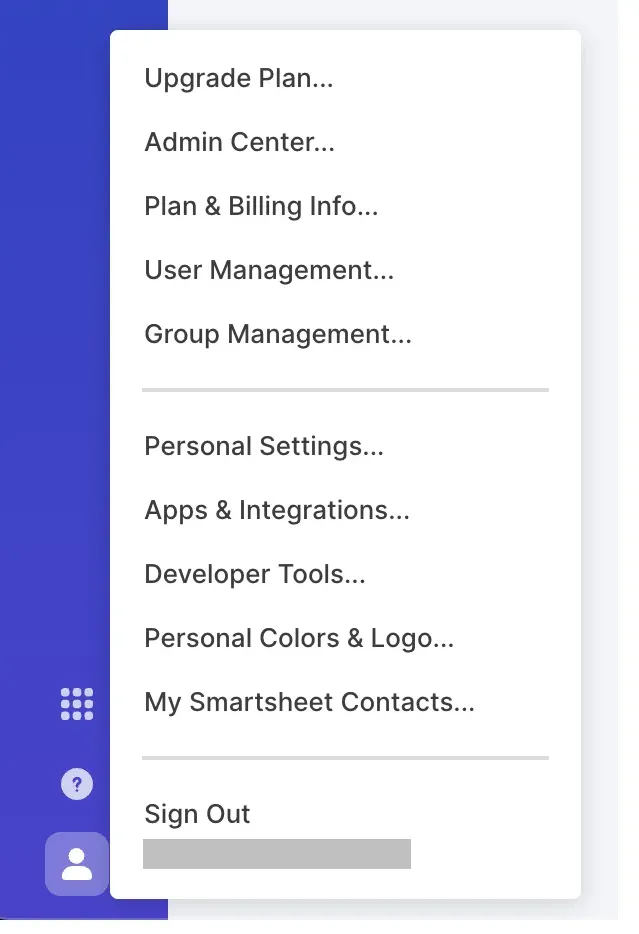
On the home screen, click your profile icon and select Apps & Integrations.
In the popup window, select the API Access tab.
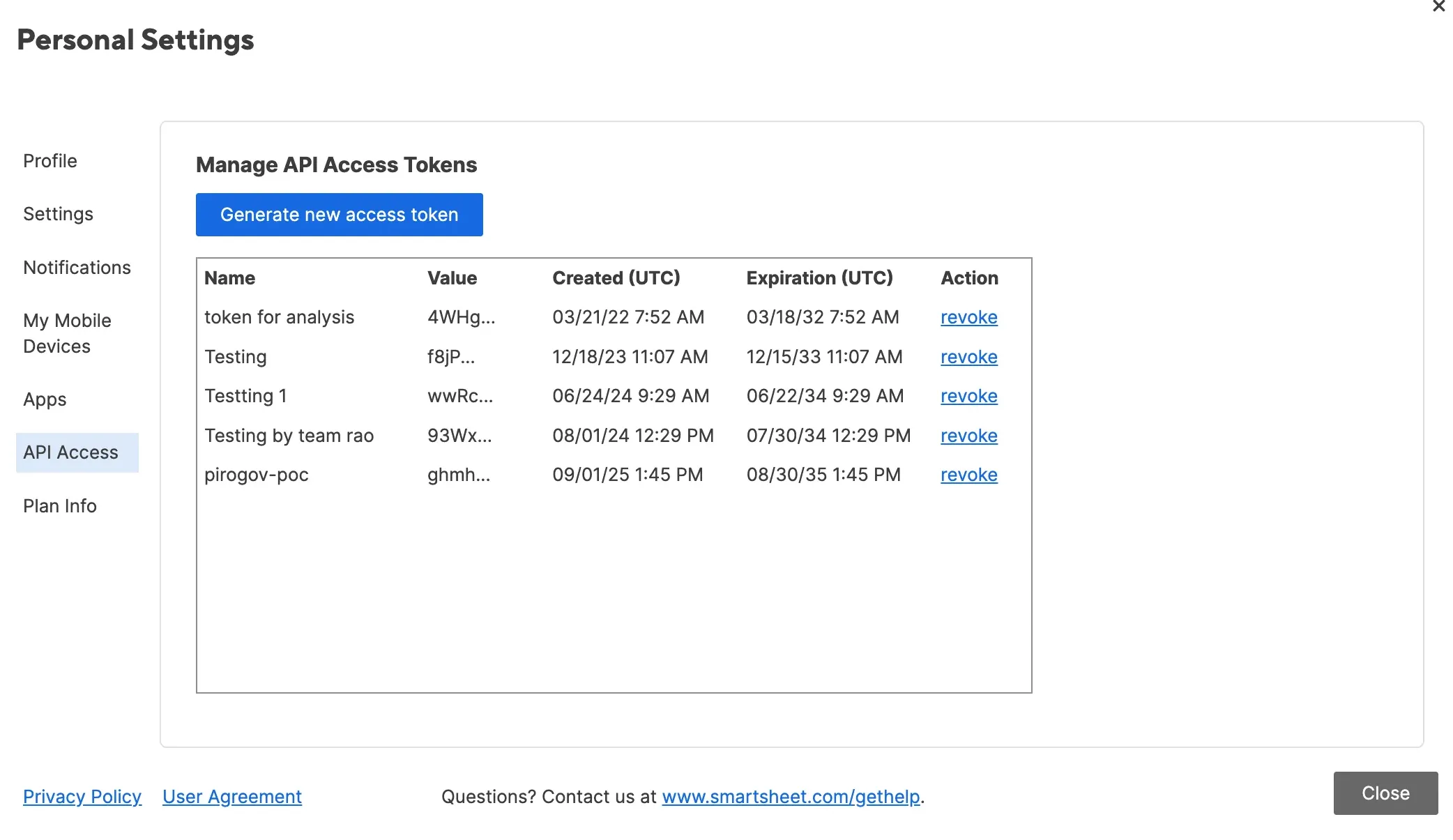
Click Generate new access token.
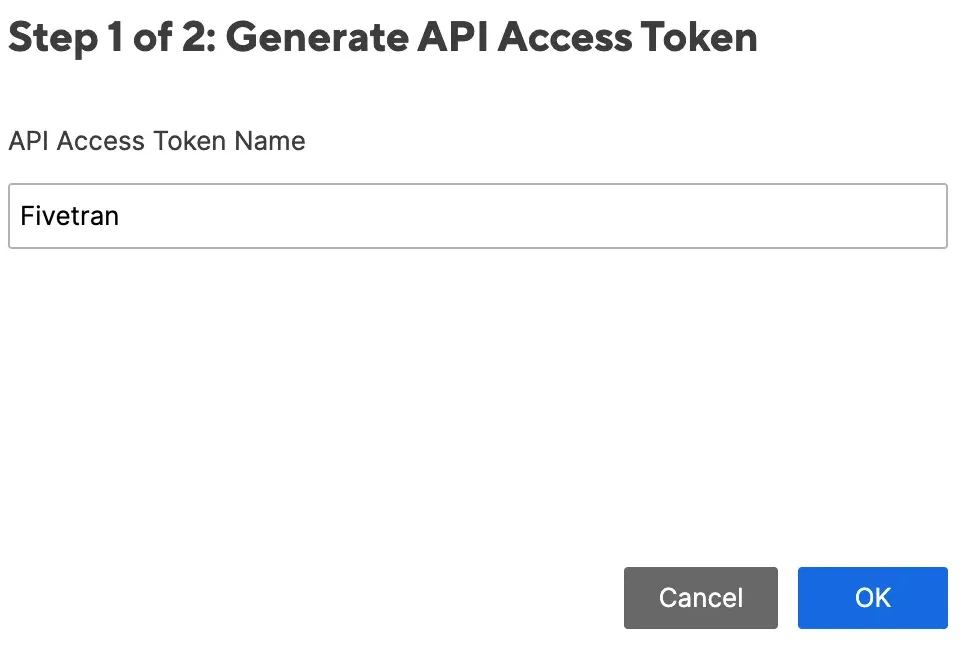
In the dialog that appears, enter a name for your token (we suggest
Fivetran).Click OK.
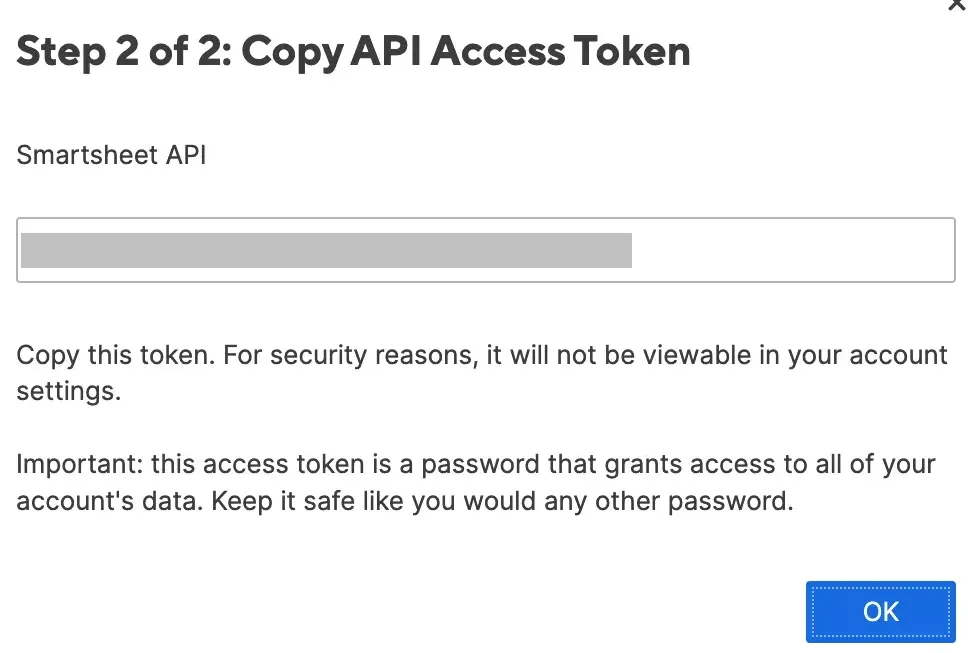
Make a note of your API token. You will need it to configure Fivetran.
OAuth 2.0
You will configure OAuth 2.0 during the Finish Fivetran configuration step in the Fivetran dashboard. No manual setup is required in Smartsheet beforehand.
The following OAuth scopes are requested by Fivetran:
READ_SHEETSADMIN_WEBHOOKS
For more information, see Smartsheet Access Scopes.
Finish Fivetran configuration
In the connection setup form, enter the Destination schema name of your choice.
Select your Authentication Method:
Using API Token
- Enter the API Token you found in the Configure Smartsheet for authentication step.
Using OAuth 2.0
Click Authorize. This redirects you to Smartsheet.
In Smartsheet, log in if prompted.
Review the requested permissions and click Allow to grant Fivetran access to your Smartsheet data.
Smartsheet redirects you back to the Fivetran connection setup form, which confirms that authentication is complete.
Click Save & Test. Fivetran will take it from here and sync your Smartsheet data.